How to Calculate Project Profitability (Free Excel Template vs. Automation)
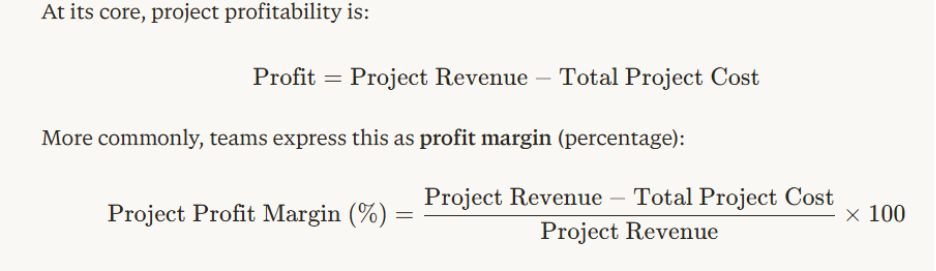
Table of contents
-
1. Introduction
-
2. Why project profitability matters
-
3. Common pain points teams face
-
4. Simple project profitability formula
-
5. Simple project profitability formula
-
6. Using a free Excel template
-
7. Moving to automation: what changes?
-
8. Project profitability: Excel vs automation comparison
-
9. Contextual callouts (key concepts)
-
10. Frequently asked questions (FAQs)
-
11. Conclusion & next steps
Introduction
If you’re running projects—whether in an agency, in‑house team, or freelance setup“ project profitability” is one of the most important numbers you need to understand. It tells you not just how much money you’re generating, but how much of that money you actually keep after paying for labor, time, tools, and overhead.
In this guide, you’ll learn how to calculate project profitability step by step, see how a free Excel template fits into this workflow, and compare that approach with modern automation tools that streamline the entire process.
Why project profitability matters
Project profitability measures how much net value you realize from each project after accounting for all costs. It’s not the same as revenue or invoice value; it answers the question:“Did this project actually make us money?”
Tracking profitability helps you:
- Identify which clients, service types, or project structures are most and least profitable.
- Decide whether to raise prices, tighten scope, or discontinue certain offerings.
- Spot problem projects early, before they erode margins.
For teams that want to move beyond “busy being profitable,” understanding project profitability is essential.
Common pain points teams face
Before diving into formulas, it’s important to recognize the real problems that prompt people to search for “how to calculate project profitability” or “free Excel template project profitability.”
1. No clear real‑time view of margins
Many teams only discover a project is losing money during month‑end accounting, not while the project is still running. By then, scope creeps and unbilled effort have already damaged profitability.
2. Manual spreadsheets get messy
Free Excel templates are easy to start with, but they quickly become:
- Hard to audit
- Prone to errors (wrong formulas, inconsistent data)
- Difficult to maintain as the number of projects grows
3. Hidden or forgotten costs
Teams often calculate only billable hours at a basic hourly rate, but forget:
- Fully loaded labor cost (salary, benefits, taxes, overhead)
- Internal meetings, client calls, and rework
- One‑off expenses like software licenses, travel, or contractor fees
4. No automation or “what‑if” analysis
Even with a spreadsheet, you’re doing math manually. You’re not getting:
- Live dashboards
- Automatic alerts when margins dip
- Scenario analysis (e.g., “What if we change the mix of senior vs junior staff?”)
These issues are exactly why many teams move from Excel‑based calculations to automation.
Simple project profitability formula
Key components:
Project revenue
- Client‑facing invoice value
- Adjusted for discounts, change orders, or write‑offs
Total project cost
- Direct labor: Hours × fully loaded cost per hour
- Project expenses: Travel, tools, software, contractors
- Non‑billable time: Internal meetings, rework, hand‑offs
Some advanced setups also calculate net profitability, which allocates shared overhead (office costs, management, HR) across projects.
Step‑by‑step guide to calculate project profitability
Here’s how you can calculate project profitability whether you’re working in Excel or an automation platform.
Step 1: Define the project and expected revenue
- Clarify whether the project is fixed‑fee or time‑and‑materials.
- Capture the expected total revenue or target billing amount.
- Note any assumed discounts or change‑order expectations.
Step 2: Track project hours by role
For each project, record:
- Project manager time
- Designer, developer, consultant, QA, and support hours
- Time spent on client calls, revisions, and internal coordination
If you’re using Excel, you’ll need to maintain a consistent time‑tracking sheet for each project.
Step 3: Assign fully loaded hourly cost
For each role, calculate the fully loaded hourly cost:
This prevents you from under‑pricing work by only looking at salary or “hourly rate.”
Step 4: Add non‑labor project costs
Log all project‑specific expenses:
- Travel, accommodation, meals
- Software or tool licenses
- Contractors or freelancers
- Any one‑off project‑related costs
In Excel, you can keep this in a separate “Expenses” table or section and then link it to the main project sheet.
Step 5: Compute project gross margin
- Sum all project revenue.
- Sum all project costs (labor + expenses).
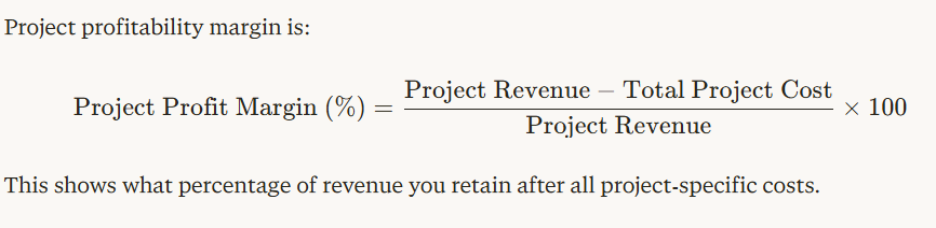
- Apply the profit margin formula above.
For example:
- Revenue: ₹1,00,000
- Cost: ₹70,000
- Profit margin: 1,00,000−70,0001,00,000×100=30%\frac{1,00,000 - 70,000}{1,00,000} \times 100 = 30\%1,00,0001,00,000−70,000 ×100=30%
Step 6: Visualize and interpret the results
Create charts or pivot tables to compare margins across projects, clients, or time periods.
Identify patterns:
- Are certain clients consistently low‑margin?
- Do fixed‑fee projects beat hourly projects in profitability?
This step is manual in Excel; in automation, dashboards update automatically as new time and expense data comes in.
Using a free Excel template
Many teams start with a free Excel template to calculate project profitability. These templates typically include:
- Time‑entry sheets by role
- Cost‑per‑hour tables
- Revenue and expense sections
- Pre‑built formulas for margin calculation and charts
Pros of using a free Excel template
Fast to set up and customizable.
No initial licensing cost.
Easy for small teams or occasional analysis.
Cons of using a free Excel template
- Manual data entry for every project and every period.
- Higher risk of formula errors or inconsistent data.
- Hard to maintain as the number of projects, clients, or team members grows.
- No built‑in dashboards or alerts; you must refresh and rebuild visuals yourself.
For early‑stage teams or those doing only rough profitability checks, a free Excel template can be a good starting point. As you scale, however, the limitations become more apparent.
Moving to automation: what changes?
Automation platforms for project profitability connect your time tracking, project data, and billing systems so that calculations happen automatically.
What automation adds
Centralized data
Time entries, expenses, and client billing sync in one place.
Live dashboards
See project margin, client‑level margin, and service‑line margin in real time.
Alerts and thresholds
Get notified when a project margin drops below a target (e.g., “This project is now below 20% margin”).
Scenario modeling
Test “what‑if” scenarios like changing staffing mix, revising effort estimates, or adjusting pricing.
Instead of spending hours each week updating spreadsheets, you spend time interpreting the results and making better‑informed decisions.
Project profitability: Excel vs automation comparison
| Aspect | Free Excel template | Automation platform |
|---|---|---|
| Setup time | Low; quick to start but requires manual data entry. | Higher initial setup but integrates time tracking and billing. |
| Accuracy | Prone to manual errors, formula issues, and inconsistent data. | Centralized data reduces human error and versioning conflicts. |
| Scalability | Hard to manage 50–100+ projects consistently. | Designed for multi-project, multi-client environments. |
| Reporting | Requires manual updates, exports, and chart building. | Live dashboards, filters, and drill-down views. |
| Alerts & triggers | None; you must proactively check spreadsheets. | Automatic alerts when margins fall below thresholds. |
| "What-if" analysis | Hand-built, time-consuming models. | Scenario-planning tools and built-in simulations. |
If your team is frequently asking “Is this project still profitable?” or “Are we losing money on this client?”, automation usually becomes the better long‑term choice.
Contextual callouts (key concepts)
-
Gross vs. net project profitability
- Gross margin typically includes only project-specific costs.
- Net margin allocates shared overhead (management, office, HR) across projects.
-
Fully loaded labor cost
-
This is the true cost of employing someone, including salary, benefits, taxes,
tools, and a share of overhead. More accurate than “hourly rate” alone.
-
This is the true cost of employing someone, including salary, benefits, taxes,
-
Non-billable time
-
Internal meetings, client calls, rework, and hand-offs are real costs.
If you ignore them, your profitability calculations will be overly optimistic.
-
Internal meetings, client calls, rework, and hand-offs are real costs.
-
Margin by client or service line
-
Tracking profitability by client or by service type (e.g., “UI/UX design,”
“DevOps setup”) helps you focus on what really drives value.
-
Tracking profitability by client or by service type (e.g., “UI/UX design,”
-
Real-time vs. static analysis
- Static analysis (once-a-month spreadsheets) is backward-looking.
- Real-time analysis (via automation) lets you steer projects proactively.
These concepts help you move from generic profitability tracking to a more nuanced,
business-driven understanding of how each project contributes to your bottom line.
Frequently asked questions (FAQs)
This shows what percentage of revenue you retain after all project‑specific costs. To calculate project profitability in Excel:
- Create columns for project, hours per role, hourly cost, and revenue.
- Multiply hours × fully loaded cost for each role.
- Sum all labor and non‑labor costs.
- Use the margin formula above in a result cell.
- Add charts or pivot tables to compare margins over time or by client.
Many teams use free Excel templates for profitability analysis to jump‑start this process.
A free Excel template can work well for:
- Small teams
- Simple, fixed‑fee projects
- Occasional, high‑level analysis
As you add more projects, clients, and team members, spreadsheets become harder to maintain, and errors become more likely. At that point, automation becomes more valuable.
Automation platforms typically offer:
- Centralized data from time tracking, project tools, and billing systems.
- Real‑time dashboards and visualizations.
- Alerts when margins fall below target.
- Scenario‑planning tools that let you test different pricing or staffing models.
This reduces manual work and helps you make faster, data‑driven decisions.
Punchly provides project‑profitability automation that connects your project data, time tracking, and financial information so you can:
- Track margin per project, client, and service line.
- Get alerts when profitability drops below target.
- Use built‑in dashboards and scenario‑planning tools to optimize pricing and staffing.
Visit our project profitability automation page to see how Punchly helps you move from manual spreadsheets to automated, real‑time profitability tracking. You can also explore our project management and time‑tracking category for related tools.
Conclusion & Next Steps
Calculating project profitability is not just a finance exercise—it’s a core business practice that separates healthy growth from busy but unprofitable operations.
- With a free Excel template, you can start easily and cheaply, but you’ll need to invest time in data entry, formula maintenance, and manual analysis.
- With automation, you preserve the same underlying formulas but gain real‑time visibility, automated calculations, and scenario‑planning tools that help you make better decisions faster.
If you’re ready to move beyond manual spreadsheets and unreliable, one‑off calculations, consider a project‑profitability automation platform that connects your project, time, and financial data in one place.