
Timesheet approval without the chasing
Each person submits their time for the period. Their manager checks it in one list, approves it or sends it back with a note, and approved hours are locked. Payroll and invoices then run on numbers nobody can change afterwards.
Standard plan, $4 a person a month. 7-day free trial of the Pro plan’s features, no credit card needed.

How the timesheet approval process works
Submit. At the end of the period each person presses Submit for approval on their week.
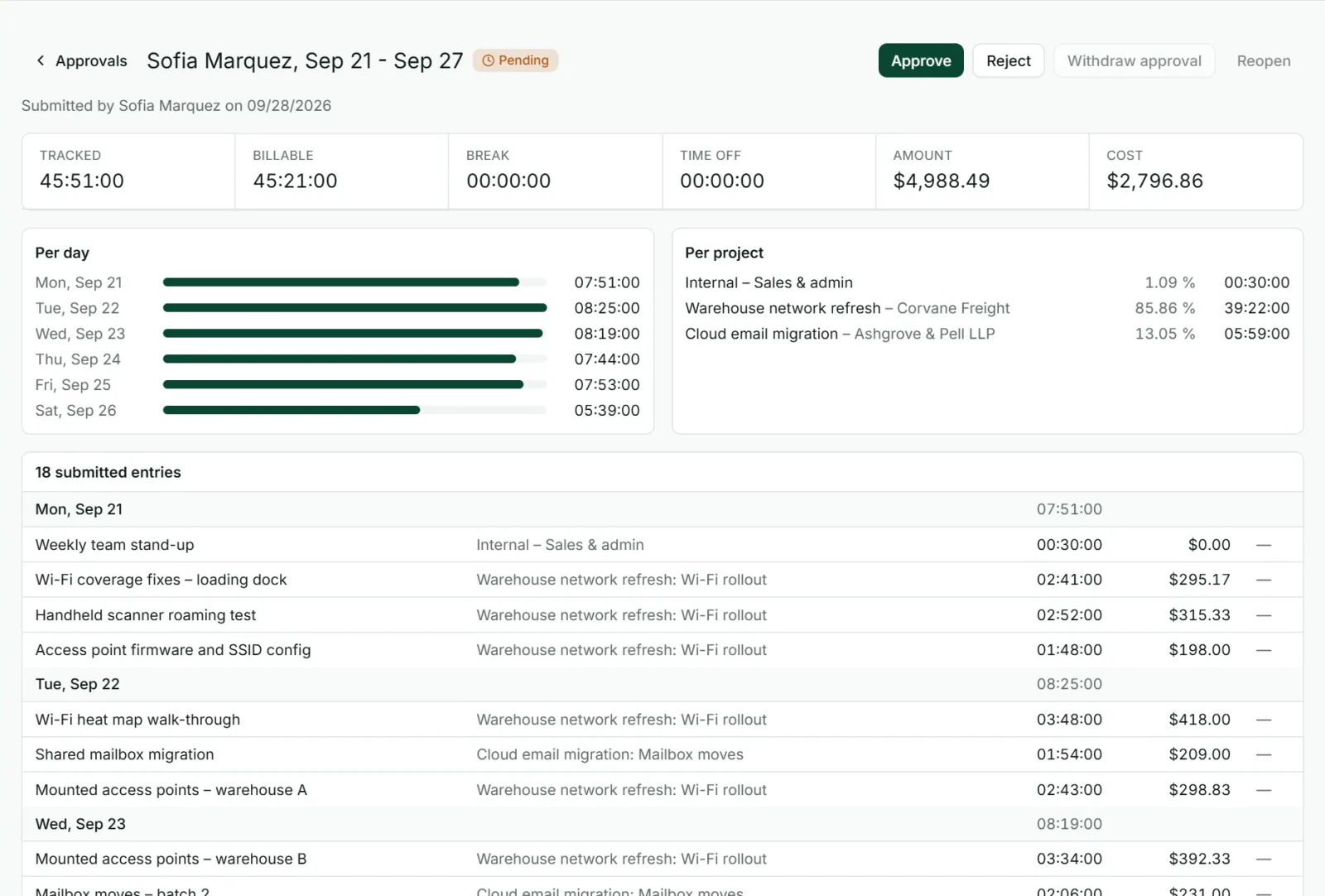
Review. The manager opens the request and sees the totals, the time per day and per project, and every entry.
Decide. Approve it, or reject it with a note that says what to fix.
Lock. Approved time is read-only for everyone until an approver withdraws the approval.
Everything waiting for you in one list
The Approvals screen is the manager’s inbox. It lists the requests waiting for a decision, the ones already approved, and everything decided before. A manager with twenty people can approve the straightforward weeks together and open only the ones that need a closer look.
Approve several at once, or all of them.
Changes are marked. An entry edited after it was submitted is flagged, so nothing slips past.
A history on each request shows who did what and when.

See who has not submitted, and remind them
Late timesheets hold up payroll. The Unsubmitted tab lists everyone who has not sent their time for the period. Remind them in one click, or submit on behalf of someone who is away, and they are told that you did.
The right approver for each person
Owners and admins can always approve. Beyond that, you choose who else can, to match how your company is organized.
Team managers approve their own team’s time.
Project managers approve the hours on their projects. The week shows as partly approved until the rest is covered.
A manager never approves their own time. Only the owner and admins can decide on their own.
Weekly, twice a month or monthly
Choose the period that matches your payroll or billing cycle: every week, the 1st to the 15th and the 16th to month end, or the whole month. Expenses can be approved the same way, on their own cycle (expenses need the Pro plan).
Mistakes can still be fixed, on the record
Approval does not mean an error is stuck for good. The person can withdraw a request they sent too early. A manager can withdraw an approval to unlock a period, and it goes back to the person to correct and submit again. Rejecting a request and withdrawing an approval both need a note, so there is always a reason on file.
Lock the past without approving anything
Not every company wants an approval step. The lock date is the simpler tool: pick a date and regular members can no longer add, change or delete time before it. It can move forward by itself every week or month, so last month closes without anyone remembering to do it.

Who needs timesheet approval
Companies that pay by the hour
And must not pay on unchecked time.
Agencies and consultancies
That invoice clients from timesheets.
Teams with contractors
Whose hours are approved before they are paid.
Any business that gets audited
And needs to show who signed off what.
Questions people ask
Something else on your mind? Our team answers from inside the app and by email.
Close each period with confidence
Switch on approvals, choose your period and have this week’s timesheets signed off on time.