
A task time tracker for work that has many parts
A project total tells you a job took 300 hours. Tasks tell you that 120 of them went on testing. Split each project into tasks, let people pick one when they start the timer, and see where the time inside a project really goes.
Tasks are free on every plan. 7-day free trial of the Pro plan’s features, no credit card needed.
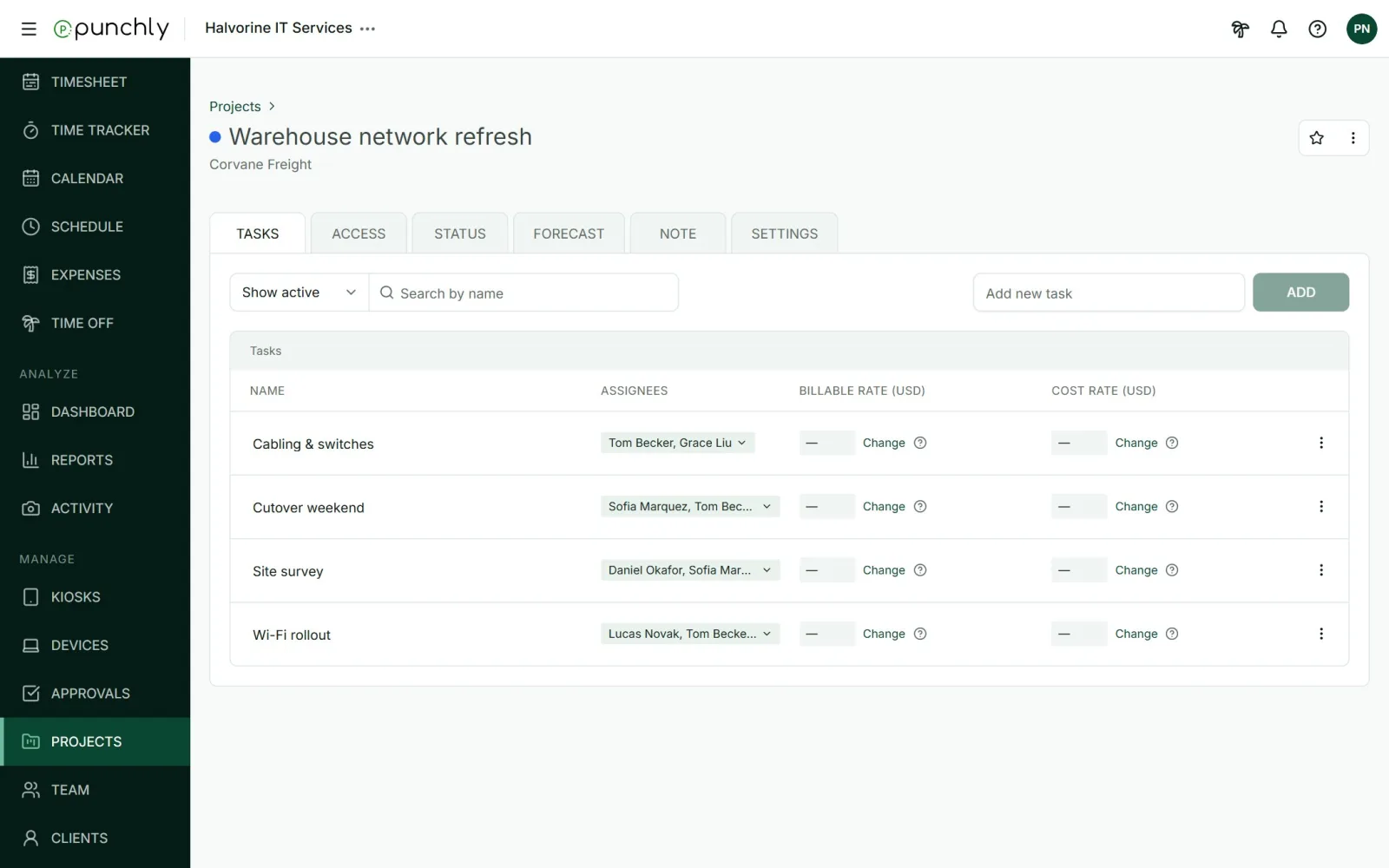
Split a project into tasks
Tasks are the parts a project is made of, such as “Design”, “Site survey” or “Testing”. Open a project, type a task’s name and press Add. There is nothing else to set up.
From then on, the task appears under its project in the timer’s dropdown. People choose it when they start tracking, on the web, the desktop app or their phone.
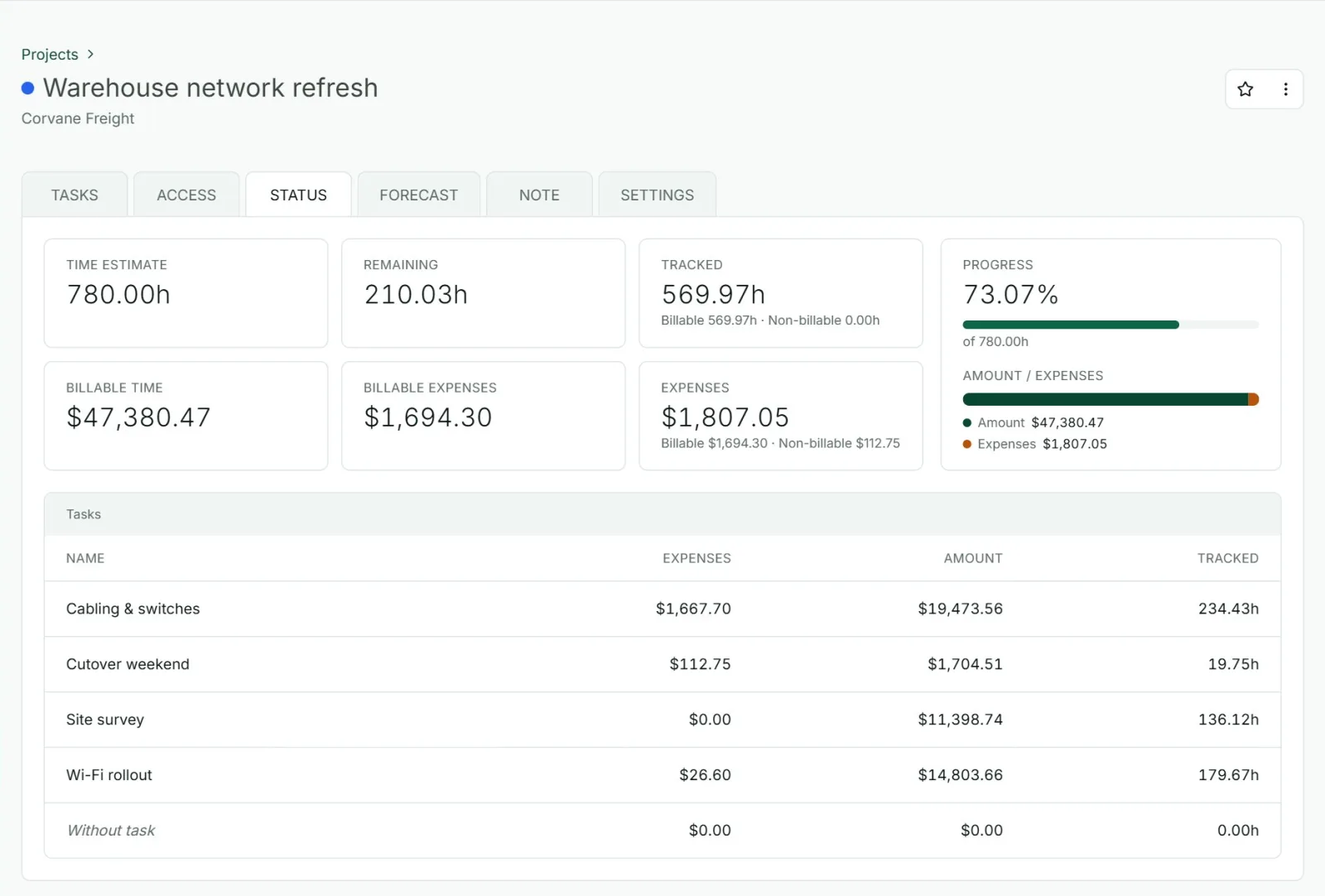
See how long each task takes
Every hour tracked on a task is added to that task’s total. The project’s status page lists its tasks with the hours on each, and reports can group time by task across projects and people.
Over a few projects this becomes your own record of how long things take. The next time you quote a similar job, you are working from real numbers and not from memory.
Choose who can track on a task
By default, anyone who can work on the project can pick any of its tasks. For work that belongs to certain people, assign the task to those people or to a group, and only they will see it in their dropdown. Owners, admins and the project’s managers can always pick any task.
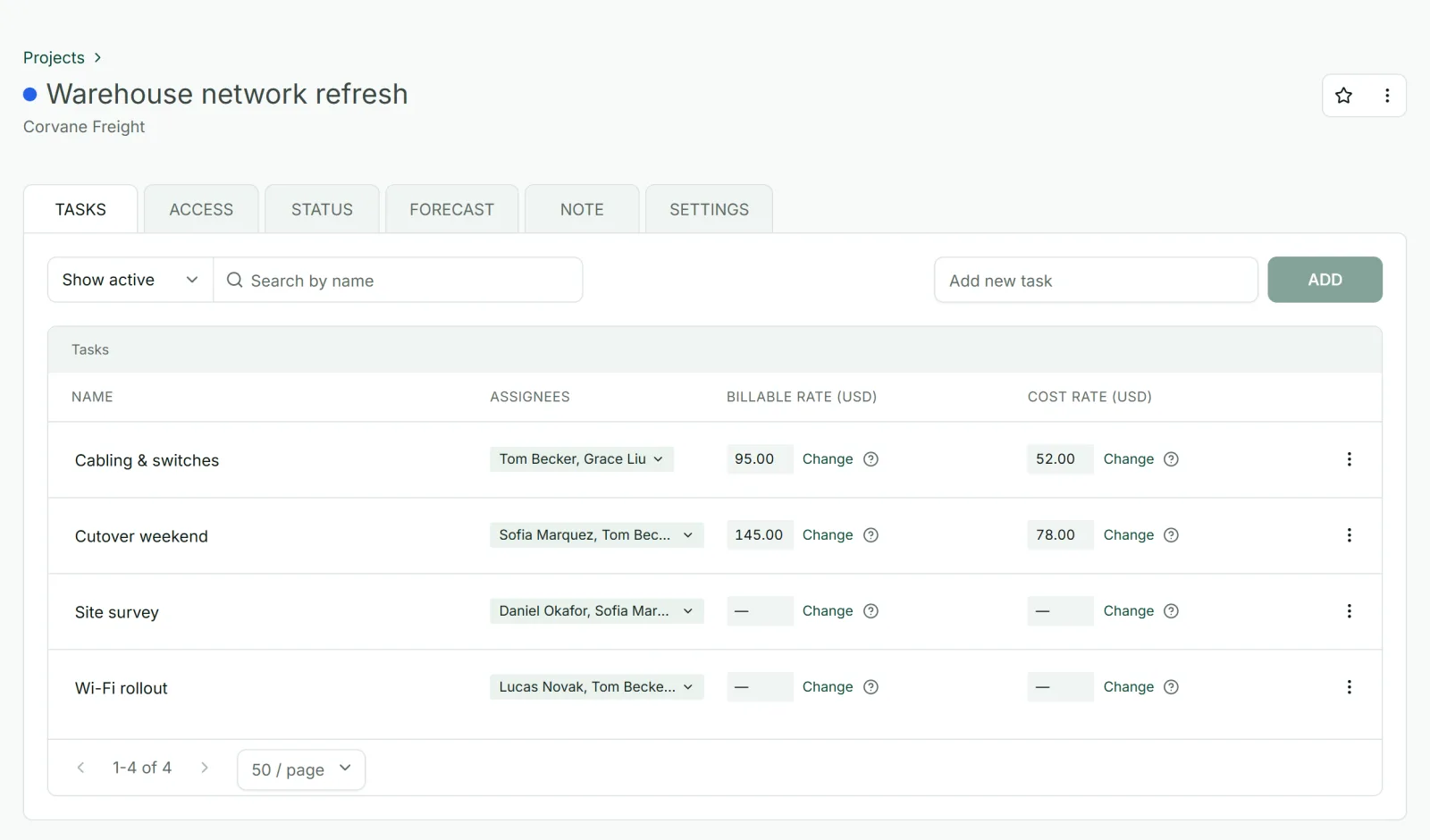
Give a task its own rate
Not all hours are worth the same. A task can carry its own billable rate, for example a higher rate for on-site work or a lower one for travel. Time tracked on that task is priced at its rate without anyone having to remember (Standard plan).
Finish a task without losing its time
When the work is done, mark the task as done. It leaves the dropdown, so nobody starts new time on it by mistake, and every hour already tracked on it stays exactly where it is.
A task that was closed while someone still had time on it is still shown on those entries, marked Done, so past work keeps its label.
Your Jira issues as tasks
If your team plans its work in Jira, there is no need to type tasks twice. Connect Jira Cloud and the open issues of the projects you choose, with the ones closed recently, appear in Punchly as tasks. When an issue is closed in Jira, its task is closed here (Standard plan).
Who tracks time by task
Software teams
Who want hours per issue or per kind of work.
Agencies
Who bill design, development and project management at different rates.
Field teams
Who separate travel, on-site work and paperwork.
Anyone who quotes fixed prices
And needs to know what each part really costs.
Questions people ask
Something else on your mind? Our team answers from inside the app and by email.
Find out where the hours inside a project go
Create a project, add its tasks and track your next piece of work against one of them.