
An employee time clock app for any tablet
Put a tablet by the door and your whole crew can clock in, take breaks and clock out with a couple of taps. Staff need no computer and no email address, and you no longer collect paper sheets or type them up at the end of the week.
Standard plan, $4 a person a month. Kiosk-only staff $1 each. 7-day free trial of the Pro plan’s features, no credit card needed.
What a time clock kiosk is
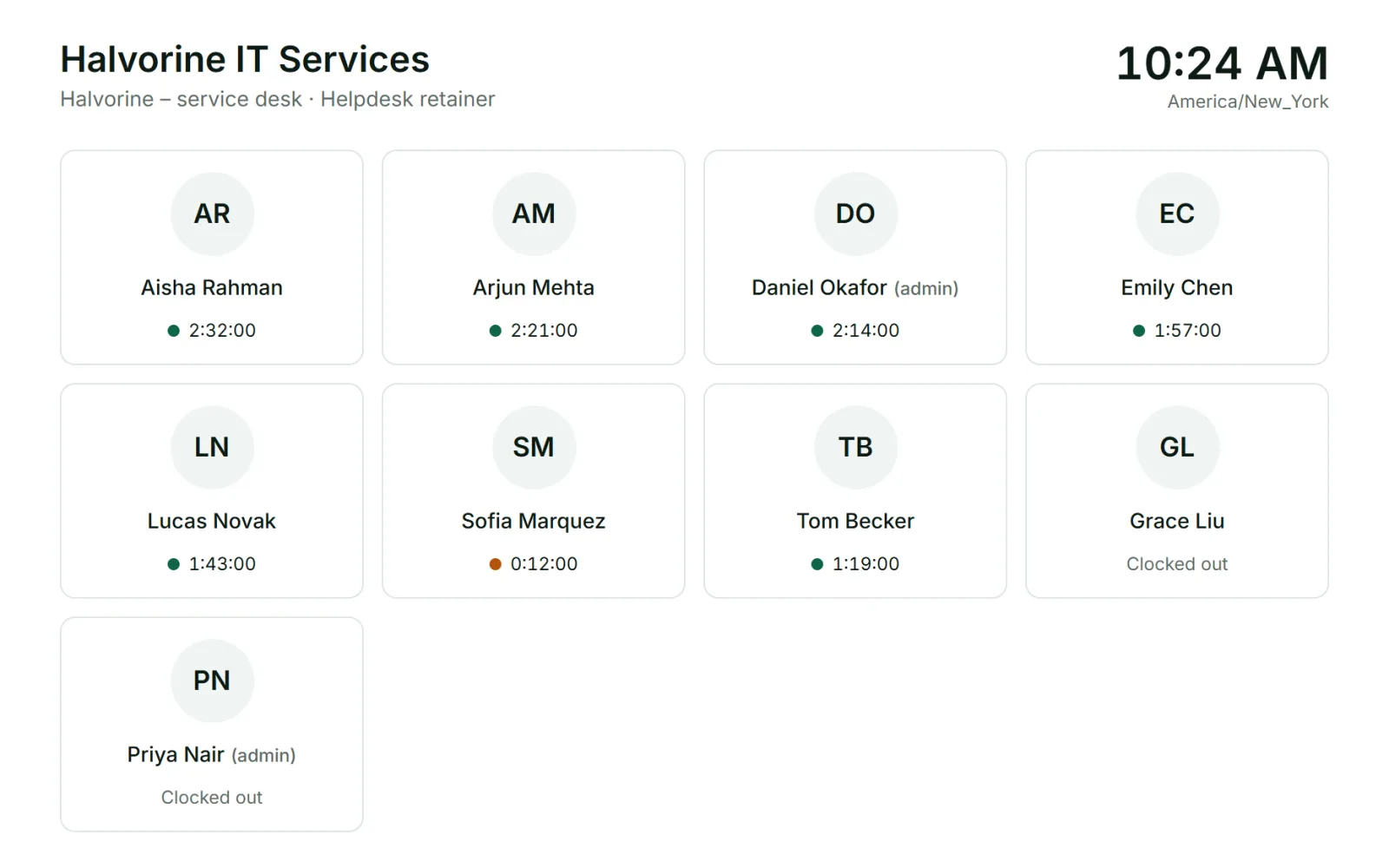
A kiosk is a shared screen at a workplace where people clock in and out. It does the job of a punch clock or a sign-in sheet, but the hours go straight into your time tracking, already added up and ready to approve.
Punchly’s time clock software runs in a web browser, so the kiosk can be an old tablet, a spare phone or the computer at the front desk. There is no special hardware to buy.
Set up a time clock in three steps
Setting up a kiosk takes three steps, and nothing has to be installed.
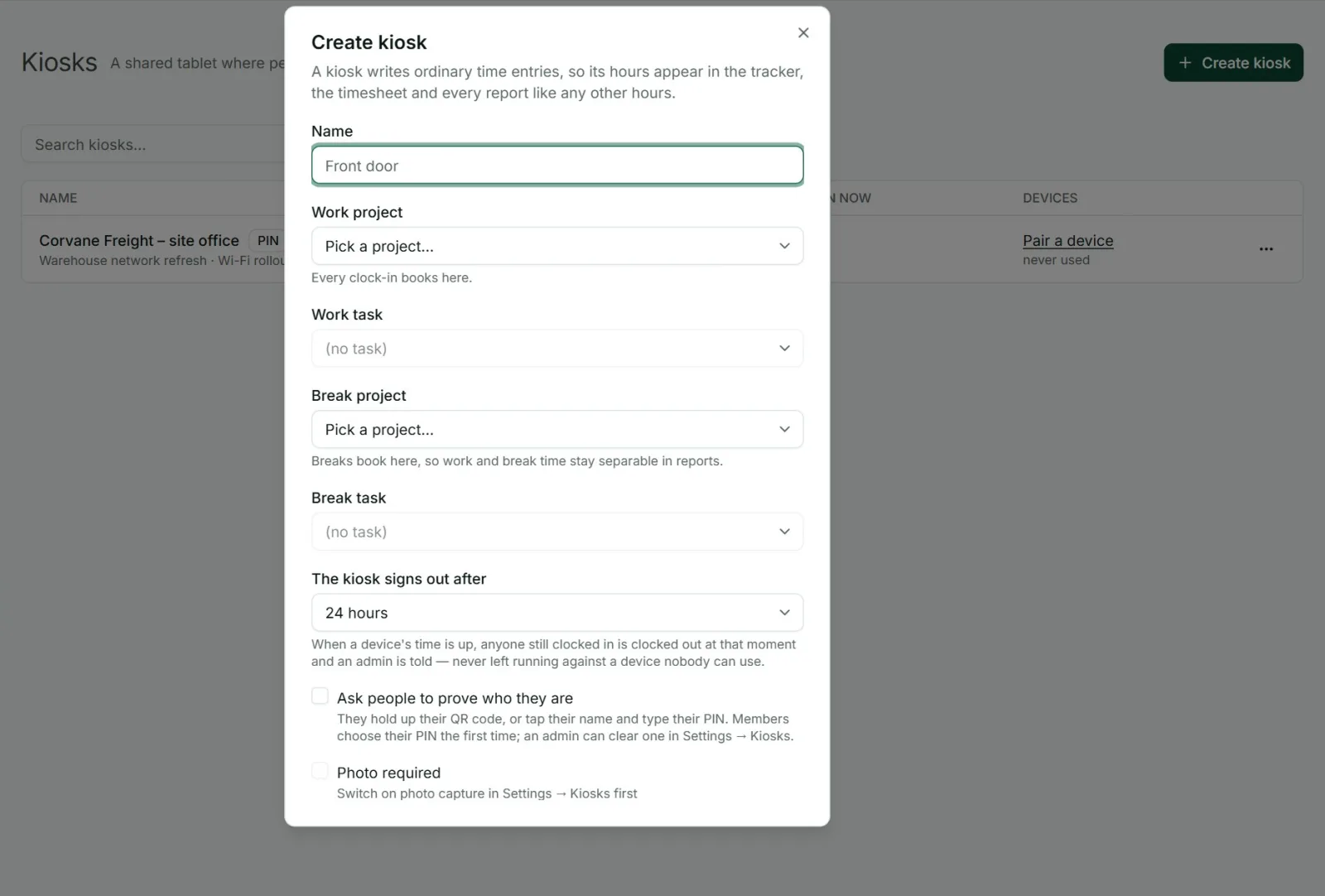
Create a kiosk. Give it a name such as “Front door” and choose the project its hours belong to. If you track breaks, pick where break time goes as well.
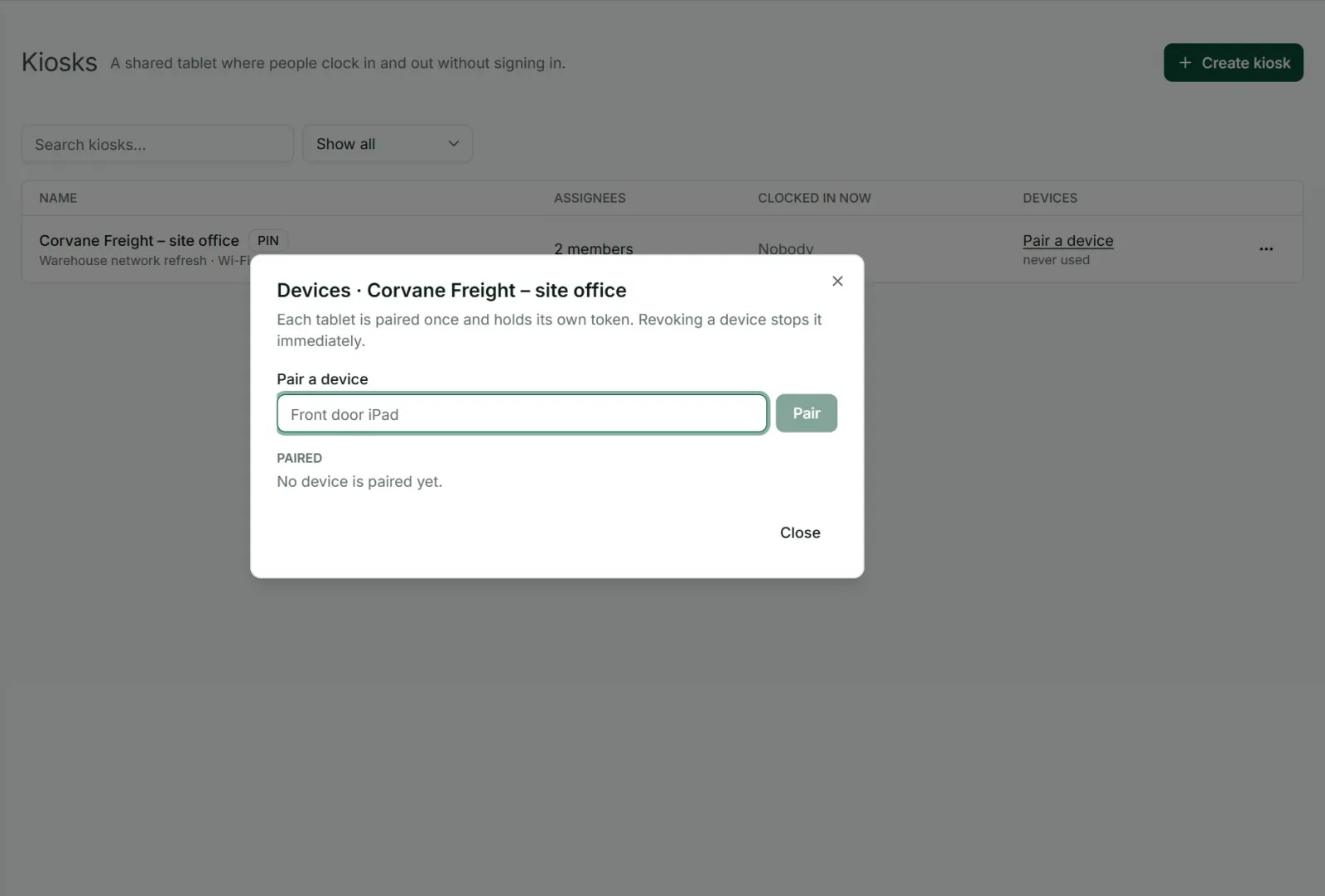
Pair a tablet. Punchly shows a one-time link and a QR code. Open the link on the tablet or scan the code with its camera. The tablet needs no login.
Your team clocks in. Each person taps their name and presses Clock in.
Clock in, take a break, clock out
The kiosk screen has a tile for every person who can use it. A green dot means working and an amber dot means on a break, so a supervisor walking past can see who is in without asking.
Each action takes one tap, and the screen goes back to the name list by itself, ready for the next person, so a line at the start of a shift keeps moving.
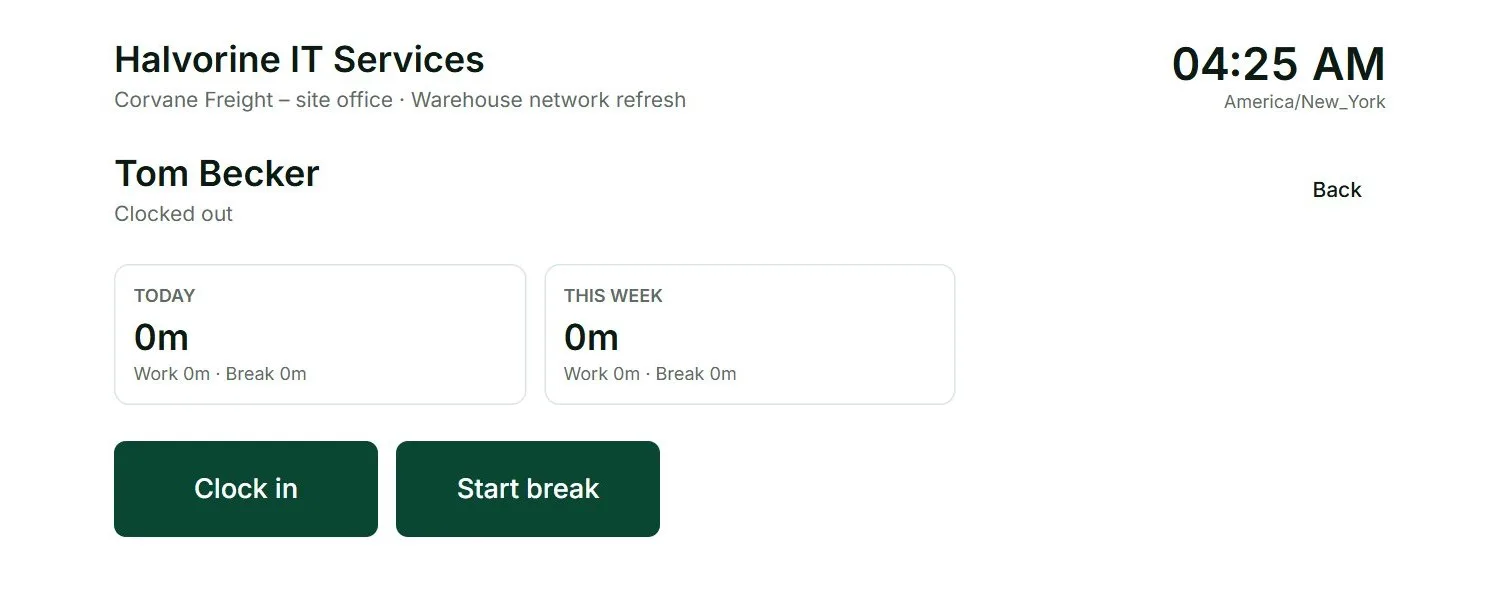
One tap for each action: Clock in, Start break, Finish break, Clock out.
Hours on screen: each person sees their own total for today and this week.
Breaks kept apart: break time is recorded separately and never counts as work.
Know it is really them
The weakness of any shared time clock is one person clocking in for another. Punchly gives you three ways to make that hard, and you choose how strict to be.
Personal PIN. Each person chooses their own PIN, 4 or 6 digits long as you set for the workspace, and types it at each action. After five wrong tries the kiosk locks them out for a few minutes.
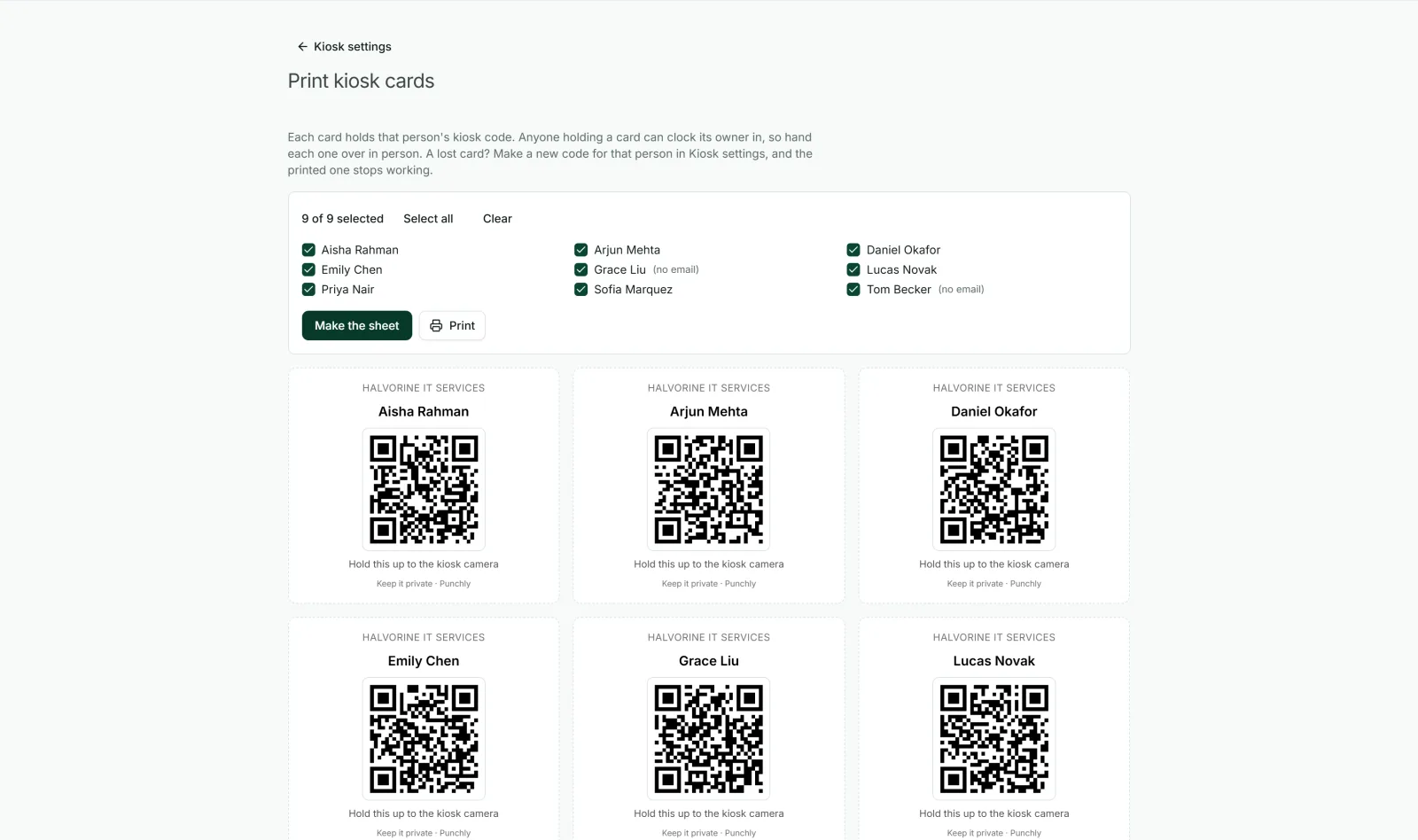
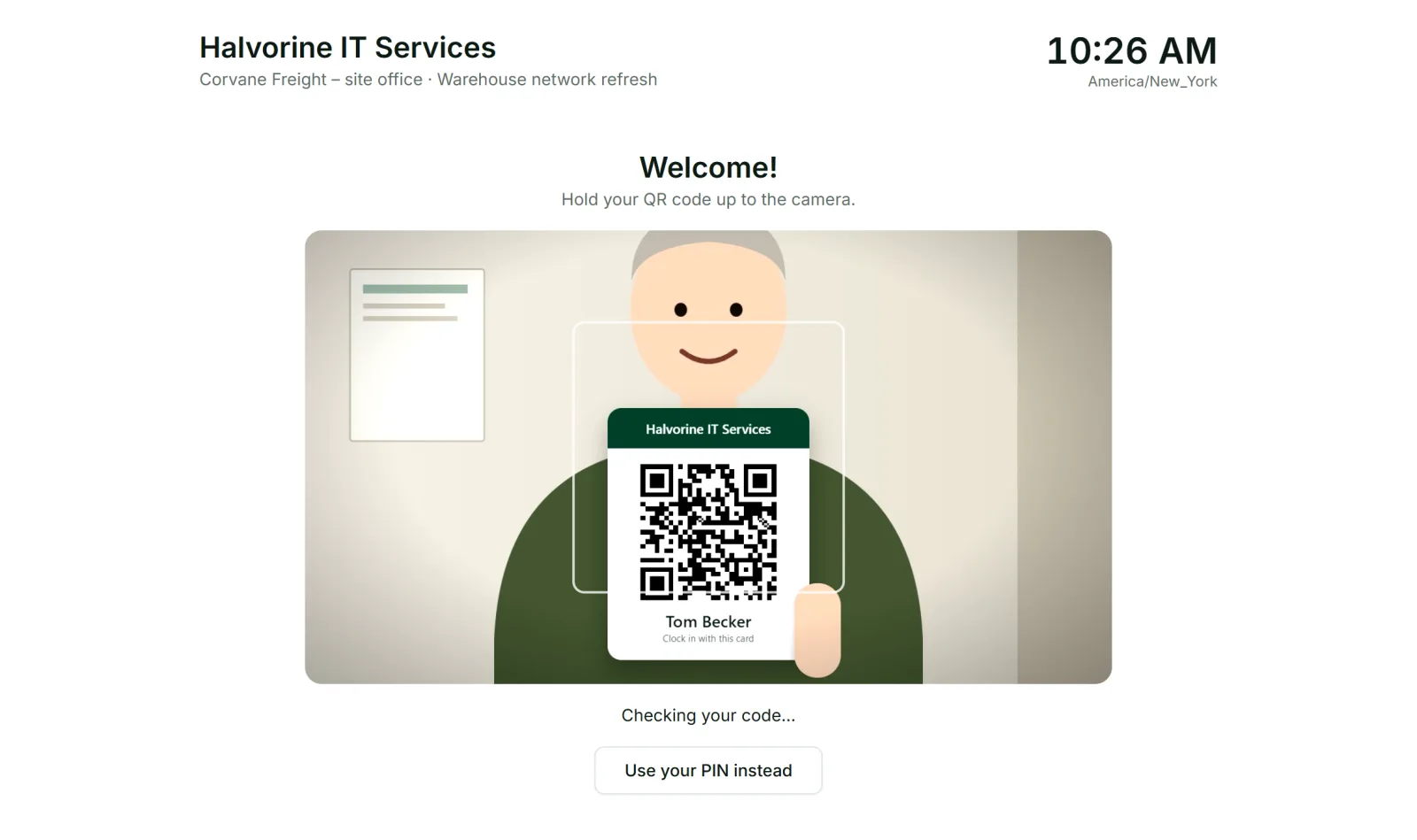
Personal QR code. Staff hold their own code up to the tablet’s camera and the kiosk opens their screen. Print the codes as cards or email them, and replace a lost card with a new one; the old code stops working at once.
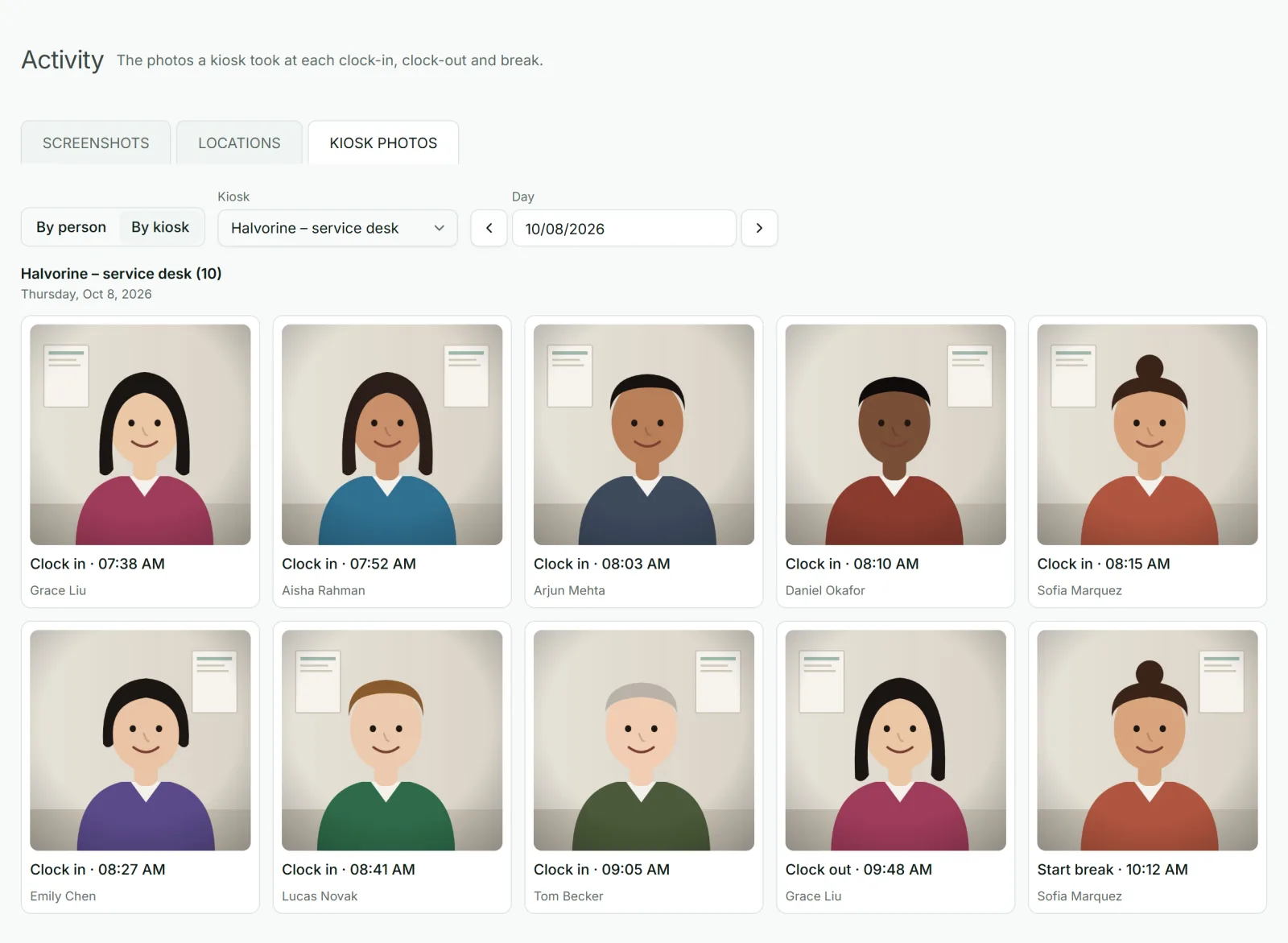
Photo at every clock action (Pro plan). The kiosk takes a picture at clock in, clock out and breaks for a manager to check. Staff agree to it the first time, and you choose how long photos are kept, from 30 days to a year. Punchly does not run face recognition.
Manager PIN. A supervisor can clock in someone who forgot their PIN, and every use is recorded and marked in reports.
Made for staff who have no email
Shop, site and warehouse teams often have no work email, and you should not have to create one just so they can clock in. Add them as kiosk-only people. They cannot log in to Punchly, but they appear on the kiosks you assign them to.
Kiosk-only people cost $1 a month each, and every plan with kiosks includes five at no extra cost. That keeps a time clock affordable for a team that is mostly hourly staff.
Hours go straight to timesheets and payroll
A clock-in at the kiosk is an ordinary time entry. It shows up everywhere else in Punchly without anyone typing it in again, which is where a tablet beats a paper sheet.
Timesheets and approvals for each person’s week.
Attendance report with start, finish, breaks and overtime for every day.
Reports by project or person, filtered by kiosk when you want one site, exported to Excel or PDF.
You stay in control
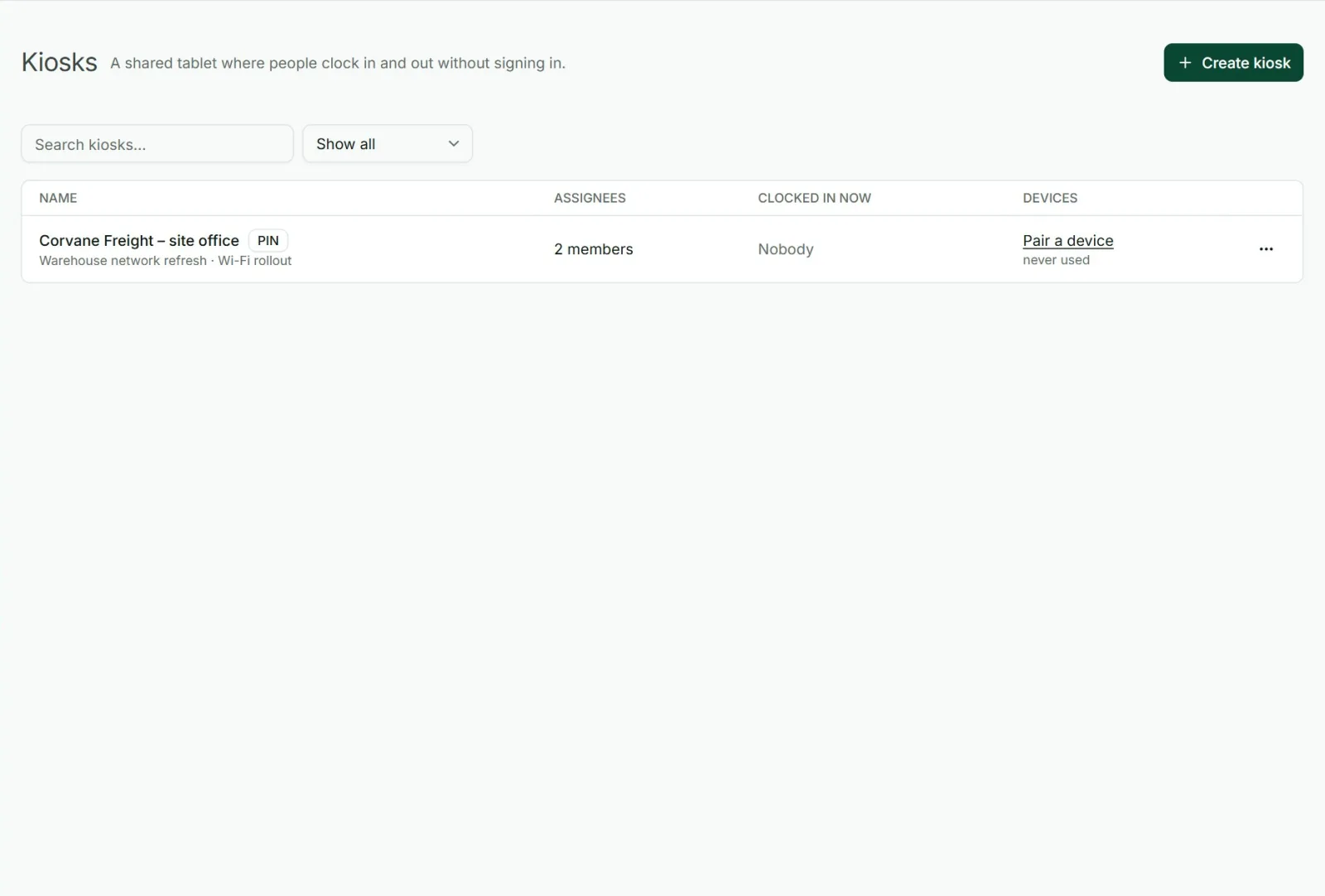
Several kiosks, one for each door, site or shop.
Choose who can use each kiosk: everyone, or certain people and groups.
The kiosk signs itself out. A paired tablet stays signed in for the time you set, from 4 hours to 7 days. When that time is up, anyone still clocked in is clocked out, an admin is told, and the tablet is paired again to carry on.
Lost tablet? Revoke the device and it stops working at once.
Decide who can set up tablets: admins only, or project and team managers too.
Paper sign-in sheet or a kiosk?
A paper sheet costs nothing to start, but somebody has to read the handwriting, add up the hours and type them into payroll every week, and nobody can check who really wrote the times. A kiosk records the exact minute, adds up the hours as they happen, shows who is in right now, and hands payroll a finished report.
Who uses a kiosk
Shops, cafes and restaurants
With staff on shifts who share one device.
Construction sites and workshops
Where nobody sits at a computer.
Warehouses and factories
That need a time clock at each entrance.
Clinics and offices
That want a simple record of who was in the building.
Questions people ask
Something else on your mind? Our team answers from inside the app and by email.
Replace the paper sign-in sheet this week
Create a kiosk, pair a tablet and have your team clocking in today.