
Calendar time tracking: see where your day went
Punchly draws every hour you track as a block on a day or week calendar. Gaps and overlaps are obvious at a glance, and fixing them is a drag of the mouse. Connect Google or Outlook and your meetings become time entries in one click.
Free on every plan. 7-day free trial of the Pro plan’s features, no credit card needed.
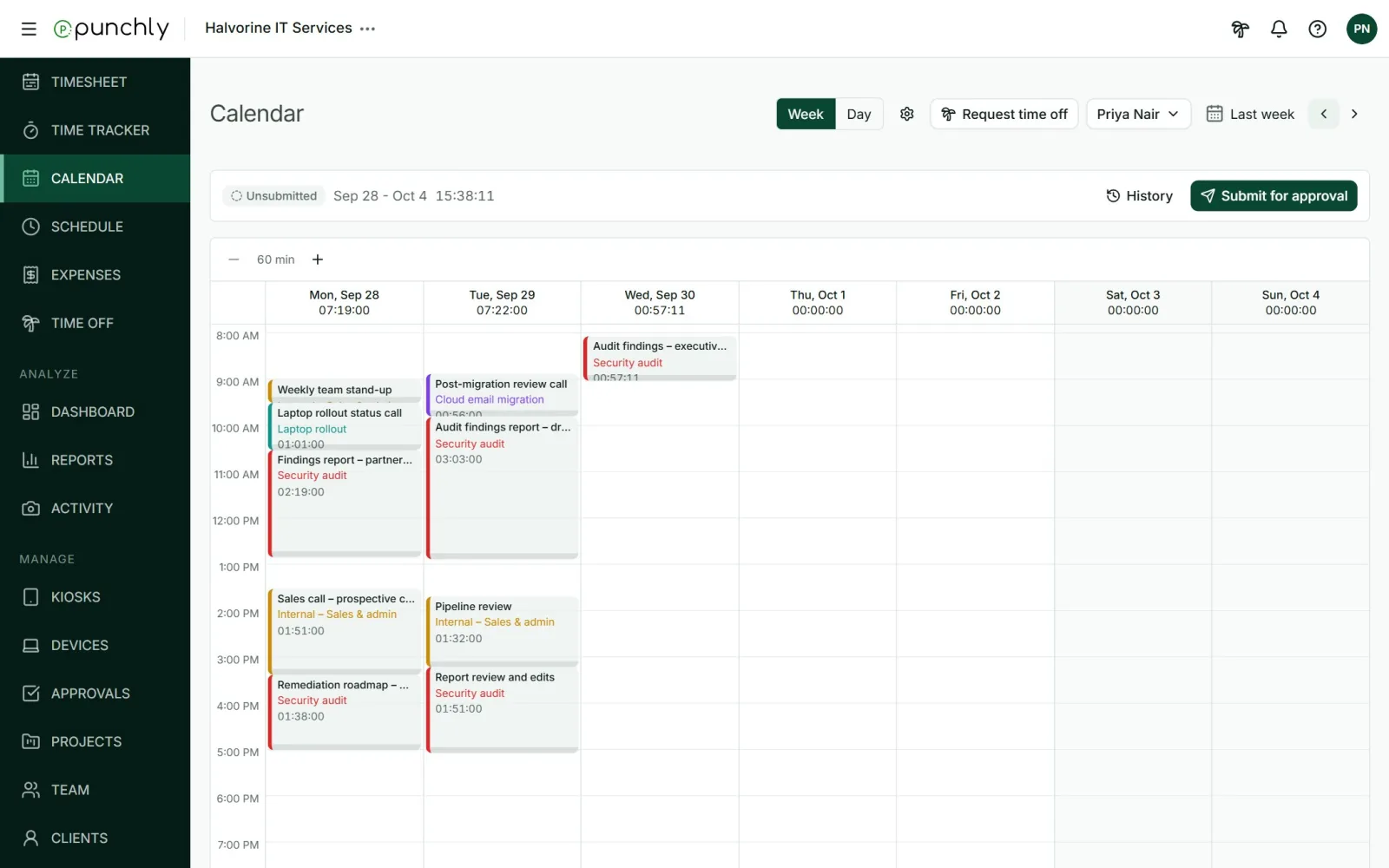
Your tracked time, drawn as your day
A list of time entries tells you what you did. A calendar shows you when. In Punchly each block is one time entry in its project’s color, laid out across the day exactly where it happened.
That makes problems easy to see. A morning lost to small jobs, an afternoon with nothing tracked, or two entries sitting on top of each other all stand out in a way they never do in a list or a spreadsheet.
Week or day view, with one click to switch.
Zoom in from one hour a row down to five minutes, for days made of short jobs.
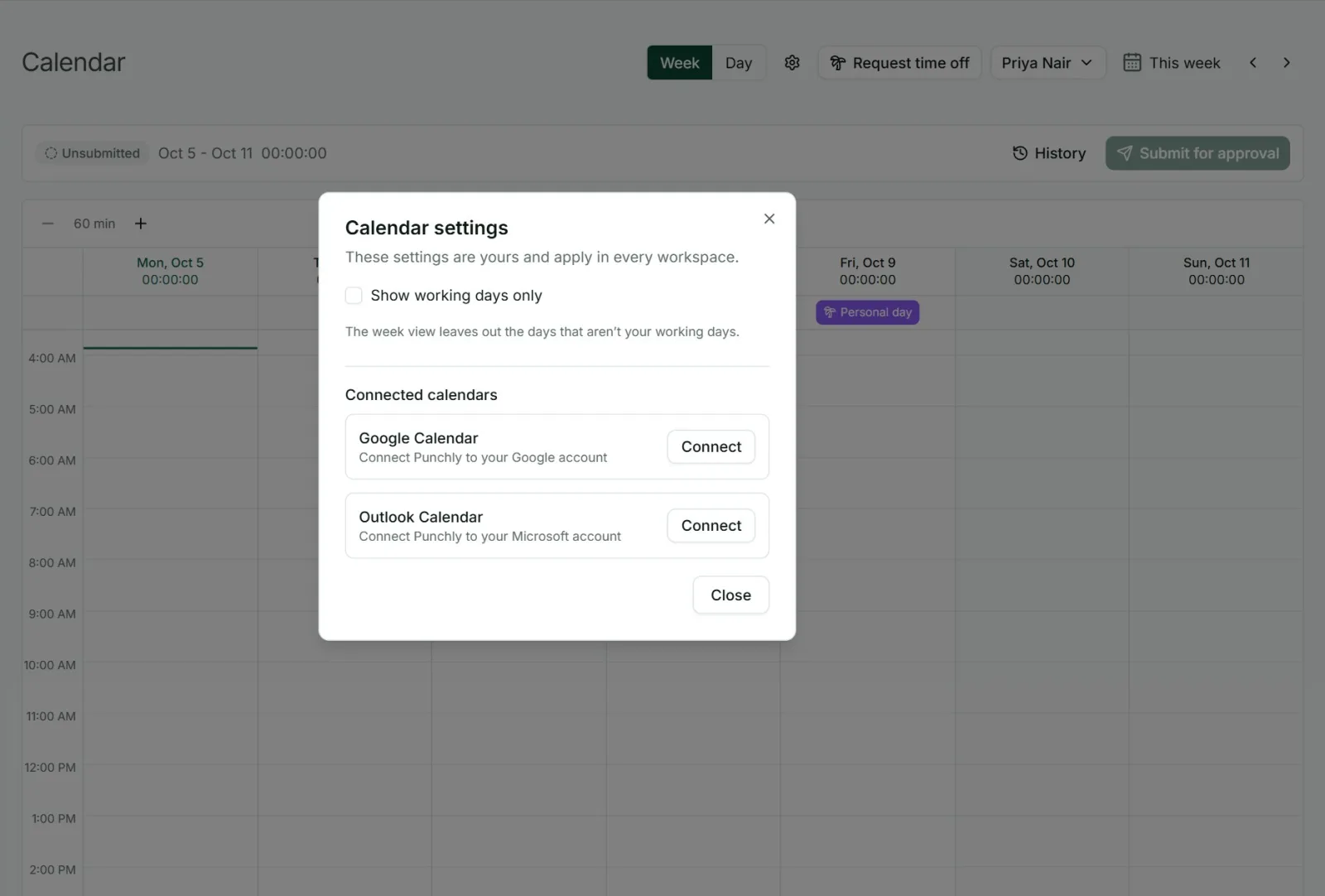
Working days only, if you would rather not see the weekend.
Add and fix time by dragging
The calendar is not only for looking. It is a quick way to enter time you forgot to track, because you can see the empty space you need to fill.
Add: click an empty slot, or drag across the hours you worked, then pick the project.
Move: drag a block to another time or another day.
Stretch or shorten: drag the bottom edge of a block.
Undo: every move can be taken back.
Use it as a time blocking app
Time blocking means deciding in advance what each part of your day is for. You can do that in Punchly by dragging out blocks on tomorrow’s calendar, each on its project.
The difference from a paper plan is what happens next. As you work through the day you adjust the blocks to match what really happened, and the plan becomes your timesheet. There is nothing to copy across at the end of the week.
Show your Google or Outlook meetings beside your time
Connect Google Calendar or Outlook Calendar and your meetings appear in a lane beside each day, next to the time you tracked. Punchly only reads your calendar. It never adds, changes or deletes an event.
Choose which calendars to show, for example work but not personal.
Your own setting. Each person connects their own calendar, and can disconnect it at any time.
Both at once. Google and Outlook can be connected together if you use both.
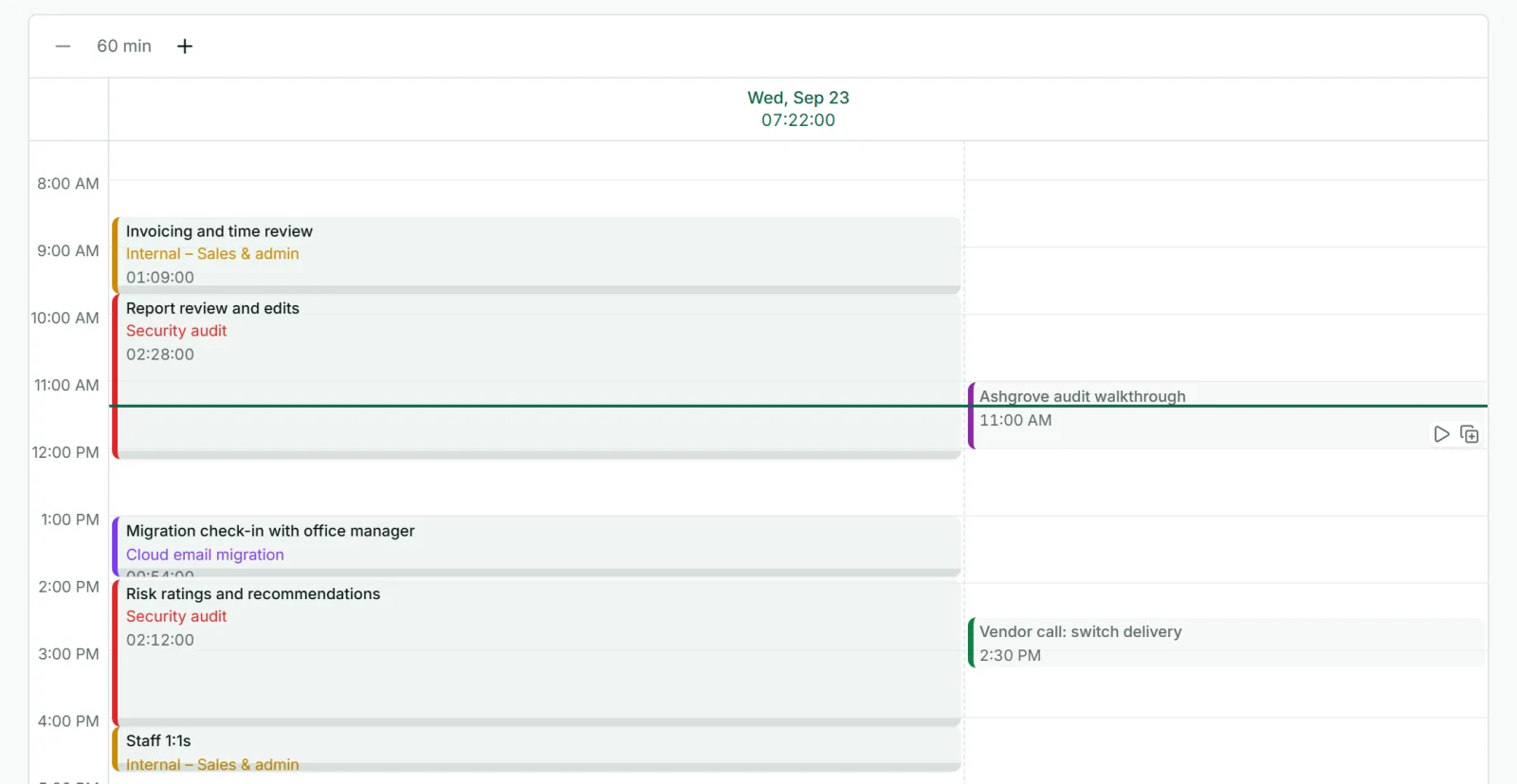
Track a meeting in one click
Meetings are easy to forget to log. With your calendar connected, hover over a meeting and choose what to do with it.
Start a timer now with the meeting’s title as the description.
Copy it as a time entry with the meeting’s own start and end times.
A day of calls no longer means half an hour of typing them in afterwards. Pick the project, and the entry is done.
Time off, holidays and teammates
Time off and public holidays are shown at the top of the day, so an empty day explains itself (time off is on the Standard plan).
Teammates: owners, admins and team managers can open a teammate’s calendar to check their week, and from the Basic plan correct it.
On your phone: the same calendar is in the Android and iPhone apps. Hold and drag to move or stretch an entry.
When the calendar is the right view
Punchly gives you three ways to look at the same hours. The time tracker is best while you work, with a timer running. The timesheet is best for typing in a week of totals. The calendar is best when the shape of the day matters: checking for gaps before you submit a week, moving a block you put on the wrong day, or logging a day that was mostly meetings.
Questions people ask
Something else on your mind? Our team answers from inside the app and by email.
See your week the way it really went
Create your workspace, connect your calendar and track your next meeting in one click.