
Project time tracking that shows where every project stands
Track time against each project and Punchly keeps the score: hours used, money earned, and how much of the estimate or budget is left. You see a project running over while there is still time to do something about it.
Projects are free. Estimates from Basic, budgets and forecast on Pro. 7-day free trial of the Pro plan’s features, no credit card needed.

One place for every project’s hours
A project in Punchly is any piece of work you want to measure: a client engagement, a product release, an internal initiative. People pick the project when they track time, and from then on its hours add up by themselves.
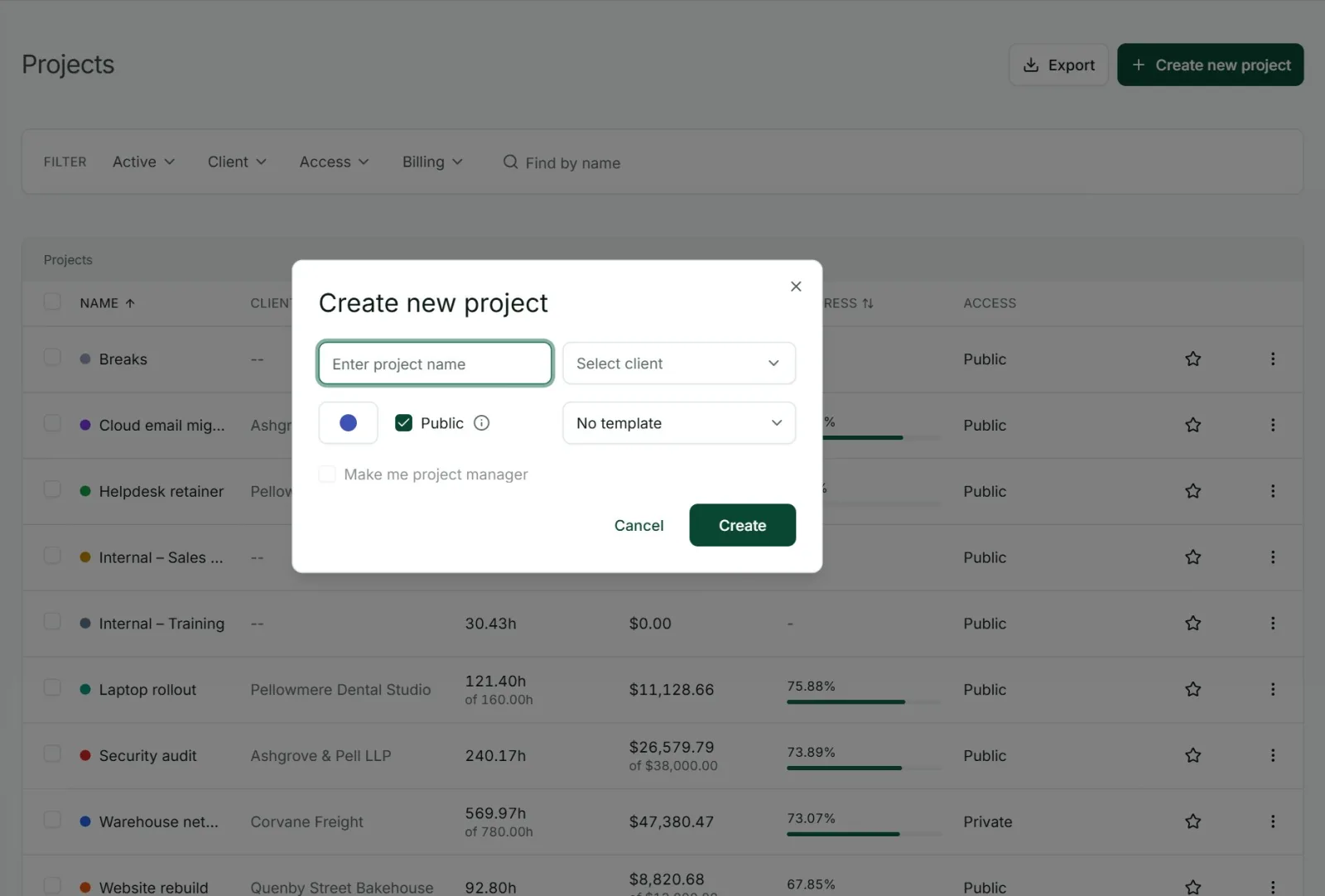
The Projects list shows all of them side by side, with the hours tracked, the billable amount earned and a progress bar against the estimate. One look tells you which projects are on track and which need a conversation.
Sort and filter by client, by status or by how far along each project is.
Colors and favorites make the projects you use most the quickest to find.
Create one where you are, from the list or from the timer while you are tracking.
Set an estimate or a budget, and watch it fill
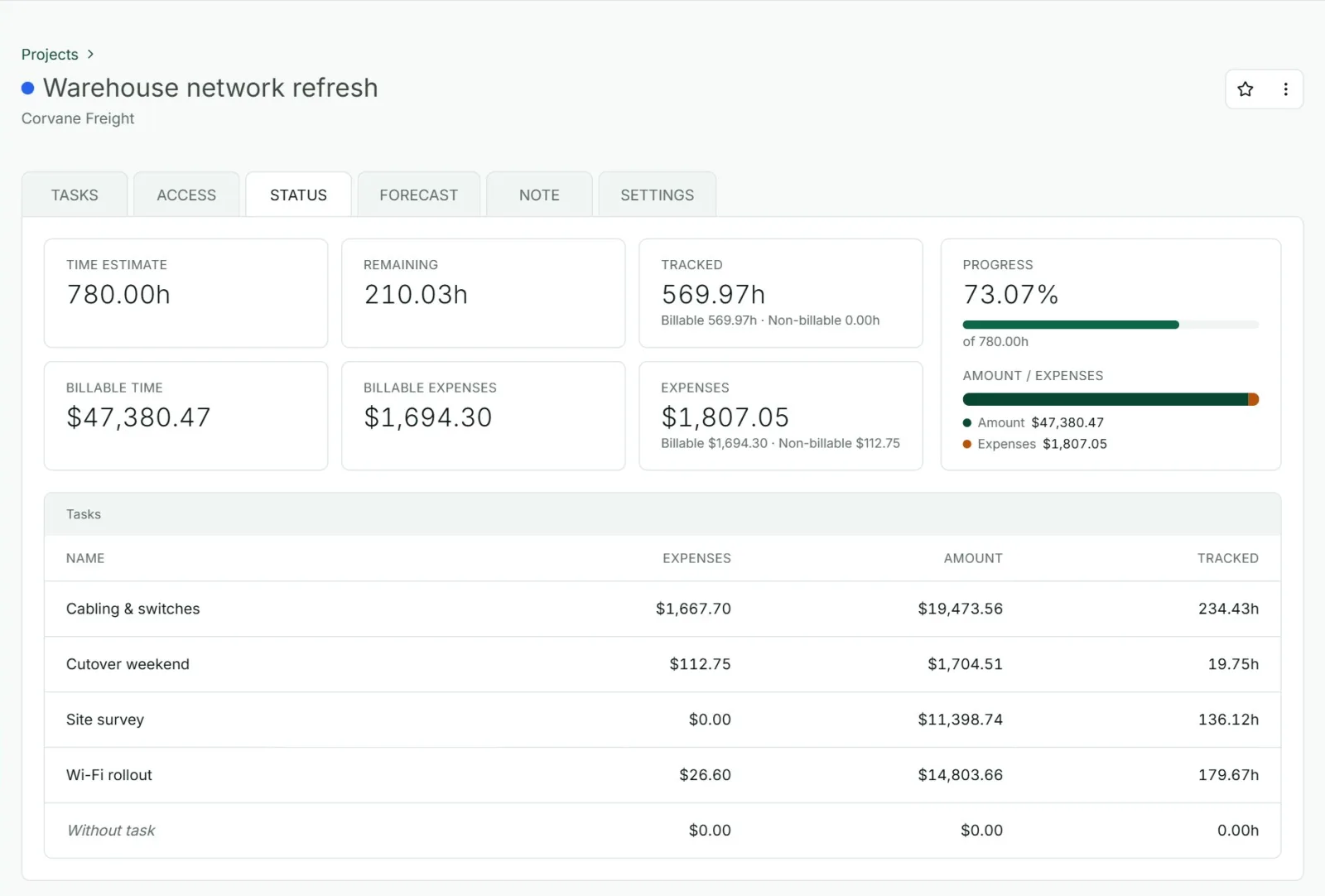
Give a project a limit and Punchly measures the work against it. The limit can be a number of hours or an amount of money, whichever is how you sold the work.
As time is tracked, the bar fills. When a project passes its limit the bar turns red and the remaining hours become an overage, so nobody finds out at invoicing time.
Time estimate (Basic plan): a number of hours, counting billable time only or all time.
Project budget (Pro plan): an amount of money, with billable expenses included if you wish.
Retainers: let the estimate start again every week, month or year, for work that is sold as “40 hours a month”.
Per task: the same figures are shown for each task of the project.
See where a project will end up
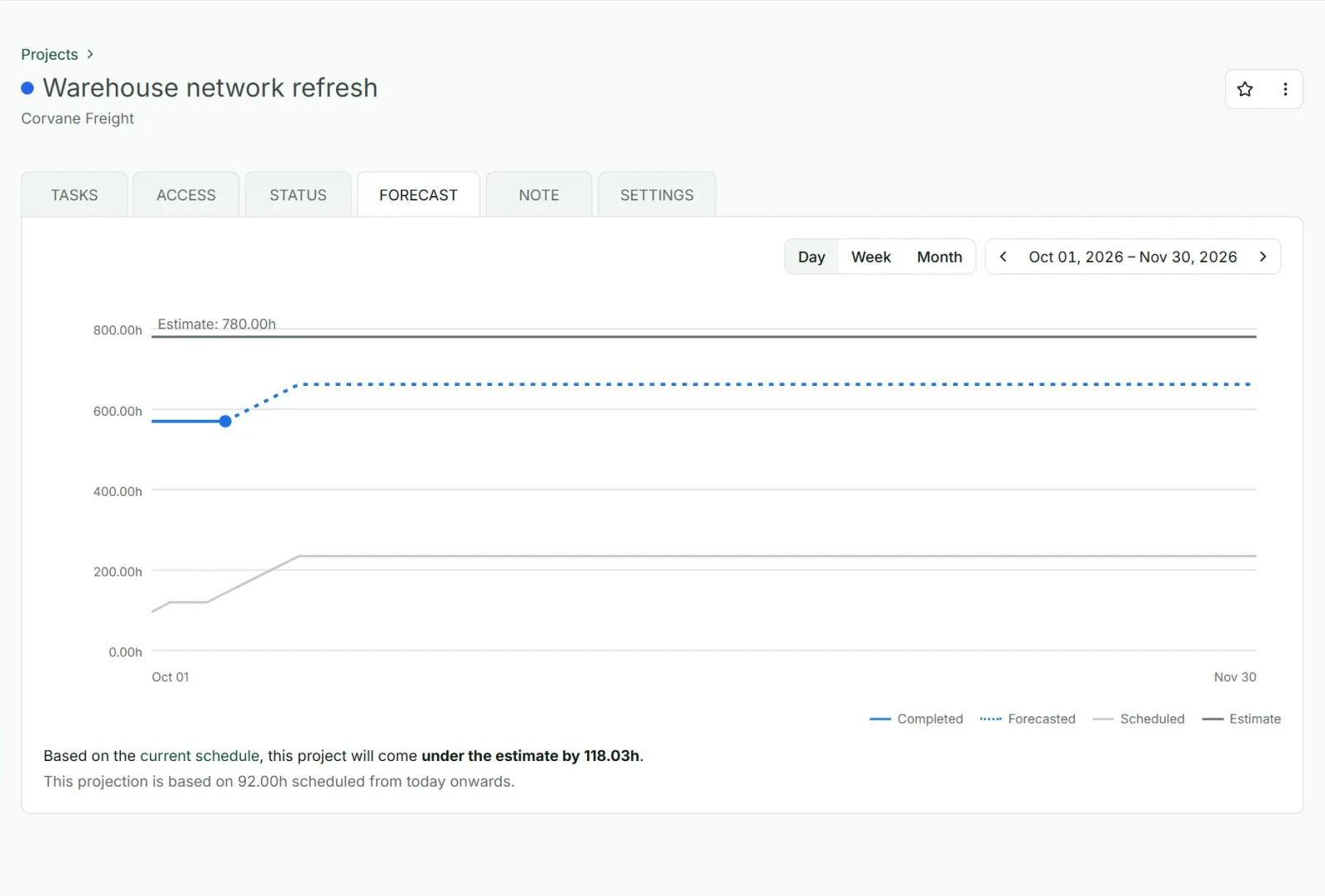
Knowing how much is used today is useful. Knowing where the project will finish is better. The forecast takes the hours already tracked, adds the work planned on the schedule, and tells you in one sentence whether the project will come in under, over or on its limit, and by how much (Pro plan).
Get told before a project runs over
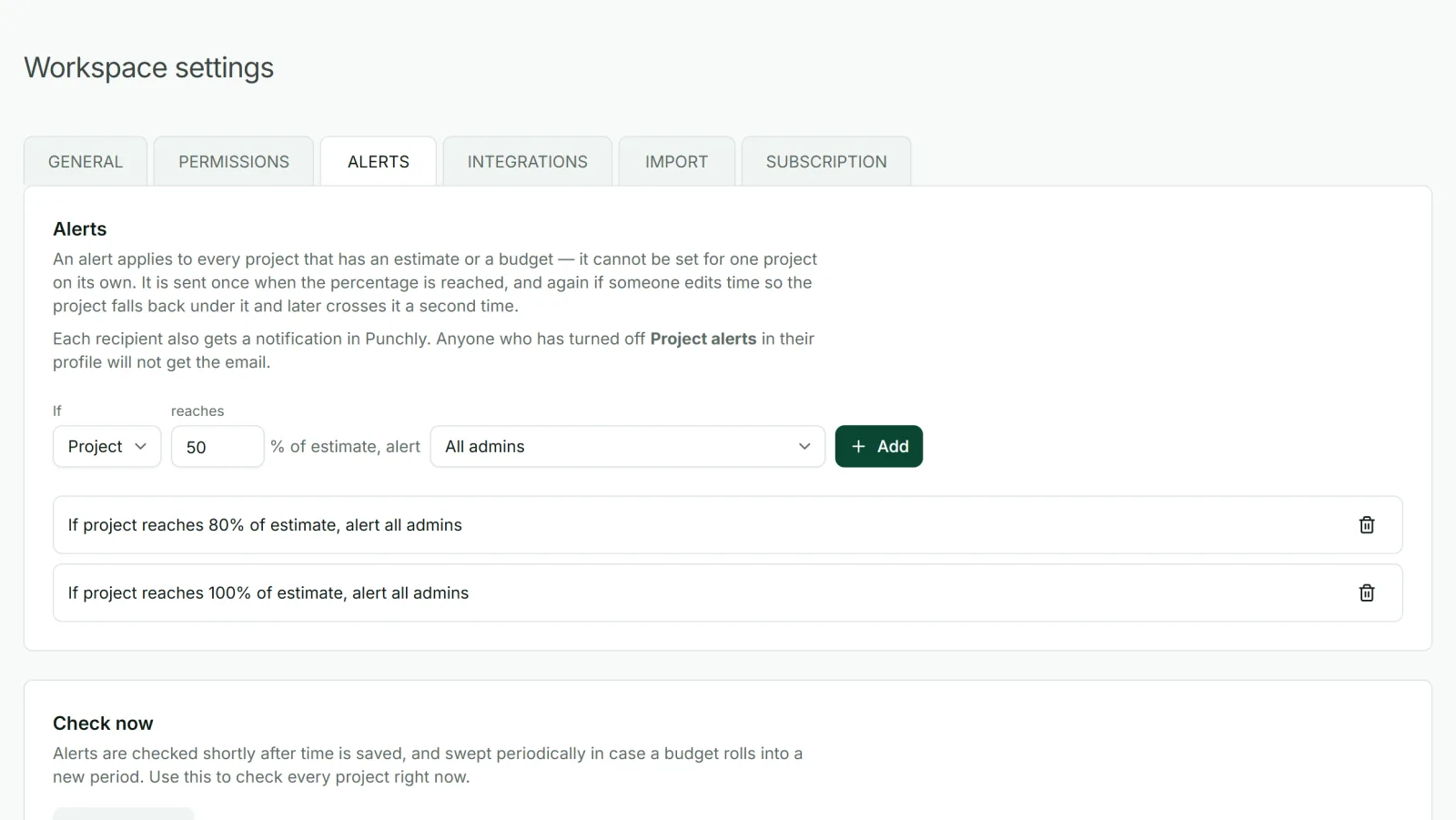
You should not have to open a report every morning to catch an overrun. Set an alert once, for example at 80% of the estimate, and Punchly emails the people who need to know when any project crosses that line: the admins, the project’s manager, or everyone working on it (Pro plan).
Decide who works on what
Some projects are for everyone. Others should be seen only by the people on them. Each project is either public, so anyone in the workspace can track time on it, or private, so only the people and groups you add can (Basic plan).
You can also name a project manager, who looks after that project without being an admin of the whole workspace: they add people, manage its tasks, and see its status (Standard plan) and, on Pro, its forecast.
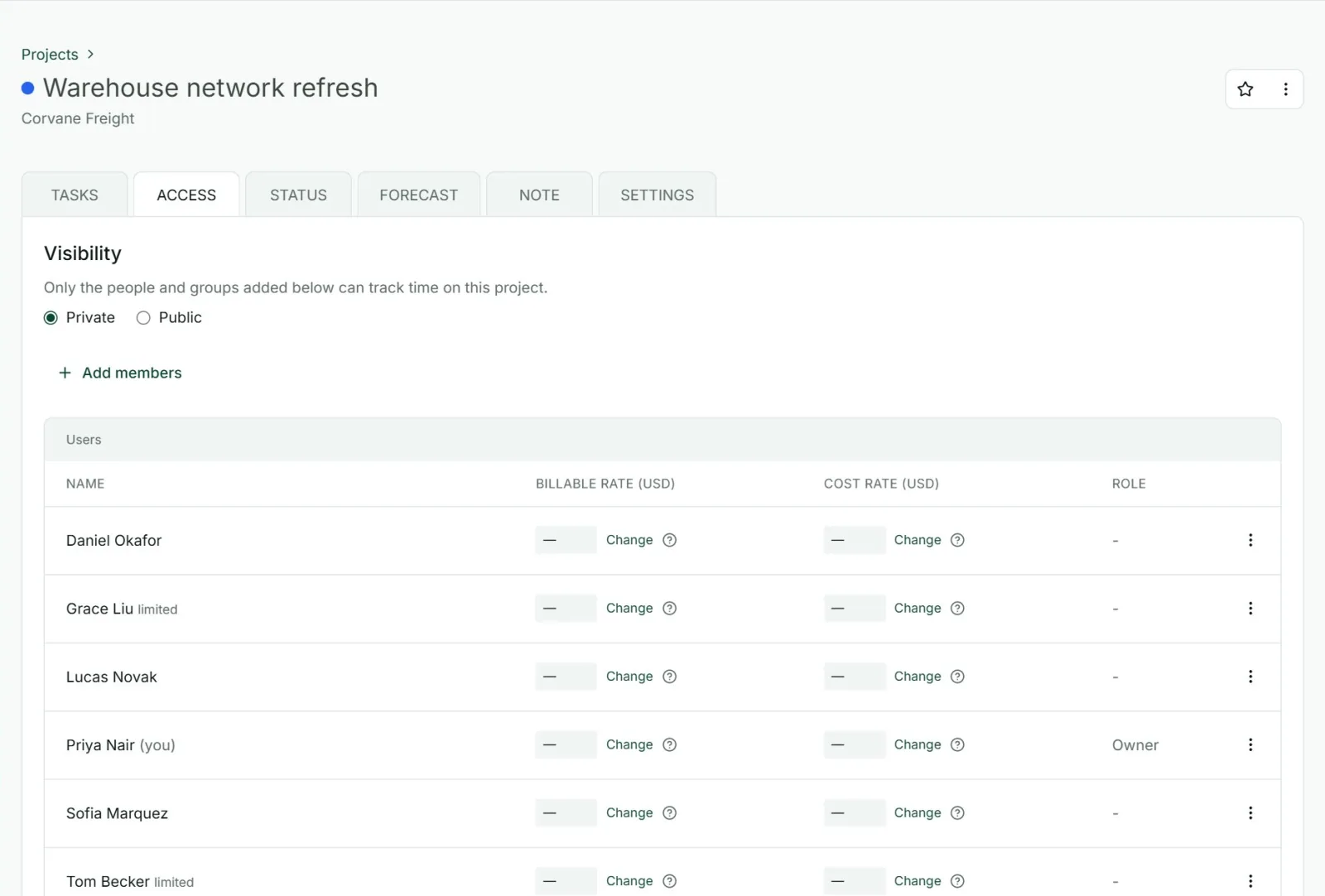
Set up the next project in one click
Many companies run the same kind of project again and again. Mark any project as a template, and a new project made from it starts with the same tasks, rates, estimate and people (Basic plan). When a project is finished, archive it: it leaves the picker, and its time stays in every report.
Bulk edit changes the client, access, rate or tasks of many projects at once (Basic plan).
Export the project list to Excel or CSV (Basic plan).
From hours to money
Add billable rates and each project shows what it has earned (Basic plan). Add cost rates and reports show what the work cost and what is left as profit (Pro plan). From there, billable hours go onto an invoice (Standard plan).
Who uses project time tracking
Agencies and consultancies
Selling fixed-price projects or monthly retainers.
Software teams
Comparing estimated hours with the hours a release really took.
Construction and field companies
Tracking labor hours against each job.
Internal teams
Who want to know how much time each initiative takes.
Questions people ask
Something else on your mind? Our team answers from inside the app and by email.
See how your projects are really doing
Create your workspace, add your first project with an estimate and track an hour on it. The progress bar moves with every entry.