
A simple time tracker for your work hours
Press Start when you begin and Stop when you finish. Punchly keeps every hour sorted by project, task and client, so your timesheets, reports and invoices are ready when you need them, without anyone rebuilding the week from memory.
Free for teams of up to 5. 7-day free trial of the Pro plan’s features, no credit card needed. Works on web, Windows, Mac, Linux, Android and iPhone.
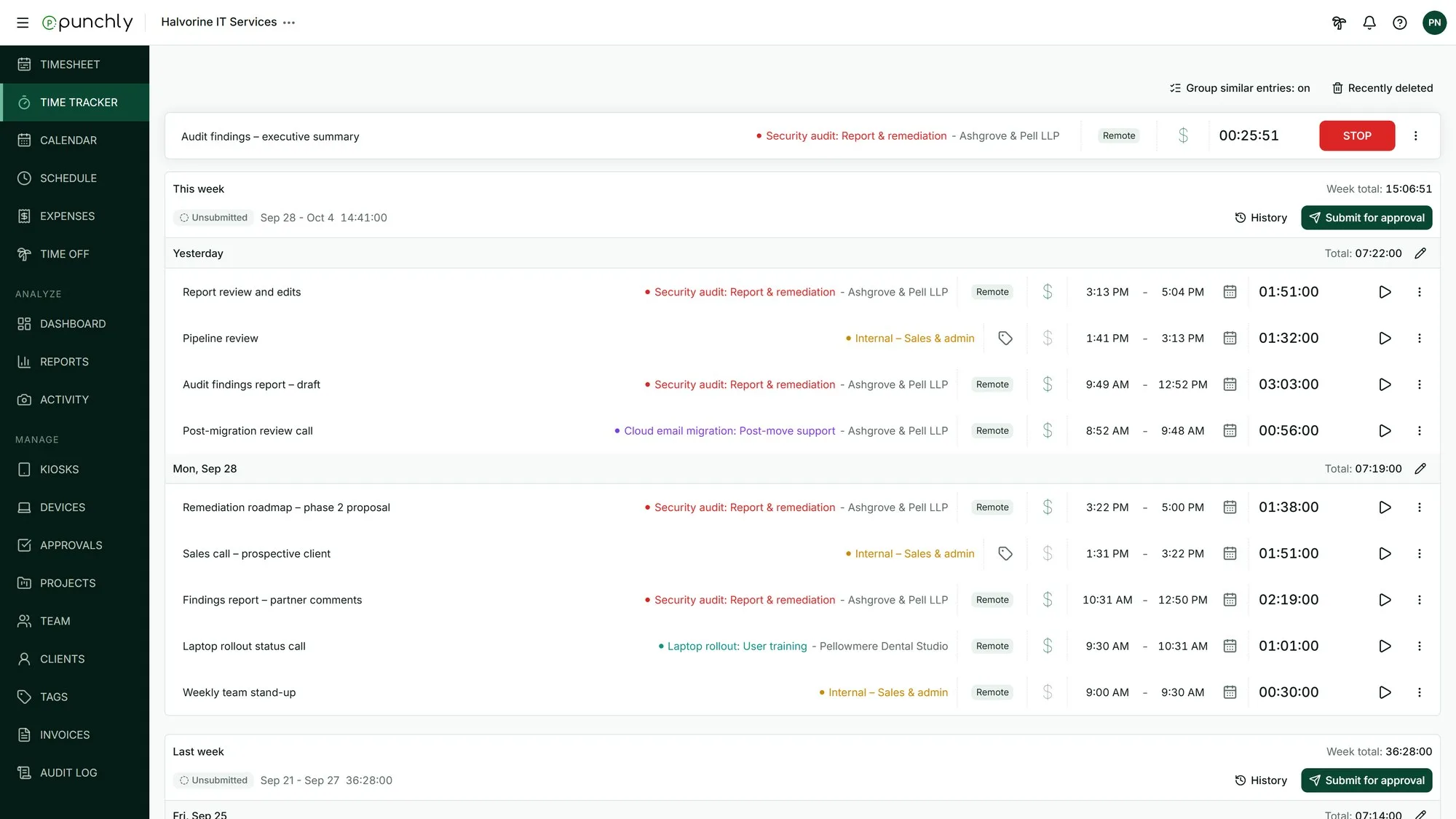
Start a timer in one click
Type what you are working on, pick a project and press Start. That is all it takes to track time in Punchly. The clock runs while you work, and when you press Stop the entry joins your list for the day with its start time, end time and length worked out for you.
The timer is built to stay out of your way. You can start it first and fill in the details afterwards, and you never have to stop it just to correct something.
00:25:51 Punchly
Audit findings
Security audit
Remote
$
00:25:51
STOP
The running timer, with its project, tag and billable mark. The browser tab shows the time while you work somewhere else.
Fill in details as you go
Change the description, project or tags while the timer runs. Each change saves by itself.
Started late?
Click the running clock and type the time you really began.
One timer at a time
Starting a new timer stops the one before it, so two jobs never overlap by accident.
See it from any tab
The browser tab shows the running time while you work somewhere else.
It keeps running
Close the browser or switch computers; the timer carries on until you stop it. In the desktop app, an admin can choose to stop timers when a computer sleeps, locks or shuts down.
Started by mistake?
Discard the timer and nothing is recorded.
Forgot the timer? Add the time by hand
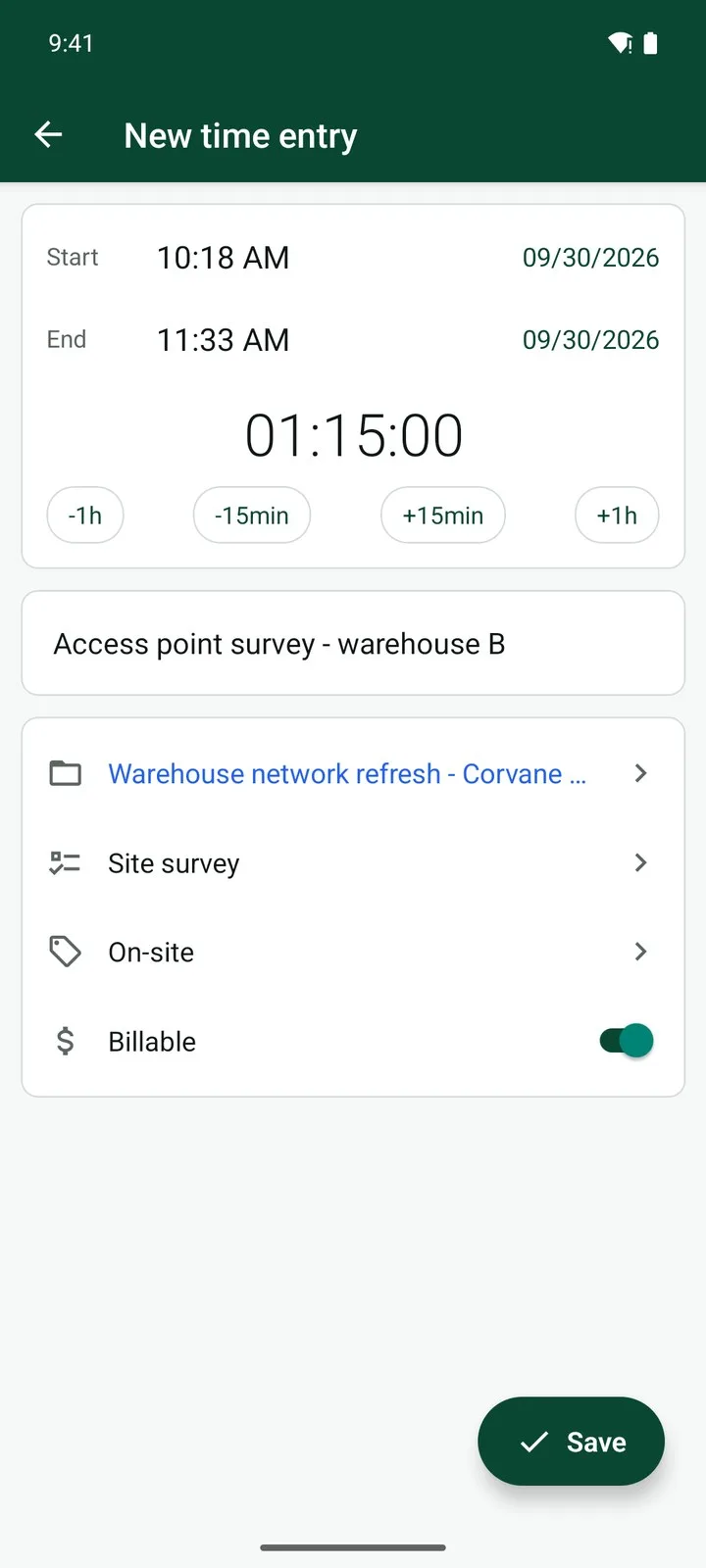
Nobody remembers the timer every time. Switch to manual mode, type when you started and finished, and add the entry. Punchly sets the next entry to begin where the last one ended, so a whole day can be filled in after the fact without retyping times.
| You type | Punchly reads |
|---|---|
45 | 45 minutes |
1:30 1.5 130 | an hour and a half |
9 930 | 9:00 and 9:30 |
If you would rather see the whole week at once, the same time can be typed into the Timesheet or dragged onto the Calendar. Whichever screen you use, it is one record of your hours.
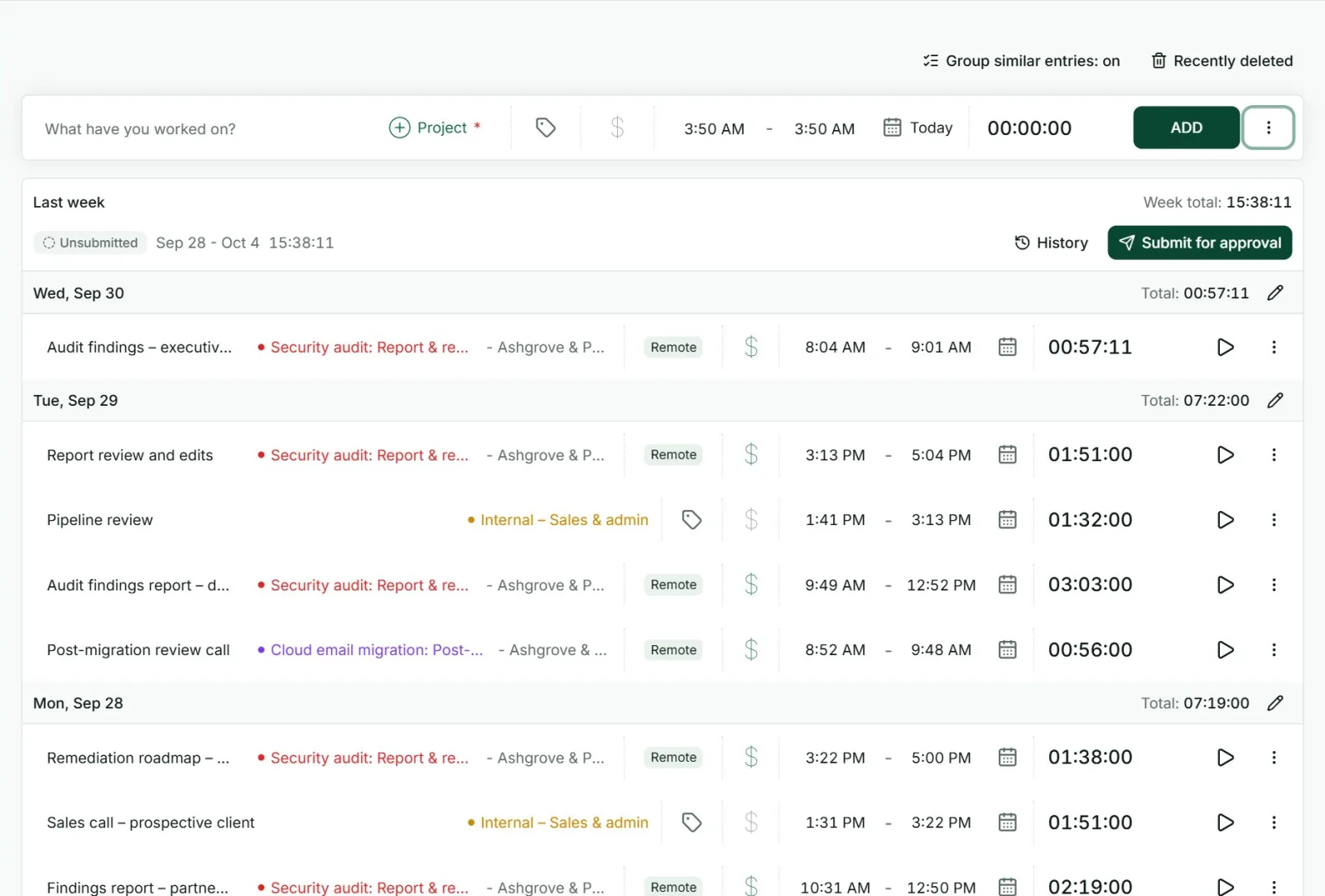
Know where every hour went
A list of hours is only useful if you can tell what they were for. Each time entry in Punchly carries a project, and can carry a task, tags and a billable mark. Punchly uses them to answer the questions that matter at the end of the week: how long did this job take, what do we bill this client, and where did the time go.
Audit findings report, draft Security audit: Report Ashgrove & Pell LLP Remote $ 9:49 AM to 12:52 PM 03:03:00
You do not have to pick all of this every time. As you type, Punchly suggests entries you tracked before. Choose one and the project, task, tags and billable mark are filled in for you.
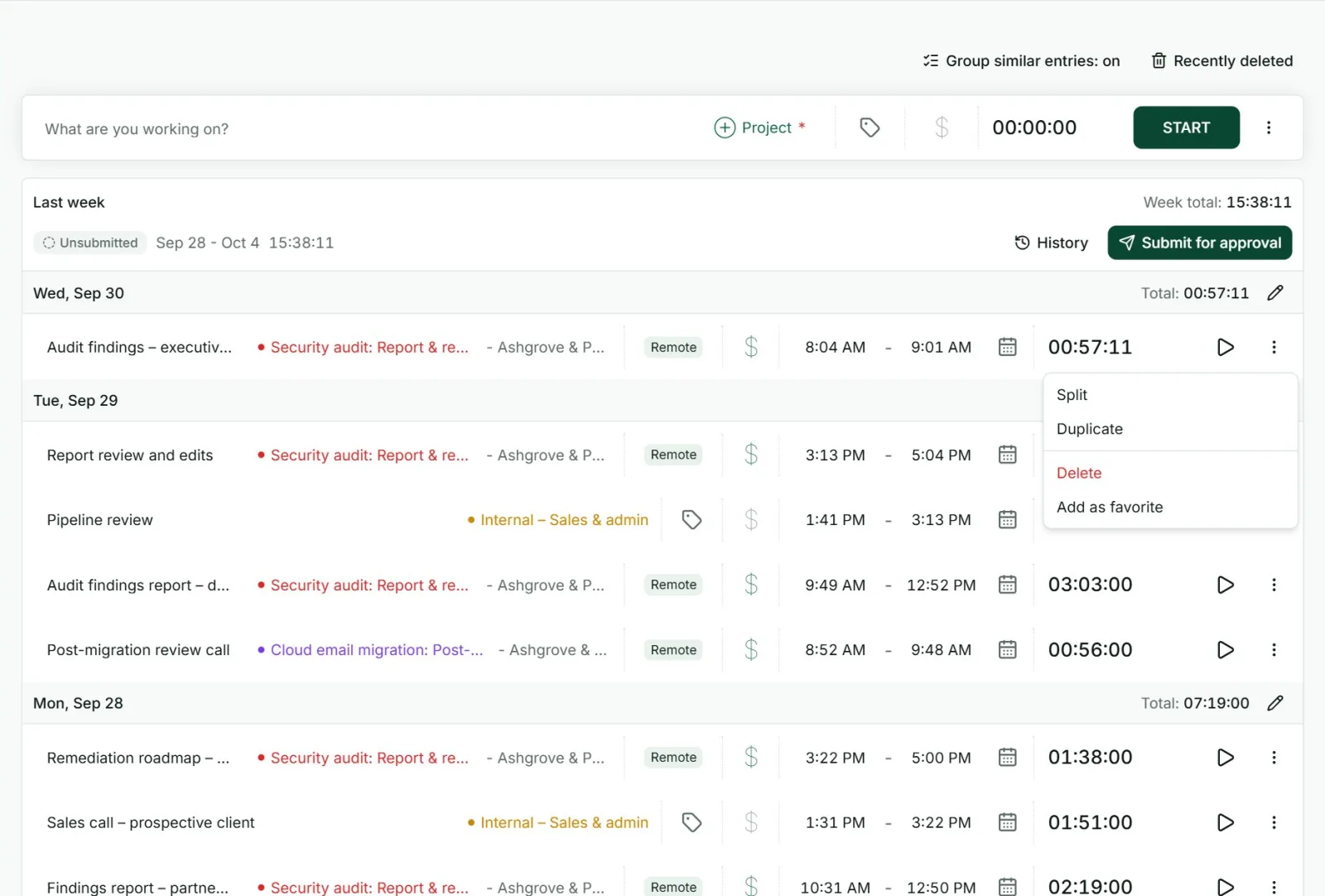
Fix mistakes without losing anything
Real days are messy. You forget to switch projects, pick the wrong client or leave the timer running through lunch. In Punchly every part of an entry can be corrected afterwards: click the description, the project or the times on the row and change them on the spot.
Split an entry in two when you forgot to switch projects.
Duplicate an entry you need again.
Edit a whole day at once: select the entries and change their project, tags or billable mark together. Basic
Deleted the wrong one? Undo it straight away, or restore it from Recently deleted for 30 days.
A tidy list. Entries of the same day with the same details are shown as one row with a count, so ten short stretches on one job do not fill the screen.
Repeat work starts in one click
Most people do the same handful of things every week. Punchly makes those the quickest to start, with one click and no form.
▶ Weekly team stand-up▶ Pipeline review▶ Helpdesk tickets
Favorites
Keep up to five things you do often and start any of them with one click.
Report review and edits01:51:00▶
Continue
Press the play button on any earlier entry to start a new timer with the same details.
NStartSStopCContinue
Keyboard shortcuts
Press N to start, S to stop and C to continue your last entry.
Track time on the web, your desktop and your phone
Work does not happen in one place, so the timer should not live in one place either. Start a timer on your laptop in the morning and stop it on your phone when you leave a client’s office. Punchly keeps the same timer and the same list of entries on every device.
Web app in any browser, with nothing to install.
Desktop app for Windows, Mac and Linux that sits beside your work.
Mobile app for Android and iPhone for time on the road or on site.
No internet? Keep tracking. The desktop and mobile apps record your time offline and send it when you are back online.
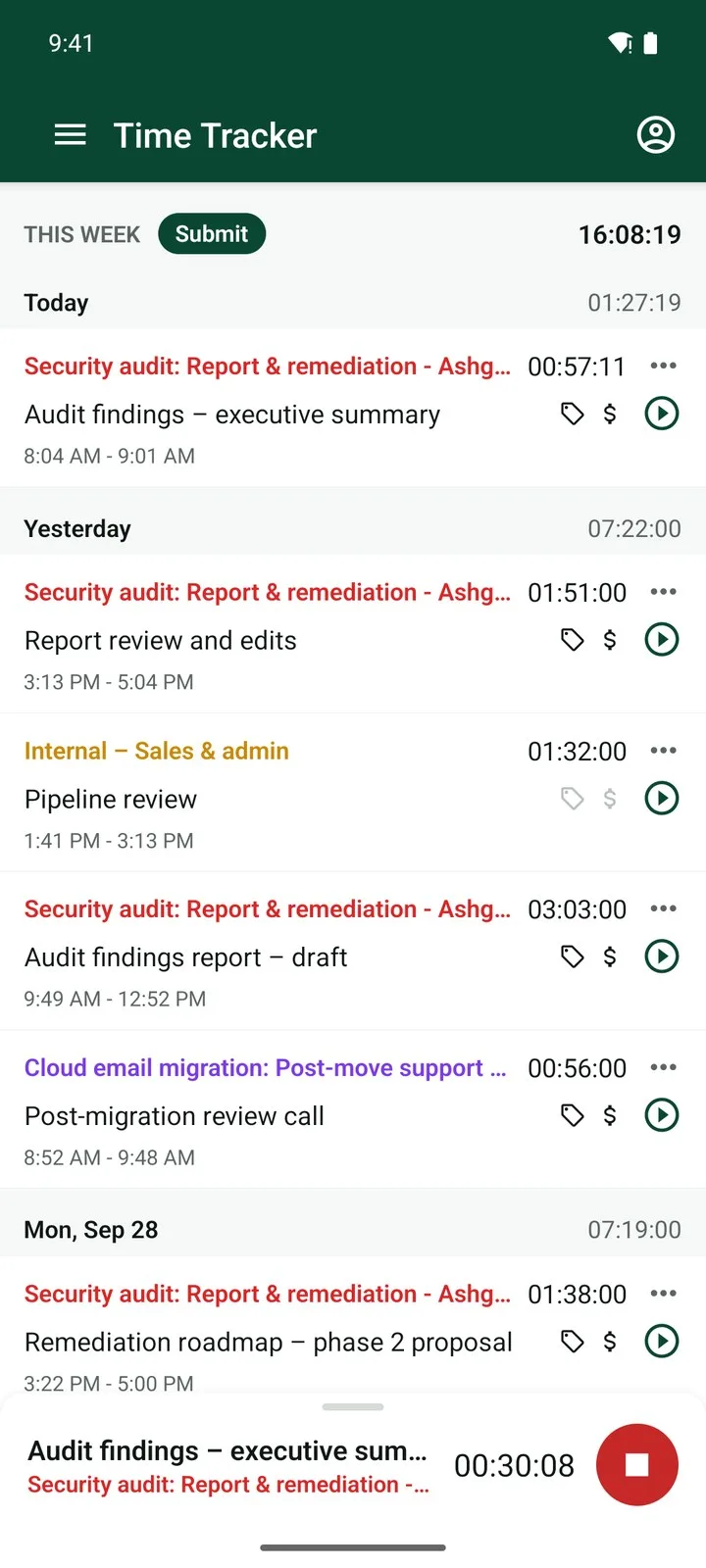
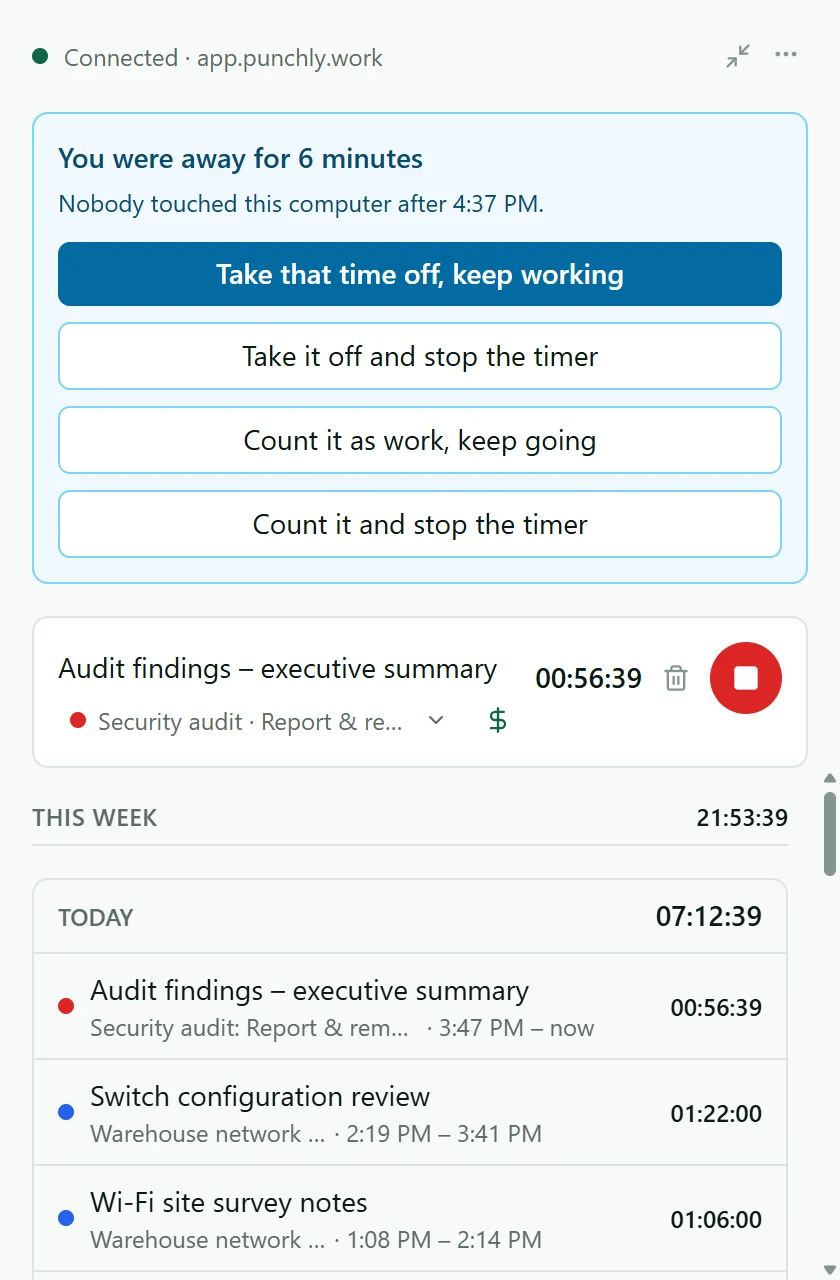
Stepped away? Punchly notices
A timer left running over lunch makes a timesheet wrong, and nobody enjoys working out afterwards how long they were really gone. The desktop app sees when nobody has touched the computer and, when you come back, asks what to do with that time: take it off and keep working, take it off and stop, or count it as work.
You decide every time the app asks, so a long phone call or a meeting away from the desk still counts when it should. An admin can instead set timers to stop by themselves when a computer sleeps or locks, or switch the question off.
Who uses the Punchly time tracker
Freelancers and consultants
Who bill by the hour and need a record a client will accept.
Agencies and software teams
Who run many client projects and need to know which ones make money.
Office teams
Who want to see where the week goes before planning the next one.
Field and shift teams
Who track on a phone, or clock in on a shared tablet with the kiosk.
For teams: keep time honest and complete
When ten or a hundred people track time, small differences add up. Admins can set a few simple rules so the whole team records time the same way, and so the numbers in a report can be trusted.
| Rule | What it does | Plan |
|---|---|---|
| Required fields | A timer cannot be stopped until its project, task, tag or description is filled in. | Basic |
| Breaks | Track breaks separately from work, so they never count as billable time. | Basic |
| Reminders | Email people who tracked less than they should have, daily, weekly or monthly. | Standard |
| Timer only | Switch off typing time by hand, for teams that must record time as it happens. | Pro |
| No double booking | Choose whether two entries at the same time are allowed, warned about or blocked. | Free |
| Approved time stays put | Once a week is approved, its entries cannot be changed until an approver withdraws the approval. | Standard |
| Lock past time | Freeze everything before a date you choose, so regular members cannot change last month’s hours after payroll or invoicing. Owners and admins still can. | Standard |
What happens to the time you track
Tracking is only the first step. Every entry feeds the rest of Punchly without any extra work from you or your team.
Your time entry
One record, however it was tracked.
Show the week as a grid, ready to submit.
Show hours by project, client, person or day, and export to PDF, or to Excel and CSV from the Basic plan.
Turn billable hours into a bill for your client.
Show time spent against the estimate or budget.
Questions people ask
Something else on your mind? Our team answers from inside the app and by email.
Start tracking your time today
Create your workspace, press Start, and see where your hours go.