
Timesheet software that is quick to fill in
One row for each project, one column for each day. Type your hours, press Enter, and the week is done. Punchly replaces the spreadsheet that goes round by email, and the chasing that follows it at the end of every month.
Free for teams of up to 5. 7-day free trial of the Pro plan’s features, no credit card needed.
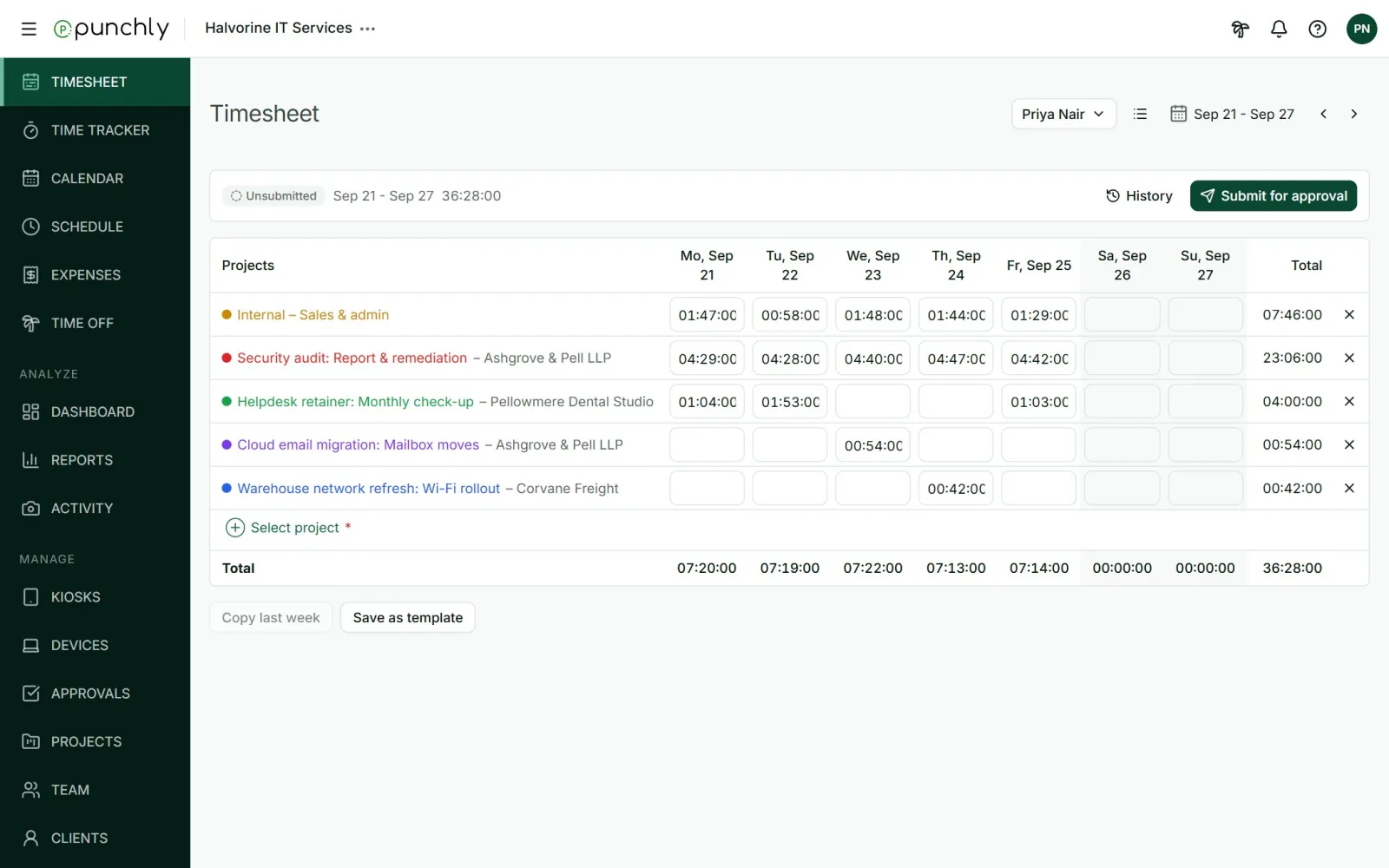
Fill in your week in one grid
The timesheet shows one week at a time. Add a row for each project or task you worked on, click a cell and type the hours. Press Enter and move on to the next day. There is nothing else to fill in.
Because it is an online timesheet, there is no file to save, no version to keep track of and no formula to break. Everyone fills in the same grid in their browser, and a manager sees the result the moment it is typed.
Type it your way
2:30 and 2.5 both mean two and a half hours.
Totals as you go
The last column adds up each project and the bottom row adds up each day.
More detail when you want it
Open a cell to set exact start and end times, a description, tags and whether the time is billable.
Any week
Use the arrows to go back to a week you missed.
Do not start from a blank week
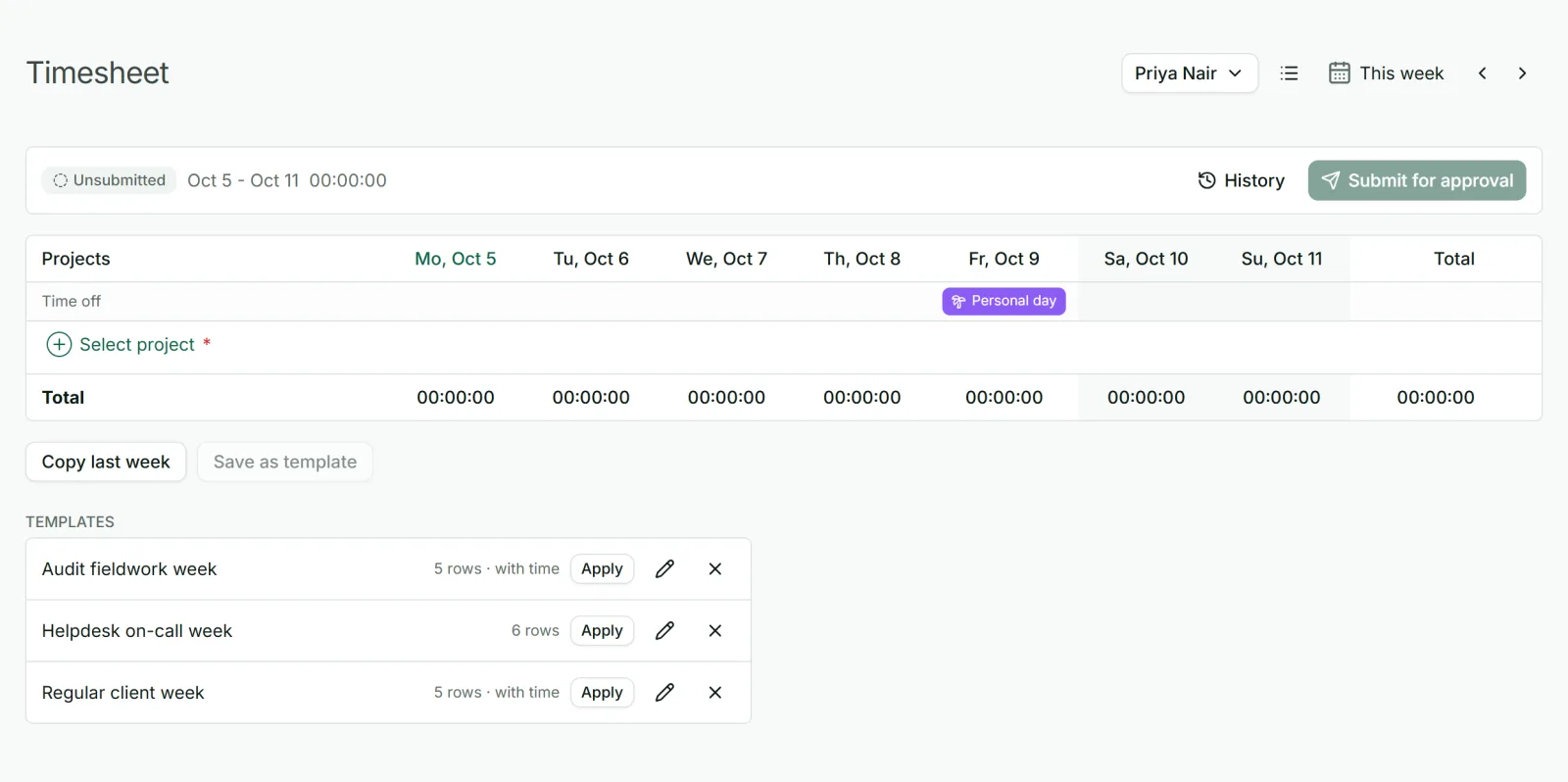
For most people this week looks a lot like last week: the same clients, the same projects, often the same hours. Punchly lets you reuse what you already entered, so a weekly timesheet is a matter of adjusting a few numbers.
Copy last week. Bring over the same projects, with or without the hours.
Templates. Save a week’s rows under a name and apply them to any later week in one click. If the week already has time, choose whether to add on top, replace it or skip those cells, and see every change before it is saved.

Timer or timesheet: it is the same time
Some people run a timer all day. Others fill in their hours on Friday afternoon. Many tools make a team pick one way of working. Punchly does not.
Time tracked with the timer appears in the timesheet, and hours typed into the timesheet appear in the time tracker, the calendar and every report. A developer can use the timer and an account manager can type hours into the grid, and both weeks look the same to the person approving them.
Submit the week for approval
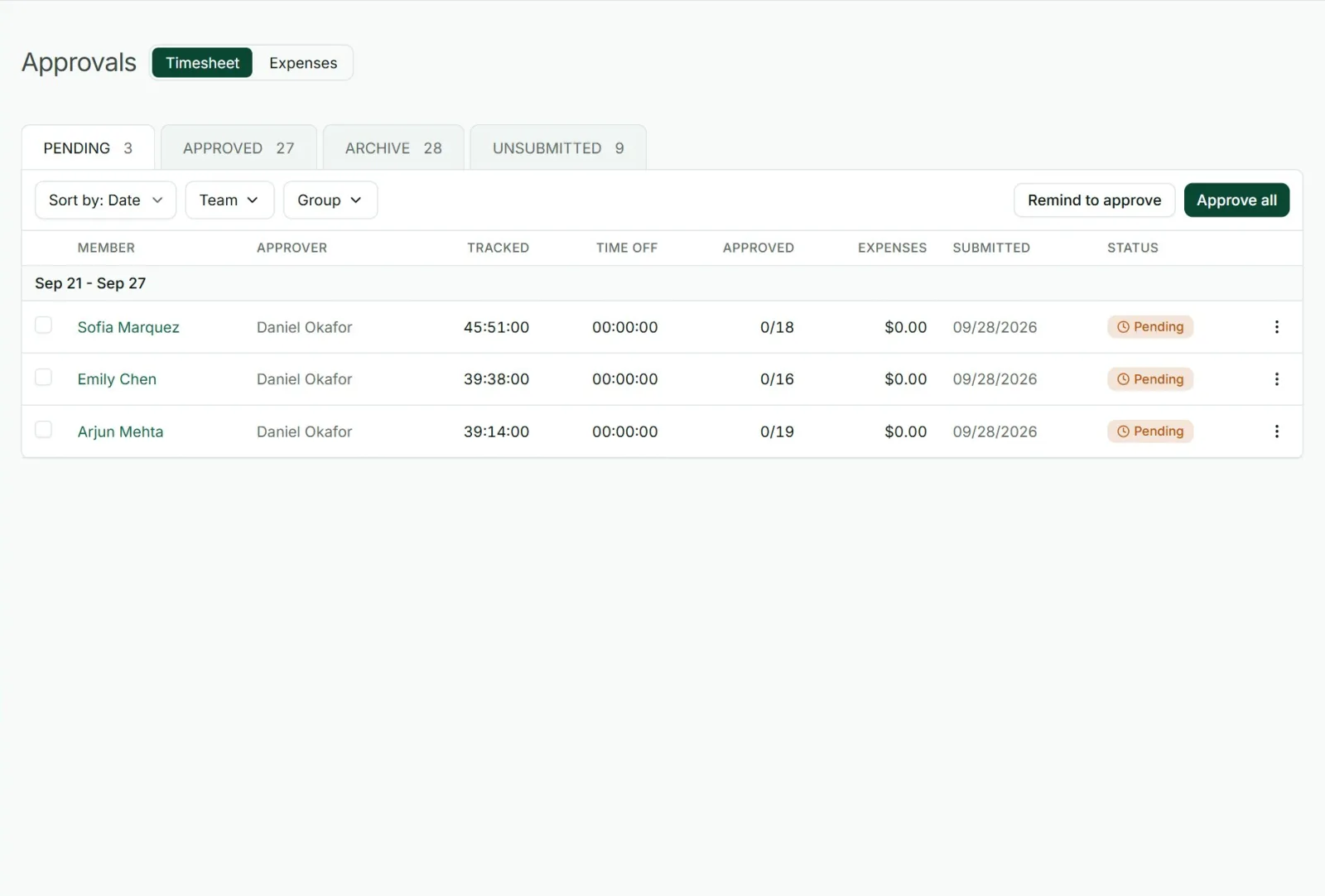
When the week is complete, press Submit for approval. Your manager sees every submitted timesheet in one list, opens it to check the hours by day and by project, and approves it or sends it back with a note. Approved time is locked, so it cannot change after it has been paid or invoiced (Standard plan).
Weekly, twice a month or monthly, whichever your company works to.
Rejected with a reason. The person sees the note on their week, fixes the time and submits again.
Managers see who has not submitted, and can remind them in one click.
Project managers can approve their own projects’ hours, and the week shows as partly approved until the rest is done.
No more chasing timesheets
Late timesheets hold up payroll and invoices. Punchly does the reminding for you. Set a rule once, such as “email anyone who tracked less than their working hours last week”, and the people it applies to get a message with a link straight to their timesheet. Their manager can get a summary of who was reminded (Standard plan).
See a teammate’s week
Owners and admins can open anyone’s timesheet to check it, and from the Basic plan correct it, which helps when someone is on leave at the end of the month. Team managers can open their own team’s weeks. You decide whether regular members can see each other’s timesheets or only their own.
From timesheet to payroll and invoices
A timesheet is not the end of the job. The hours your team enters are the same hours the rest of Punchly works from, so nothing is typed twice.
Reports
Total the hours by person, project or client and export to PDF, or to Excel and CSV from the Basic plan.
Attendance
Shows each day’s start, finish, breaks and overtime (Standard plan).
Invoices
Are made from the billable hours (Standard plan).
QuickBooks Online
Can receive the billable time (Standard plan).
Mistakes are easy to undo
Cleared a cell by accident? An Undo link appears straight away, and deleted entries can be restored for 30 days. Once a week is approved it cannot be changed by mistake at all.
Who Punchly timesheets are for
Agencies and consultancies
That bill clients from employee timesheets every month.
Companies that pay by the hour
And need approved hours before each pay run.
Project teams
That want to compare the hours spent with the hours estimated.
Small teams leaving spreadsheets
Who want one place for everyone’s week.
Questions people ask
Something else on your mind? Our team answers from inside the app and by email.
Get this week’s timesheets in on time
Create your workspace, invite your team and have the first week filled in today.