
Time tracking never sits alone. The work is planned in one tool, the hours are recorded in another, and the invoice goes out from a third. Every gap between them is somebody typing the same thing twice.
Okta’s yearly study of the apps its customers use put the average at 101 apps for each company in its 2025 edition. You do not need to connect your time tracker to all of them. You need the two or three connections that remove the retyping, and this article is about finding those.
What an integration actually does
Strip away the marketing and a time tracking integration does one of three jobs.
- It brings the work in. Projects, tasks or issues from the tool where work is planned appear in the time tracker, so people pick from a list and do not type names.
- It sends the time out. Tracked hours go to the tool that needs them: accounting, invoicing or payroll.
- It shows two things side by side. A calendar beside a timesheet, for example, so a meeting can become a time entry with one click.
When you look at any integration, ask which of the three it does. “Works with” on a pricing page can mean anything from a full sync to a link that opens the other app.
The five kinds that matter
1. Your project or issue tracker
This is the one developers and agencies feel first. If the team plans in Jira or a similar tool, time should be tracked against the same issues, not against a second list somebody keeps up by hand. Check whether new issues appear by themselves, what happens when one is closed or renamed, and whether the time tracker writes anything back.
2. Your accounting or invoicing tool
Billable hours have to become an invoice somewhere. If that happens in your accounting software, the hours should arrive there with the person, the customer, the date and the rate attached. Check how people and customers are matched between the two tools, because that matching is where most of the setup time goes.
3. Your calendar
Meetings are the time people most often forget to record, and they are already written down. A calendar connection puts them beside the day’s tracked time. Check who can see the calendar: a personal calendar should stay personal.
4. Payroll
For hourly staff, the hours and overtime have to reach payroll. A direct connection is convenient. A clean export in the format your payroll provider accepts does the same job once a month, and it is easier to check.
5. An API and webhooks, for everything else
No vendor connects to every tool. An open API lets your own developers read and write the data, and webhooks tell your software the moment something happens. If you have in-house systems, this matters more than any ready-made connection.
Jira time tracking: what to check
Jira has its own time fields, and many teams outgrow them once time has to reach an invoice or a client report. When you connect a separate time tracker to Jira, check four things.
- How issues appear. They should arrive by themselves, named so people can recognise them, such as “PROJ-12 Fix login”.
- Which issues come in. A project with ten years of history needs a filter, or the picker becomes unusable.
- What a closed issue does. It should drop out of the list people pick from, and keep the time already tracked against it.
- Whether time is written back. Some connections log work to the Jira issue. Others only read. Neither is wrong, but you need to know which you have.
QuickBooks time tracking: what to check
- Which edition is supported. QuickBooks Online and QuickBooks Desktop are different products, and connections often cover only one.
- How people and customers are paired. Employees, contractors and customers have to match between the two tools before any time can be sent.
- What gets sent. Usually billable time on paired projects. Check what happens to non-billable time, breaks and time off.
- What happens after an edit. If an entry changes after it was sent, the tool should say so and let you send it again.
Eight questions to ask before you connect
- Which way does the data go? One way is simpler and safer. Two-way sync needs a rule for what happens when both sides change.
- Which tool owns the names? If a project is renamed, which side wins?
- How often does it update? Every few minutes, hourly, or only when someone presses a button.
- What does it read? It should see only what it needs.
- What happens when you disconnect? Your data in the time tracker should stay.
- How will you know it has broken? A connection that fails silently is worse than none.
- Who can set it up? Company-wide connections belong to admins.
- Which plan is it on? Integrations are often held back for higher plans. Check before you build a process around one.
Problems to expect
- Duplicates. The same client exists in both tools under slightly different names, and the integration creates a third.
- People who do not match. A contractor is an employee in one system and a vendor in the other.
- Time sent twice. Someone edits an entry after it was sent. Check how the tool marks what has already gone.
- The person who connected it leaves. Many connections run on one person’s account and stop when that account is closed.
- Too much brought in. Every archived project from the last six years arrives in the picker. Look for a way to choose what comes across.
How to test an integration in an afternoon
- Connect it with a test project or a quiet client, not the busiest one.
- Create something new on the source side and see how long it takes to appear.
- Rename it, then close it, and see what the other side does.
- Track an hour against it and send that hour onwards.
- Edit the hour afterwards. Does the other tool find out?
- Disconnect. Check that nothing you need has disappeared.
If all six behave the way you expected, the integration is safe to use with real work. If one surprises you, you have found the thing to ask the vendor about before the whole company depends on it.
Who should own each connection
Give every integration a named owner, and write the name down. That person knows which account it runs under, checks it after either tool has a large update, and is the one told when it breaks. Without an owner, a broken connection is found at the end of the month, by whoever notices that the invoices are short.
When you do not need an integration
A connection earns its place when something is retyped every week. If you send ten invoices a month, exporting a CSV file and importing it takes five minutes, and it lets you look at the numbers on the way through. Automate what is frequent and dull, and leave the rest manual until it hurts.
What Punchly connects to
Punchly is time tracking software, so here is plainly what it connects to, what each connection does, and on which plan. Each one has its own page under Punchly’s time tracking integrations.
| Tool | What the connection does | Plan |
|---|---|---|
| Jira Cloud | Each Jira project you choose becomes a Punchly project and each issue a task. Punchly checks every 15 minutes. It only reads from Jira and writes nothing back | Standard |
| QuickBooks Online | Sends tracked time as time activities, with the person, customer, date, hours and rate. Works with Essentials, Plus and Advanced | Standard |
| Google and Outlook Calendar | Each person sees their own meetings beside their time and can turn one into an entry. Punchly never changes the calendar | Free |
| Projqo | Projects and tasks come in, and time tracked on either side shows on the other | Standard |
| API and webhooks | Read and change data from your own software, and be told when something happens | Free: 60 requests a minute. Paid plans: 600 |
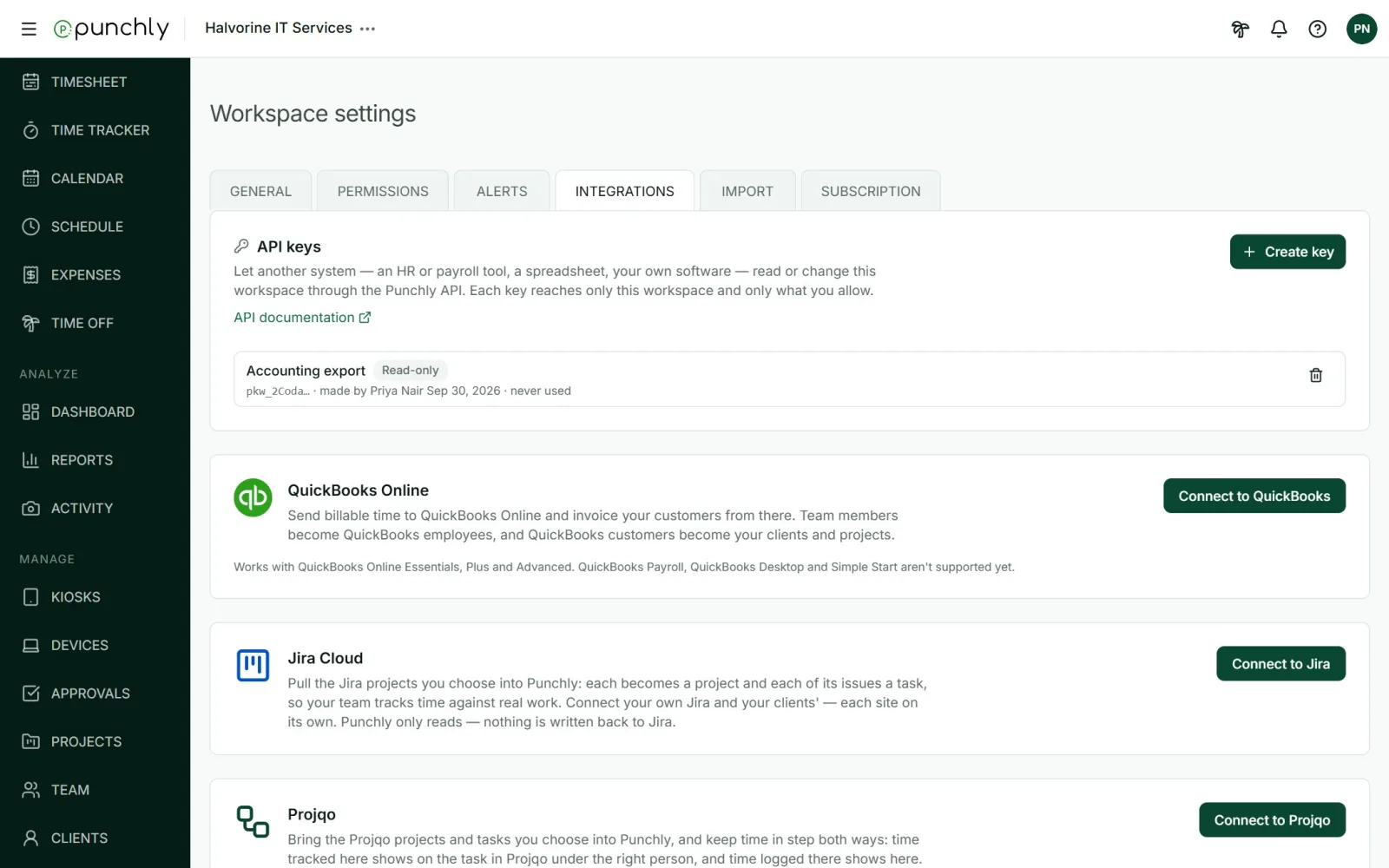
What Punchly does not have: a browser extension that puts a timer inside other web tools, a payroll connection, or support for QuickBooks Desktop, QuickBooks Payroll and Simple Start. If a connection breaks, owners and admins are told and the integration’s card says it needs reconnecting. Nothing is deleted when you disconnect.
Questions people ask
Punchly is free for teams of up to 5. Every new workspace gets 7 days of the Pro features, with no credit card.