
Timesheet
The Timesheet shows one week as a grid: a row for each project, a column for each day. It suits people who fill in their hours at the end of the day or week.
Where
Timesheet, at the top of the menu
Who
Everyone, for their own week
Plan
Free
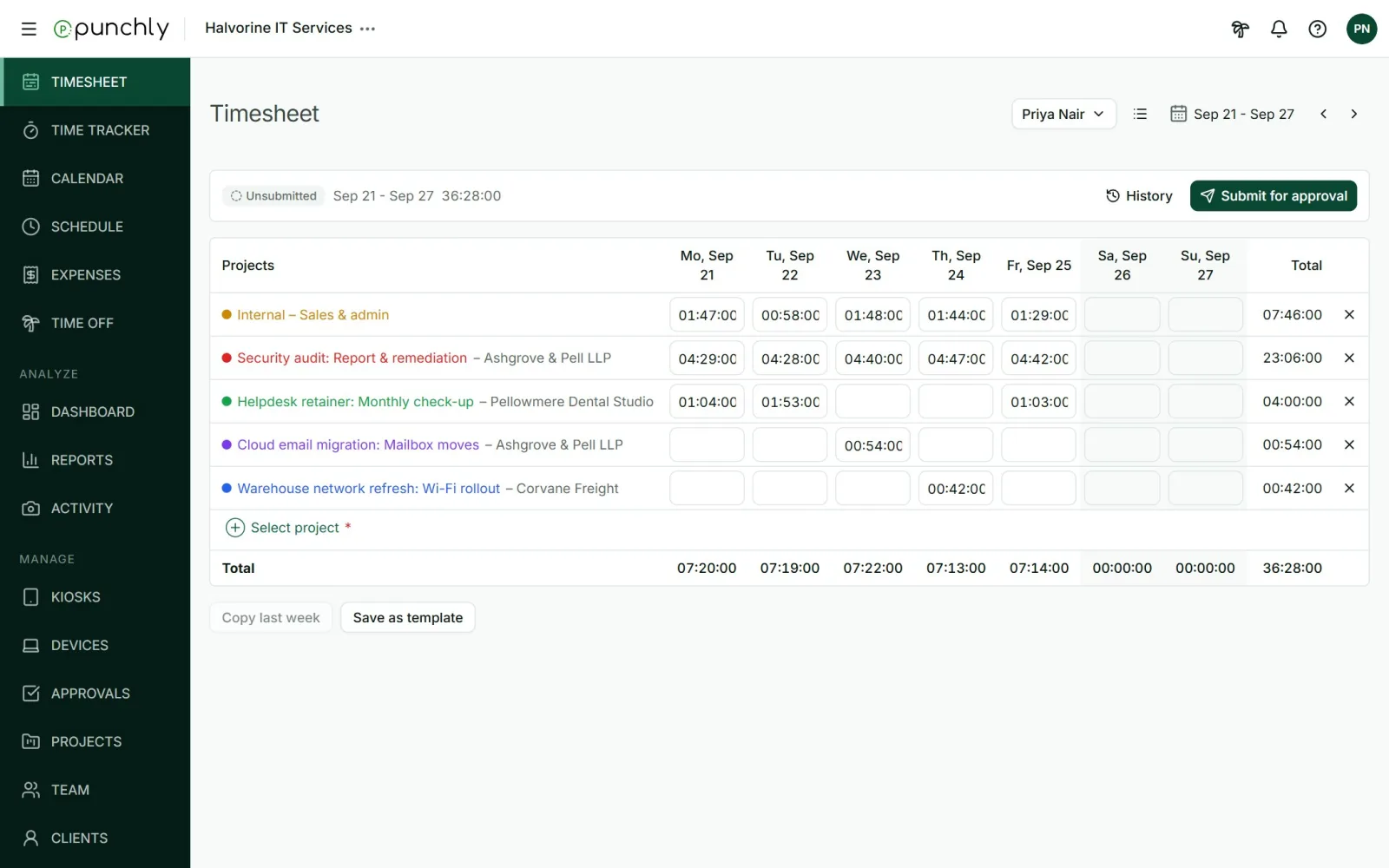
Fill in a week
- Use the arrows to choose the week.
- In the last row, press Select project to add a row for a project or task.
- Click a cell and type the hours, for example 2:30 or 2.5. Press Enter.
- Typing a bigger number adds a new entry for the difference.
- Typing a smaller number shortens the latest entry of that day.
- Clearing a cell deletes the entries in it. An Undo link appears for 20 seconds, and they can be restored from Recently deleted for 30 days.
- Hover over a cell and open its three dots to edit an entry in full: its times, description, tags and billable setting.
The Timesheet and the Time tracker show the same time. An entry made in one appears in the other.
Copy last week
On an empty week, press Copy last week and choose:
- Copy activities only: the same rows, with no hours.
- Copy activities and time: the same rows with the same hours.
Templates
A template saves a week’s rows so that a later week can be filled in one click.
- Press Save as template, give it a name, and tick Save time also to keep the hours as well.
- Your templates are listed under the grid. Press Apply on one.
- If cells already have time, choose whether to add on top, replace, or skip those cells. A preview shows every change before anything is saved.
- Templates are private to the person who made them.
Look at a teammate’s week
The button with your name opens the Teammates picker. The owner and admins can open anyone’s week. Team managers can open their team’s. Regular members can open a teammate’s only if the workspace allows it.
Good to know
- Project is required. While the Timesheet is switched on, every time entry needs a project, on every screen.
- A running timer joins the grid when it is stopped. Until then, hours in a cell cannot be increased.
- An approved week is read-only.
- An admin can switch the Timesheet off for the workspace in Workspace settings. It then leaves the menu.