
Invite your team
People join a workspace through an email invitation. The admin types the addresses, each person gets a link, and one click later they are in.
Who can invite
Owner and admins
Where
Team, then Add full member
Link is good for
14 days, one use
Sending invitations
- Open Team.
- Press Add full member.
- Type one or more email addresses. Separate them with commas, spaces or semicolons.
- Press Send invite.
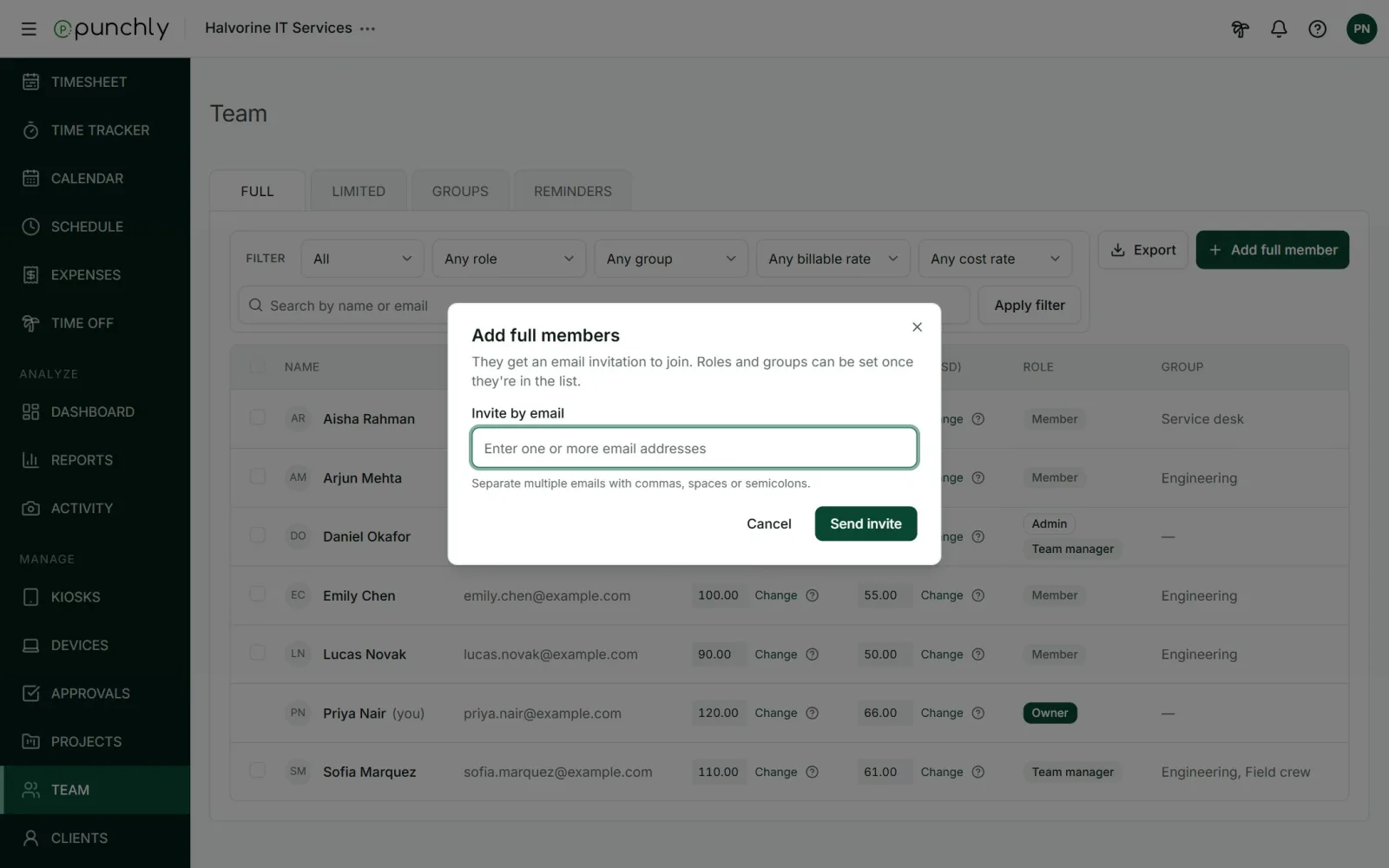
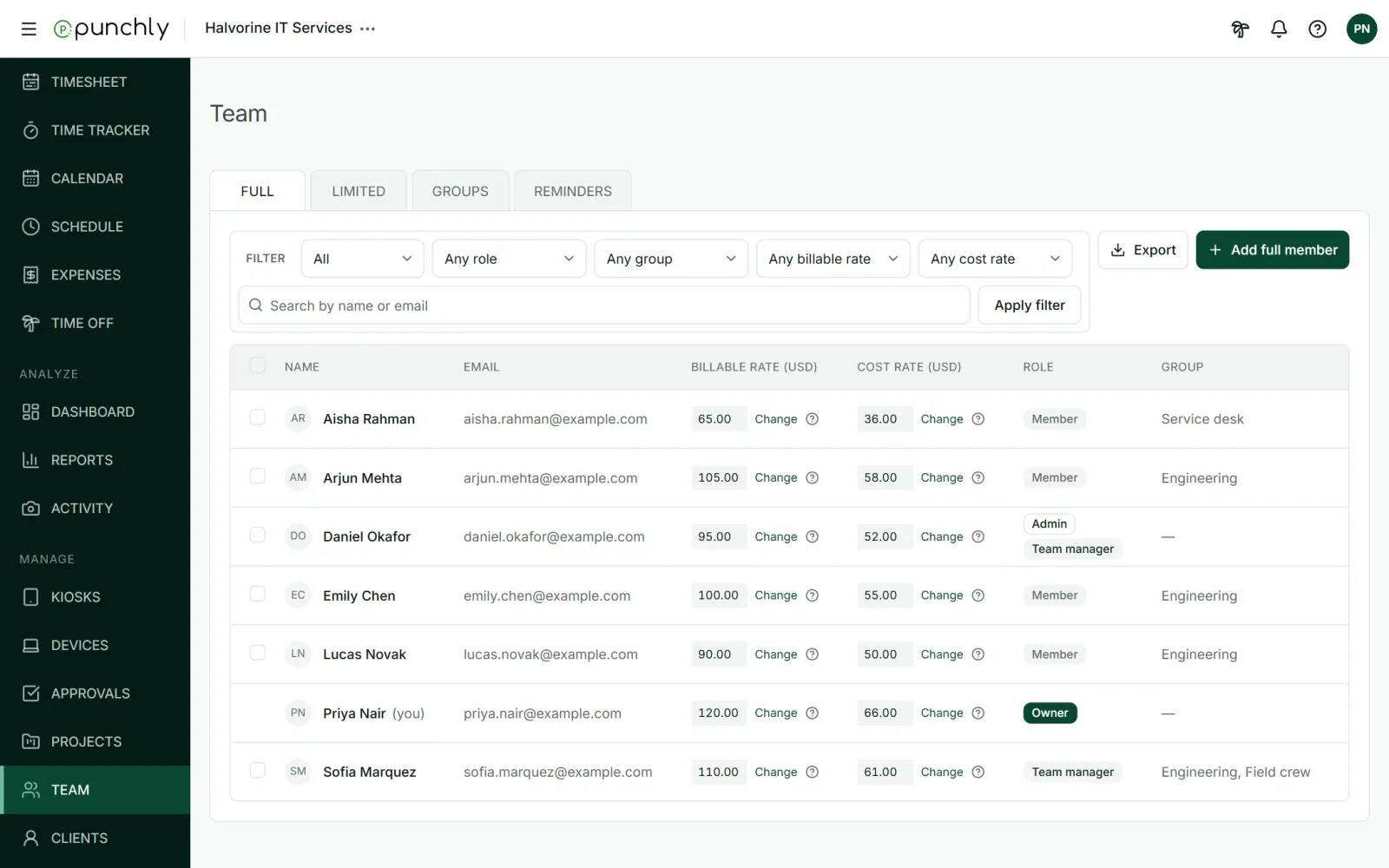
The person appears in the Team list at once, marked Invited, not joined yet. Their role and group can be set before they join.
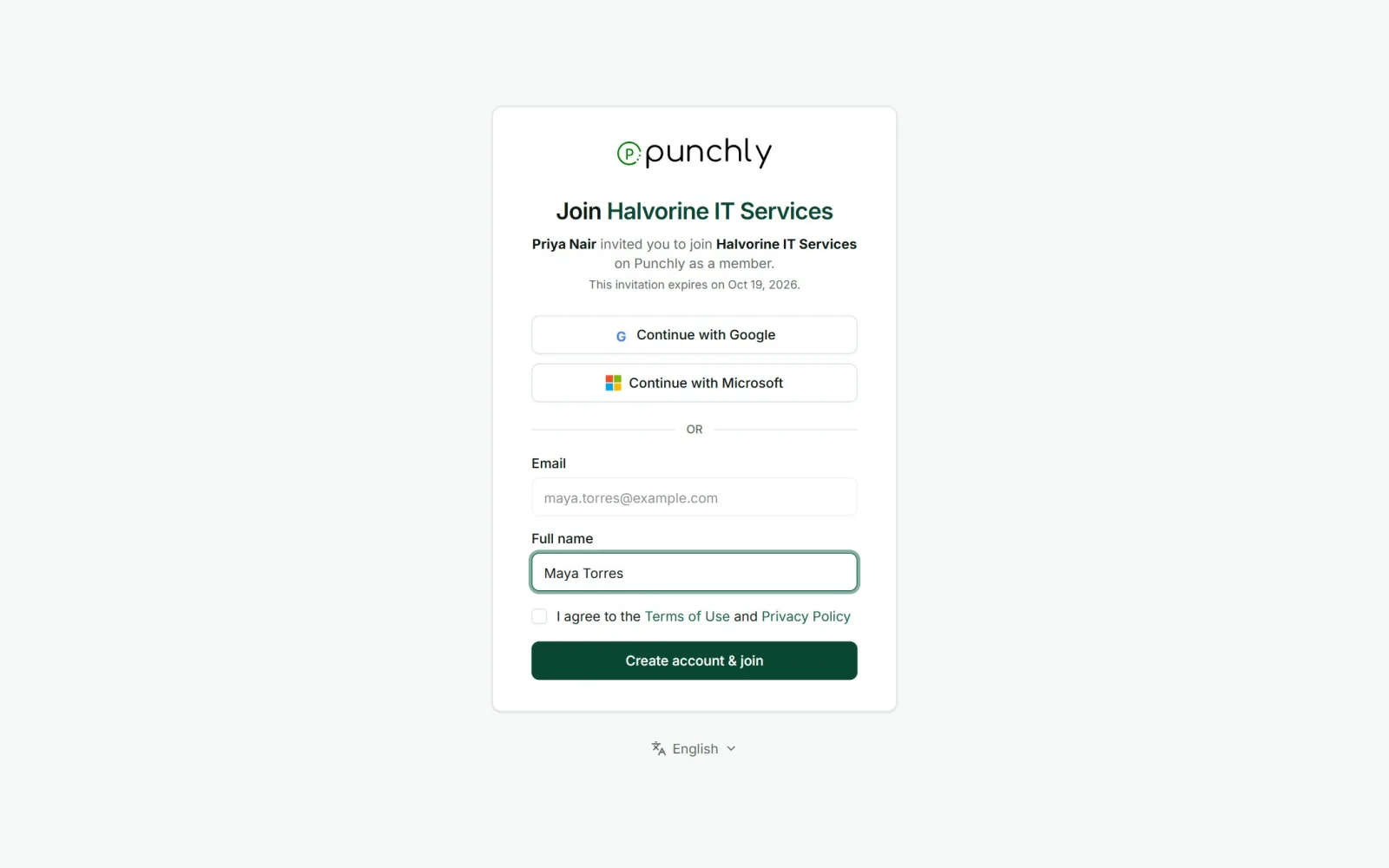
What the invited person does
- Opens the email and clicks the link.
- Checks the name, agrees to the terms, and presses Create account & join. Or uses Google or Microsoft with the same email address.
- Lands in the workspace, ready to track time.
Good to know
- Already has a Punchly account? If the invited email already has an account, the invitation also shows under the bell and in Manage workspaces, and they accept it there.
- The link expires after 14 days and works once. An admin can send it again from the Team list, which makes a fresh link, or cancel it.
- A whole office can join at the same time. There is no limit on how many invited people join from one office in an hour.
- Staff without email are added as limited members instead. See Roles.
- How many people. On the Free plan a workspace can have up to 5 active full members, the owner included. Paid plans are bought by the seat.