
Tasks
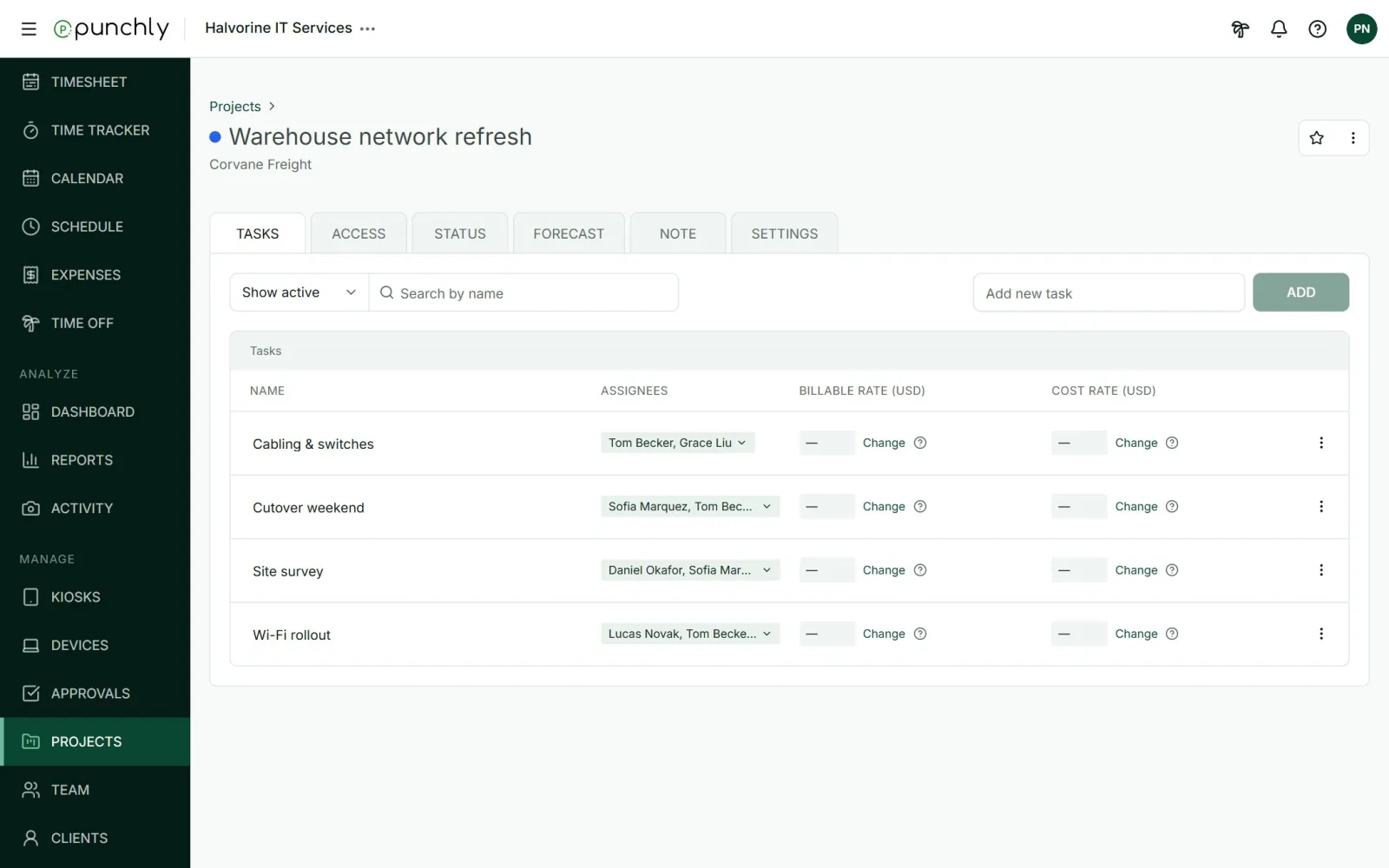
Tasks split a project into smaller parts, such as “Site survey” and “Wi-Fi rollout”. People pick a task when they track time, and reports can then show hours per task.
Where
Open a project. Tasks is the first tab
Who can add
Owner and admins. Others if the workspace allows it
Plan
Free
Working with tasks
- Add: type a name in Add new task and press Add. Names must be unique within the project.
- Rename: click the name, change it, and press Enter.
- Mark as done: open the three-dot menu on the task. A done task can no longer be picked for new time. It can be marked active again later.
- Delete: only a done task can be deleted. Time already tracked on it stays on the project, without the task.
Assignees
Each task shows who may pick it. Anyone means everyone with access to the project. Click it to choose specific people or groups. After that, only they can track time on the task. The owner, admins and the project’s managers can always pick any task.
Task rates
A task can have its own billable rate, for example a higher rate for on-site work. Press Change in the rate column. Task rates need the Standard plan. See Billable rates and cost rates.
Who can do what
- Adding tasks follows the workspace setting Who can create tasks: Admins, Admins and project managers, or Everyone. It starts as Admins.
- Renaming, assigning, marking done and deleting are for the owner, admins and that project’s managers.
- Tasks cannot be added to an archived project. Restore it first.