
Request time off
People ask for leave in Punchly, their manager approves it, and the balance is kept up to date. Approved leave then shows on the timesheet, the calendar and the reports.
Where
The palm tree at the top, or the Time off screen
Who
Everyone with a policy assigned to them
Plan
Standard
Steps
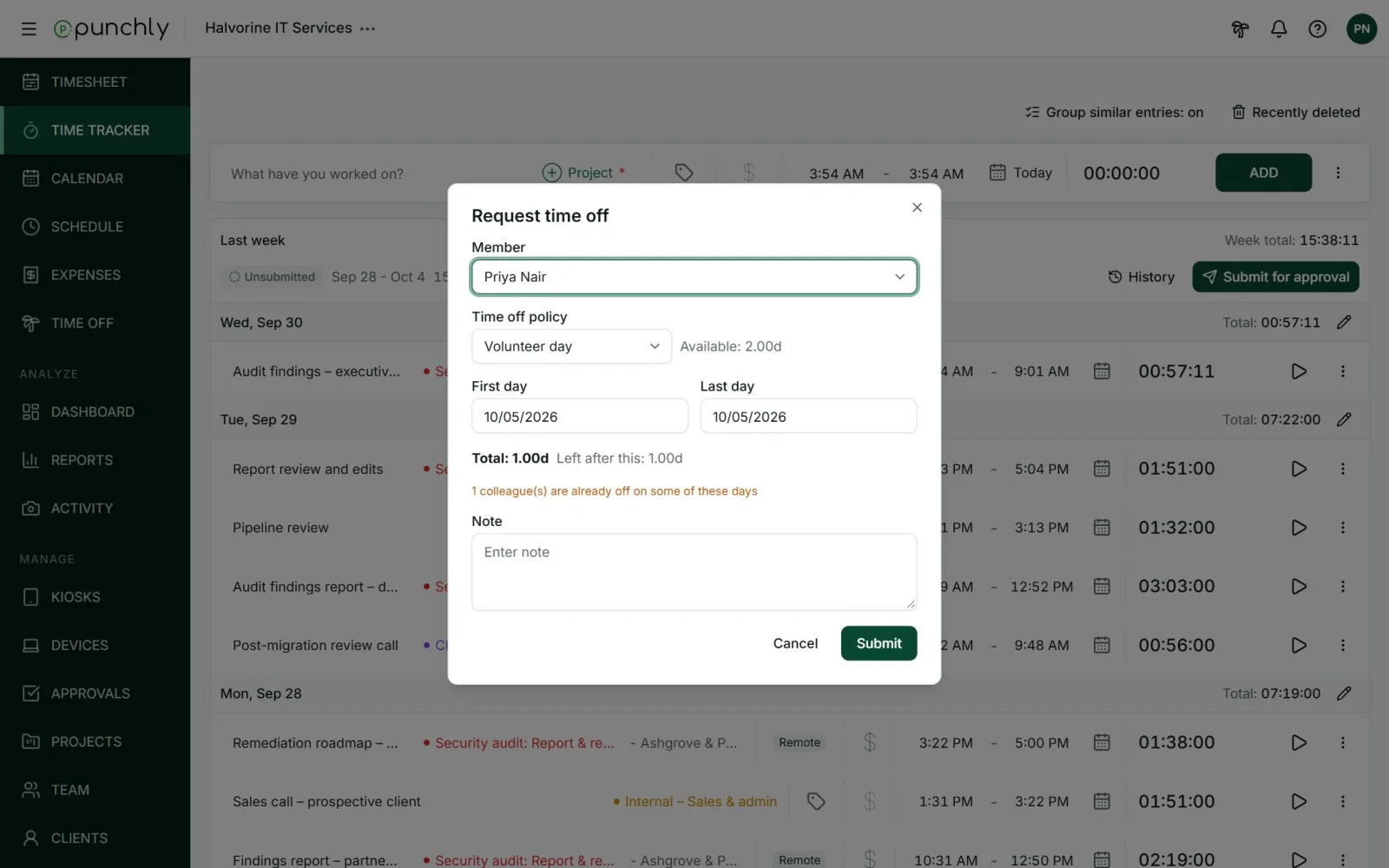
- Press the palm tree at the top of any screen.
- Pick the policy, such as Vacation or Sick leave. Your available balance is shown beside it.
- Pick the first and last day. For a half day, choose 1st half or 2nd half.
- Check the total, and what will be left after.
- Add a note if you wish, and press Submit.
What happens next
- If the policy needs approval, the request is Pending until an approver decides. They are told at once.
- If it does not, the request is Approved immediately.
- You are told when it is approved or rejected.
Good to know
- Weekends and holidays are not counted. A request from Friday to Monday uses 2 days. The form tells you which days are left out.
- Not enough balance? The request is refused, unless the policy allows going below zero.
- Two requests cannot cover the same day.
- Changed your mind? Edit or withdraw a request while it is pending. Approved leave can be cancelled, by you or by an approver.
- The form warns you, without stopping you, if you already tracked time on those days or if colleagues are off too.
See your balance
On the Time off screen, the Balance tab shows one row per policy: what you have earned, what you have used, what is waiting for approval, and what is available.
Where time off shows up
- Timesheet and Calendar: a row at the top of the week marks leave and holidays.
- Dashboard: a Time off card lists leave in the range.
- Reports: the Attendance report counts approved leave. Other reports can filter on Time off and Holiday.
- Schedule: a person on leave has no capacity that day.