
Add time by hand
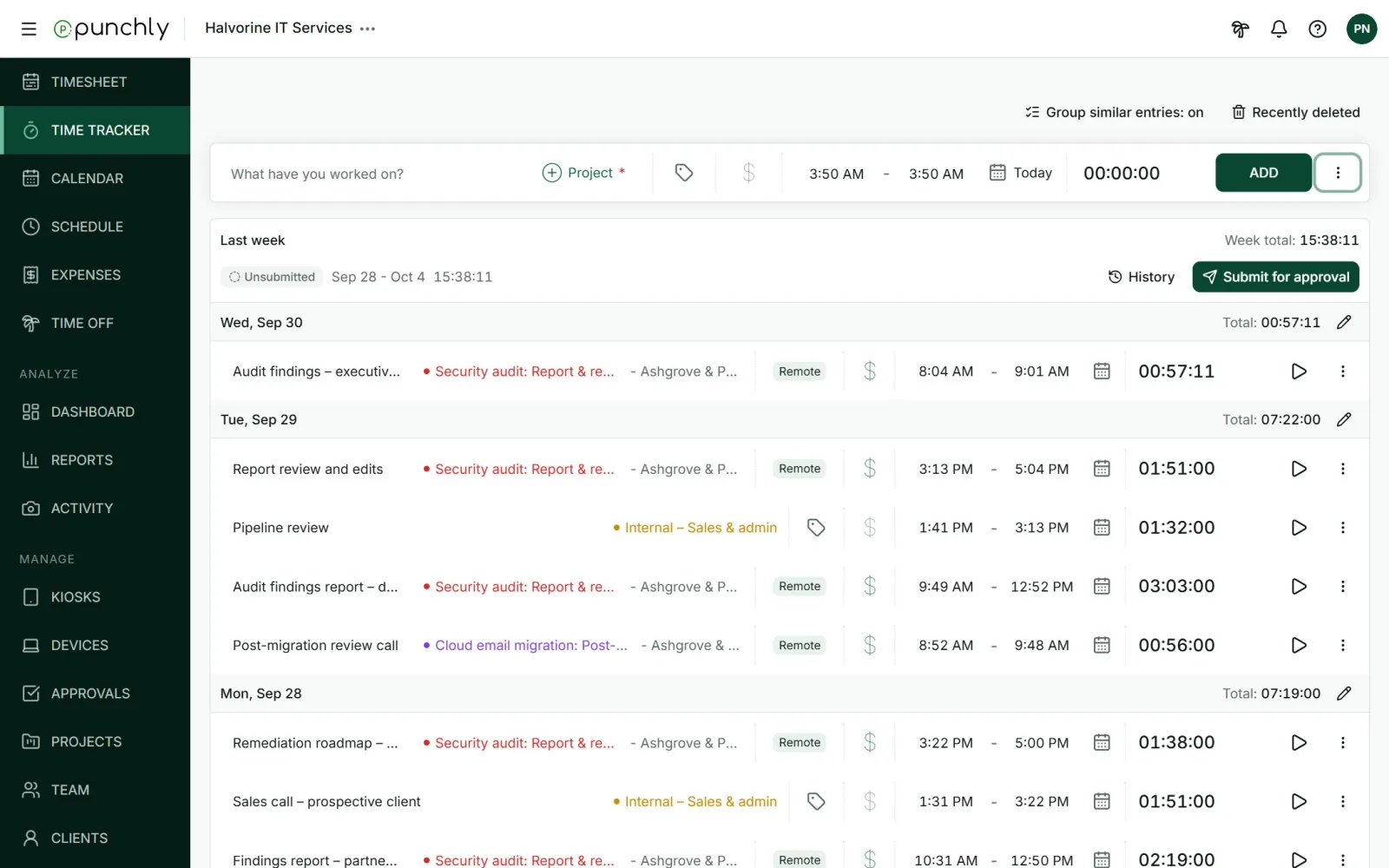
Manual mode is for time you already worked and did not run a timer for. You type the start, the end or the duration, and add it.
Where
Time tracker, three dots beside Start, Manual mode
Who
Everyone, unless the workspace allows the timer only
Plan
Free
Steps
- Open the three dots beside Start and choose Manual mode.
- Type what you worked on and pick the project.
- Set the date, then the start and end time. Or type a duration and Punchly works out the end.
- Press Add.
After adding, the next entry is set to start where this one ended, which makes it quick to fill a whole day. Punchly remembers the mode you chose.
Quick ways to type a duration
| You type | Punchly reads |
|---|---|
| 45 | 45 minutes |
| 130 | 1 hour 30 minutes |
| 1:30 | 1 hour 30 minutes |
| 1.5 | 1 hour 30 minutes |
| 1h 30m | 1 hour 30 minutes |
A number from 1 to 99 means minutes. Each person can switch that to hours in their profile. Clock times can be typed the short way too: 9 for 9:00, 930 for 9:30, 1pm.
Good to know
- Stop your timer first. While a timer is running, time cannot be added by hand.
- An end earlier than the start is read as the next day, and shown with +1.
- The workspace can switch manual time off. With Force timer on, Manual mode is not available. See Rules that shape tracking.
- Time can also be added on the Timesheet and the Calendar.