
Calendar
The Calendar draws your tracked time as blocks on a day or week. It is the quickest way to see gaps and overlaps, and to add or move time by dragging.
Where
Calendar, in the menu
Who
Everyone, for their own time
Plan
Free
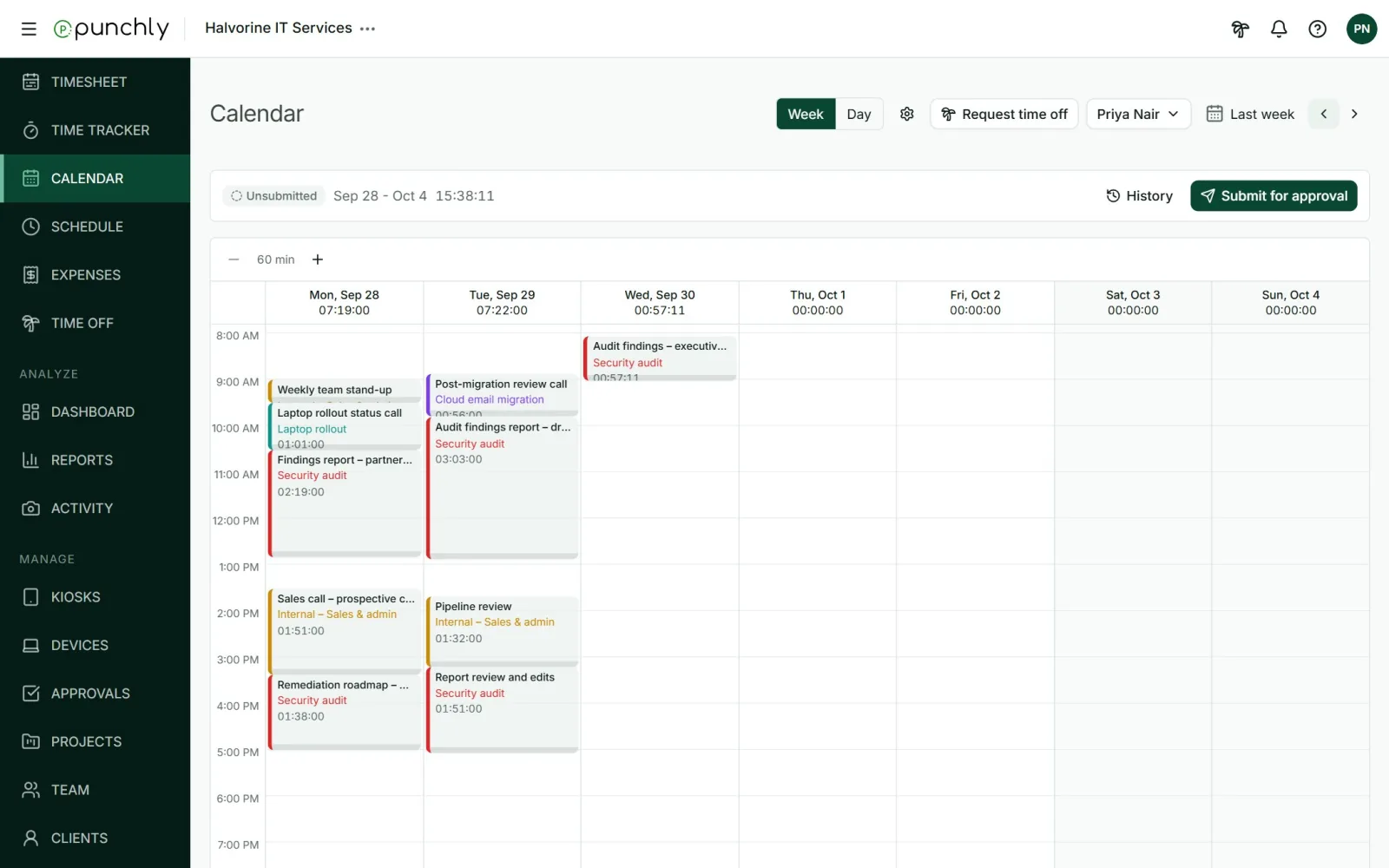
Add, move and resize
- Add: click an empty slot, or drag over the hours you worked. Fill in the details and press Add.
- Edit: click a block.
- Move: drag a block to another time or another day.
- Make longer or shorter: drag the bottom edge of a block.
- Undo: every move can be undone with the Undo link, or the Undo move button.
Use Week and Day to switch views. The plus and minus buttons zoom the grid, from 60 minutes per row down to 5.
Show your Google or Outlook calendar
Your meetings can be shown beside your tracked time, so you can track them with one click.
- Press the cog, Calendar settings.
- Under Connected calendars, press Connect beside Google Calendar or Outlook Calendar.
- Sign in with Google or Microsoft and allow access.
- Back in Punchly, tick which of your calendars to show.
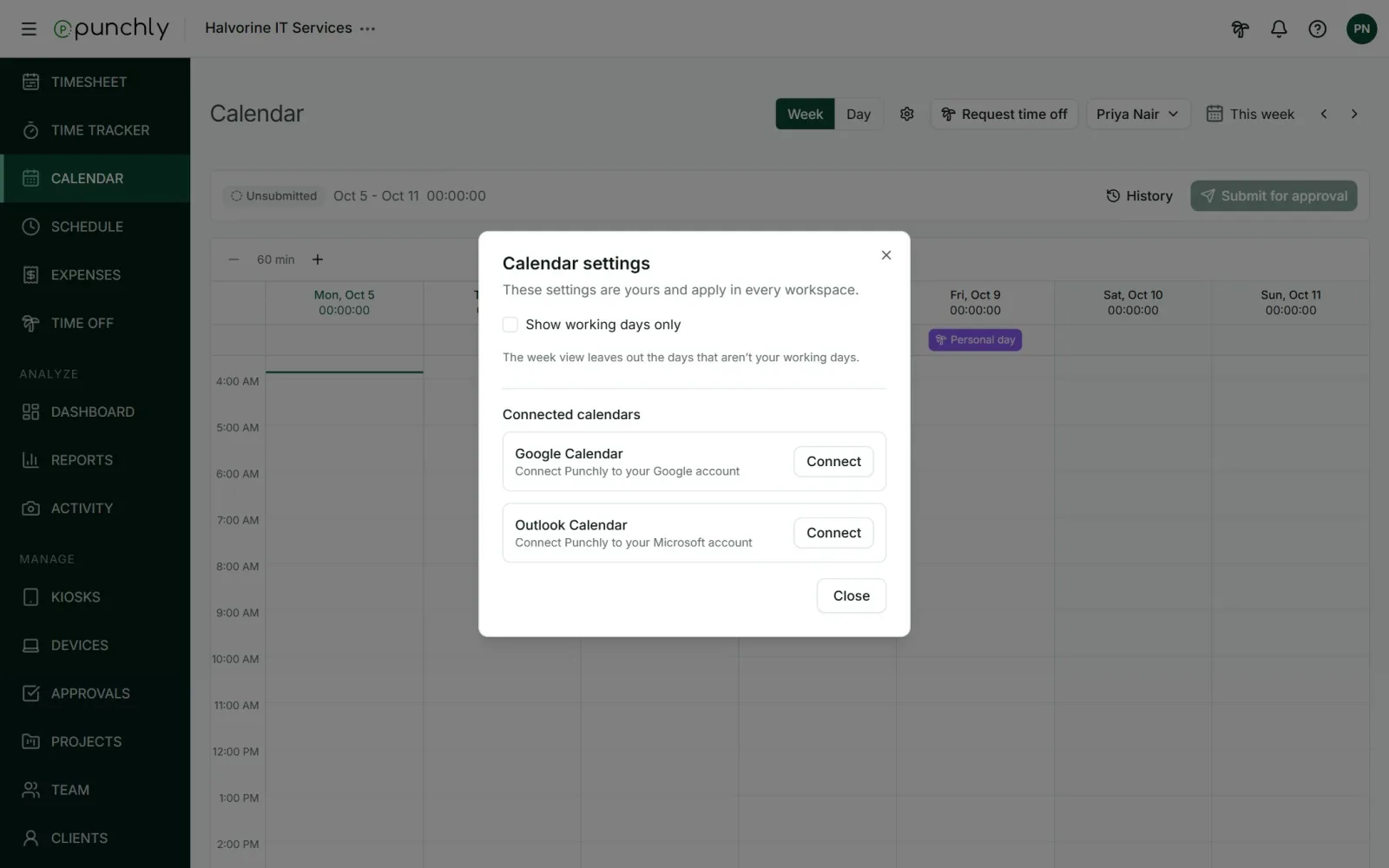
Events appear in a lane on the right of each day. They are read-only: Punchly never changes your calendar.
Track a meeting
Hover over an event to see two buttons.
- Start time entry (the play button) starts a timer now, with the meeting’s title as the description.
- Copy as time entry makes an entry with the meeting’s title and its start and end times.
The buttons are missing? They are hidden while your timer is already running, and whenever adding time is not allowed, for example in an approved week. Stop the timer and they come back.
Good to know
- Time off and holidays are shown in a row at the top of the day.
- The Teammates picker works here as it does on the Timesheet.
- Show working days only, in Calendar settings, hides the days you do not work.
- You can disconnect a calendar at any time from the same dialog.