
Groups
A group is a named set of people, such as “Engineering” or “Field crew”. Groups save picking the same people one by one when giving project access, naming a team manager or filtering a report.
Where
Team, Groups tab
Who manages them
Owner and admins
Plan
Free
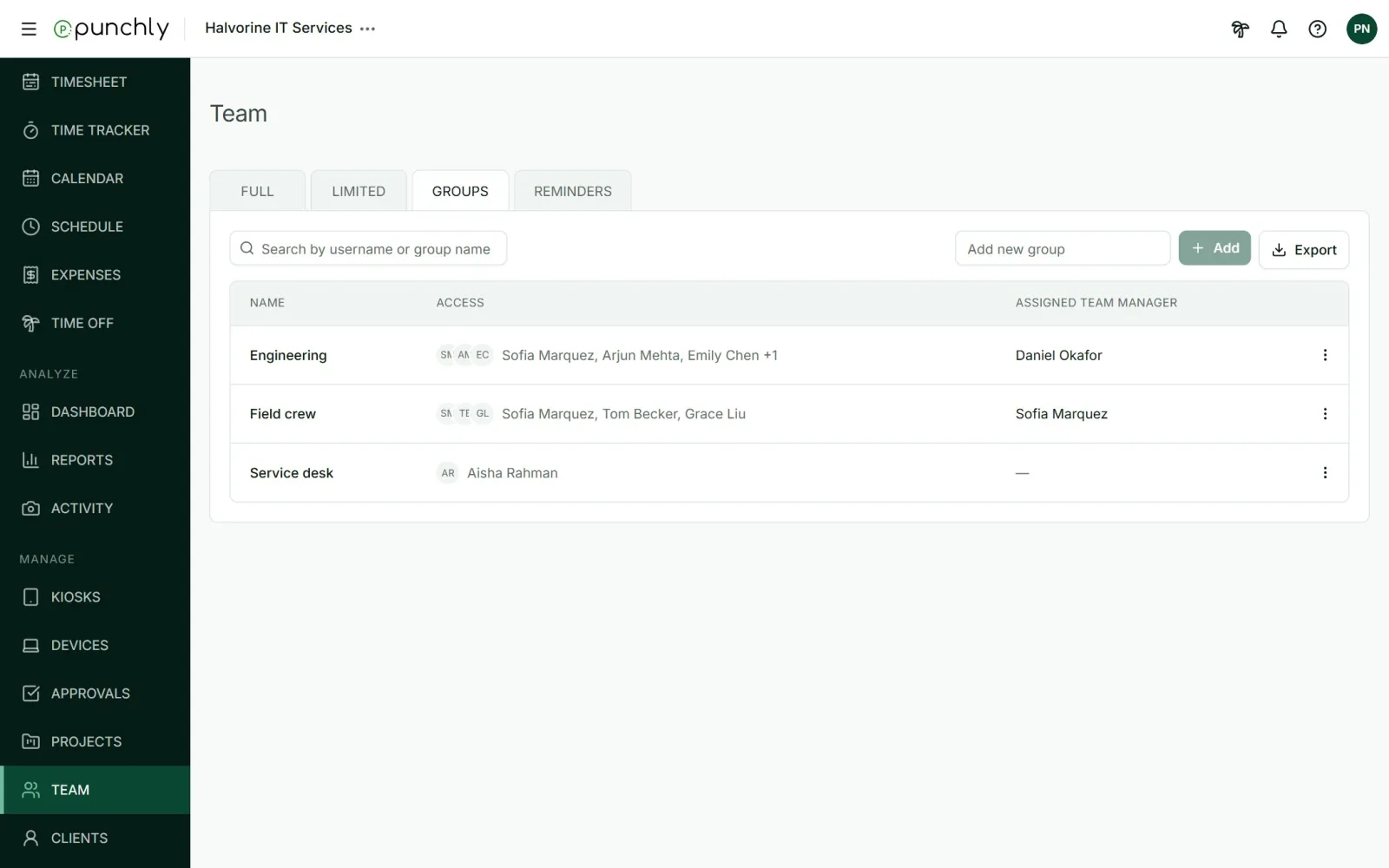
Working with groups
- Create: type a name in Add new group and press Add.
- Edit members: open the three dots and tick who belongs. Invited and limited members can be added too.
- Rename or Delete from the same menu. Deleting a group removes only the grouping. Its people stay in the workspace.
A person can be in several groups.
Where groups are used
- Project access: add a whole group to a private project.
- Team managers: a team manager can manage a group. When someone joins the group, the manager covers them automatically.
- Task assignees, kiosks, reminders and shared reports can all be given to a group.
- Reports: filter or group by Group.
To make someone the manager of a group, open that person’s role on the Team screen, tick Team manager and pick the group.