
Export and print
Any report can be taken out of Punchly as a PDF, a CSV file or an Excel file, or sent to a printer.
Where
The Export button on a report
Plan
PDF: Free. CSV and Excel: Basic
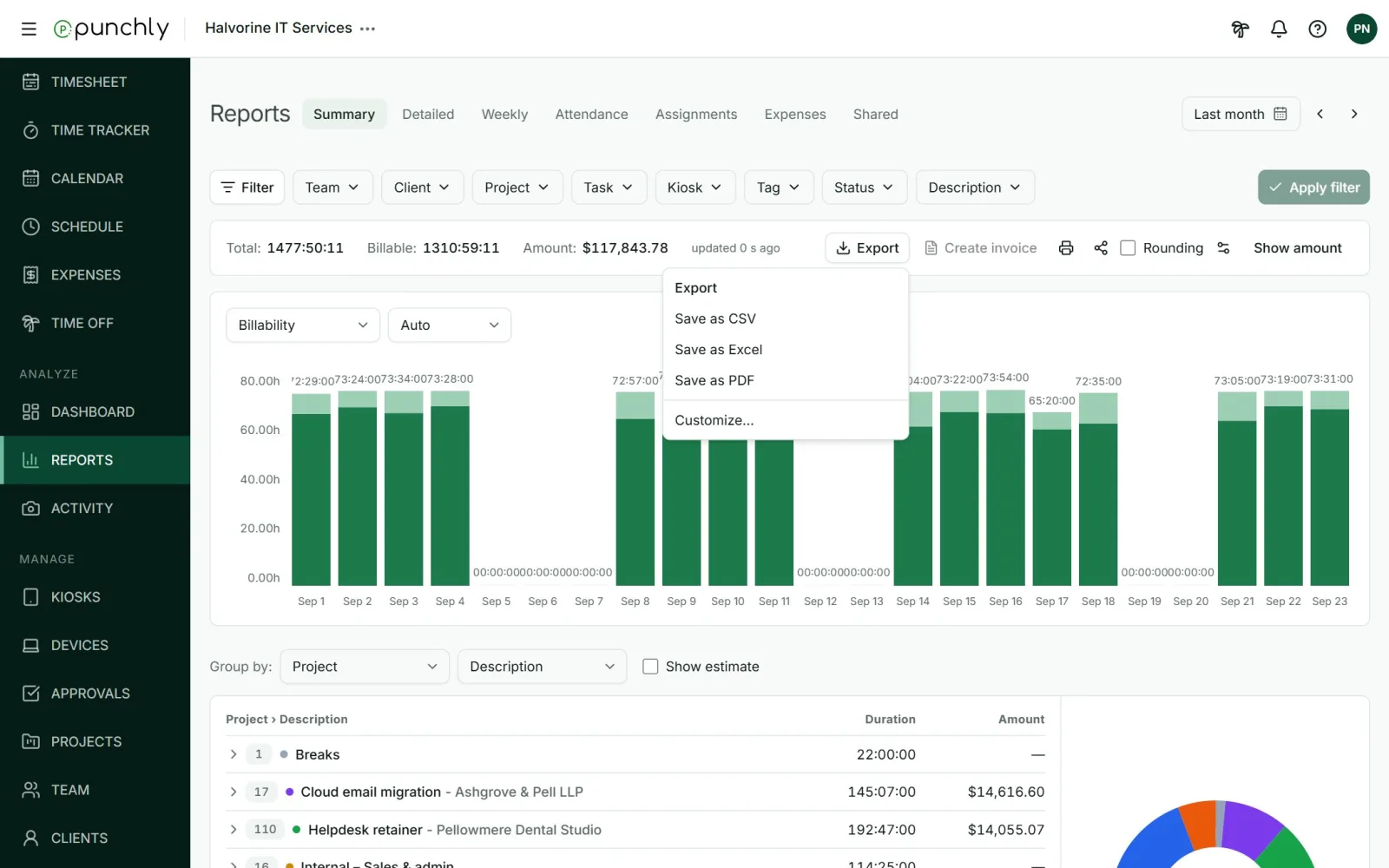
Export a report
- Set the date range, filters and grouping so the report shows what you want.
- Press Export and choose PDF, CSV or Excel.
- Punchly prepares the file in the background. A message appears with a Download link when it is ready.
- The file holds everything that matches the report, not only the rows on screen.
- On the Detailed report, tick rows first to export only those.
- The download link works for 7 days.
- Customize lets you name the report, choose its columns and add a note to the PDF.
Which format
- PDF for sending to a client.
- Excel for working with the numbers. It uses your workspace’s number format.
- CSV for loading into another tool. It uses plain numbers such as 1234.56.
Good to know
- Money columns are left out of the file for people who are not allowed to see amounts.
- The Attendance and Assignments reports export to CSV and Excel only.
- The printer icon opens your browser’s print dialog for the report on screen.