
Detailed report
The Detailed report lists every time entry, one per row. It is the place to check exactly what was tracked, correct mistakes, and prepare time for invoicing.
Where
Reports, Detailed tab
Plan
Free. Bulk edit and Time audit need Basic
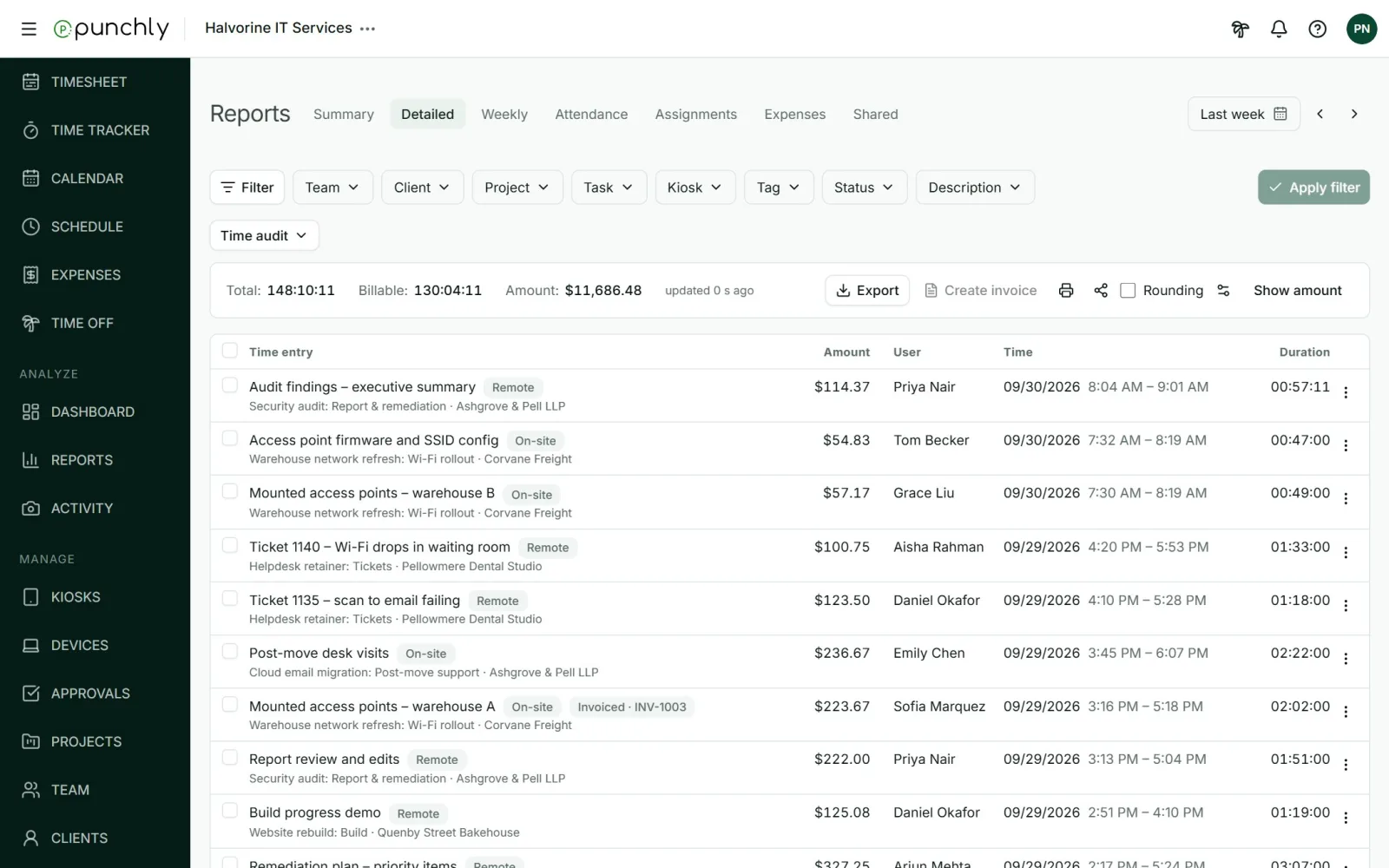
What each row shows
- The description, with its tags and badges such as Break, Time off or Invoiced.
- The project, task and client, and “non-billable” where it applies.
- The person, the date, the start and end time, and the duration.
- One money column, if you chose to show amount, cost or profit.
Click a heading to sort. The list shows 50, 100 or 200 rows per page.
Correct an entry
Open the three dots on a row.
- Edit opens the entry to change its times, description, project, tags and billable setting.
- Mark as break, time off, holiday or regular entry changes what kind of entry it is. This is for the owner and admins.
- Delete.
An option you cannot use is greyed out with the reason, for example “Approved entries can’t be edited”.
Change many entries at once
Tick rows, then use the bar that appears.
- Bulk edit: change the description, project, tags or billable setting on all ticked entries. Needs the Basic plan.
- Delete: removes them, with an Undo link.
- Mark as invoiced: flags time as already invoiced, so that new invoices do not pick it up again.
Good to know
- When rounding is on, a rounded duration carries a small “about” sign. Hover to see the real one.
- An entry made with a kiosk’s manager PIN carries a Manager PIN badge.
- A camera icon on a row opens that person’s kiosk photos for the day.