
Create an invoice
An invoice is made for one client. You can start it empty and pull in the work, or create it straight from a report that already shows the work you want to bill.
From the Invoices screen
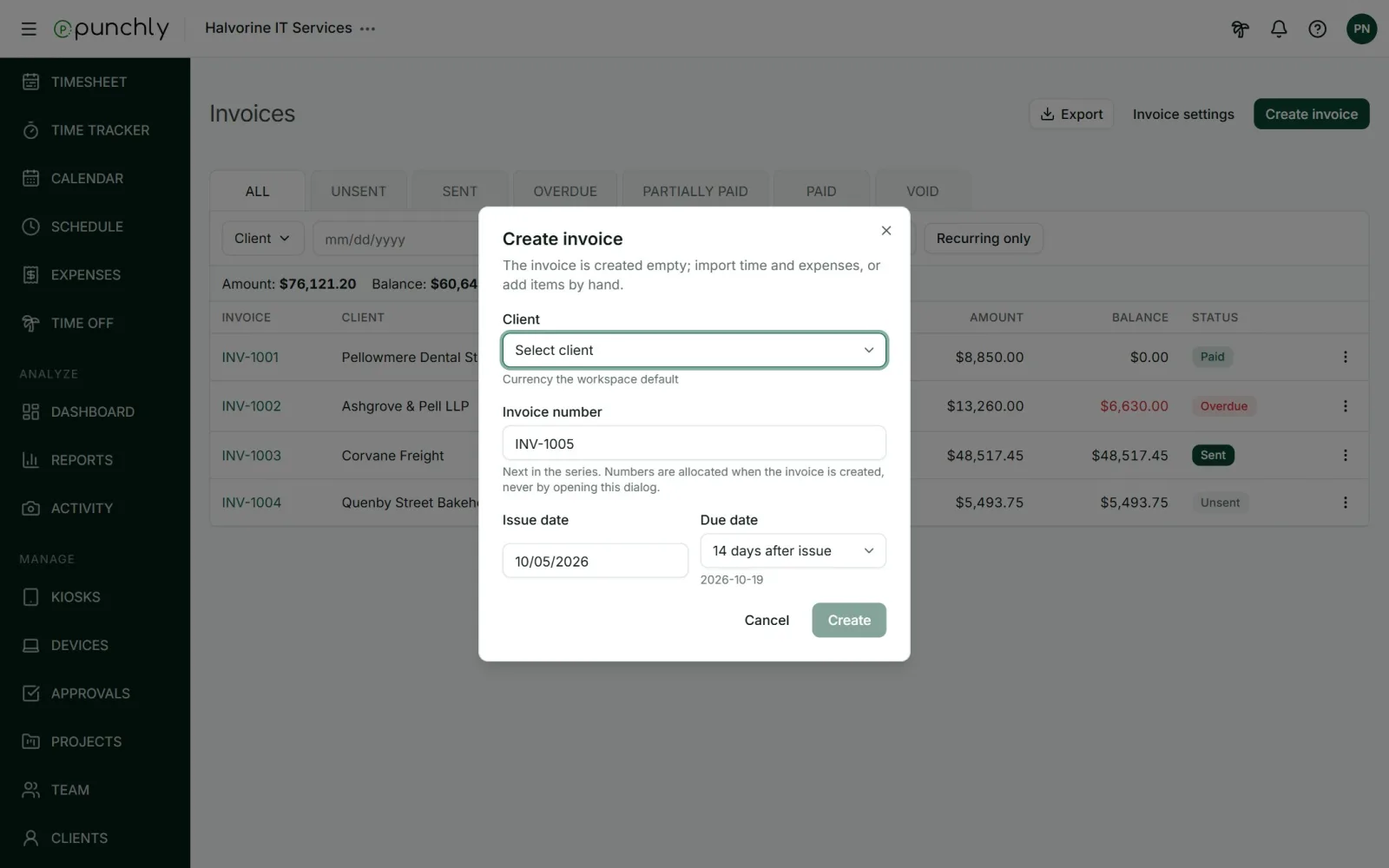
- Press Create invoice.
- Pick the client.
- Check the invoice number (the next in your series), the issue date and the due date.
- Press Create. The empty invoice opens.
- Press Import time and expenses.
Import time and expenses
- Tick the client’s projects to bill.
- Choose the date range. It starts as last month.
- Choose how the time is shown:
- Single item: all hours on one line.
- Detailed: one line per time entry. You choose what each line says: project, task, description, tags, date, user.
- Grouped: hours combined by project, user or date.
- Optionally tick rounding, to bill rounded time, and Include billable expenses.
- Press Preview lines to see exactly what will be added, then Import.
What gets imported
- Only billable time and expenses, on the chosen projects, in the chosen dates.
- Only work that is not already invoiced. Nothing can be billed twice.
- Running timers, deleted entries, time off and holidays are left out.
- Everything imported is marked as invoiced. In the Detailed report it carries an Invoiced badge with the invoice number.
From a report
- Open the Summary, Detailed or Weekly report.
- Filter it to one client and the dates you want, and press Apply filter.
- Press Create invoice.
- Choose the layout and whether to include expenses, and confirm.
The report’s filters decide what goes on the invoice. If there is nothing left to bill, no invoice is made and no number is used.
Work on the invoice
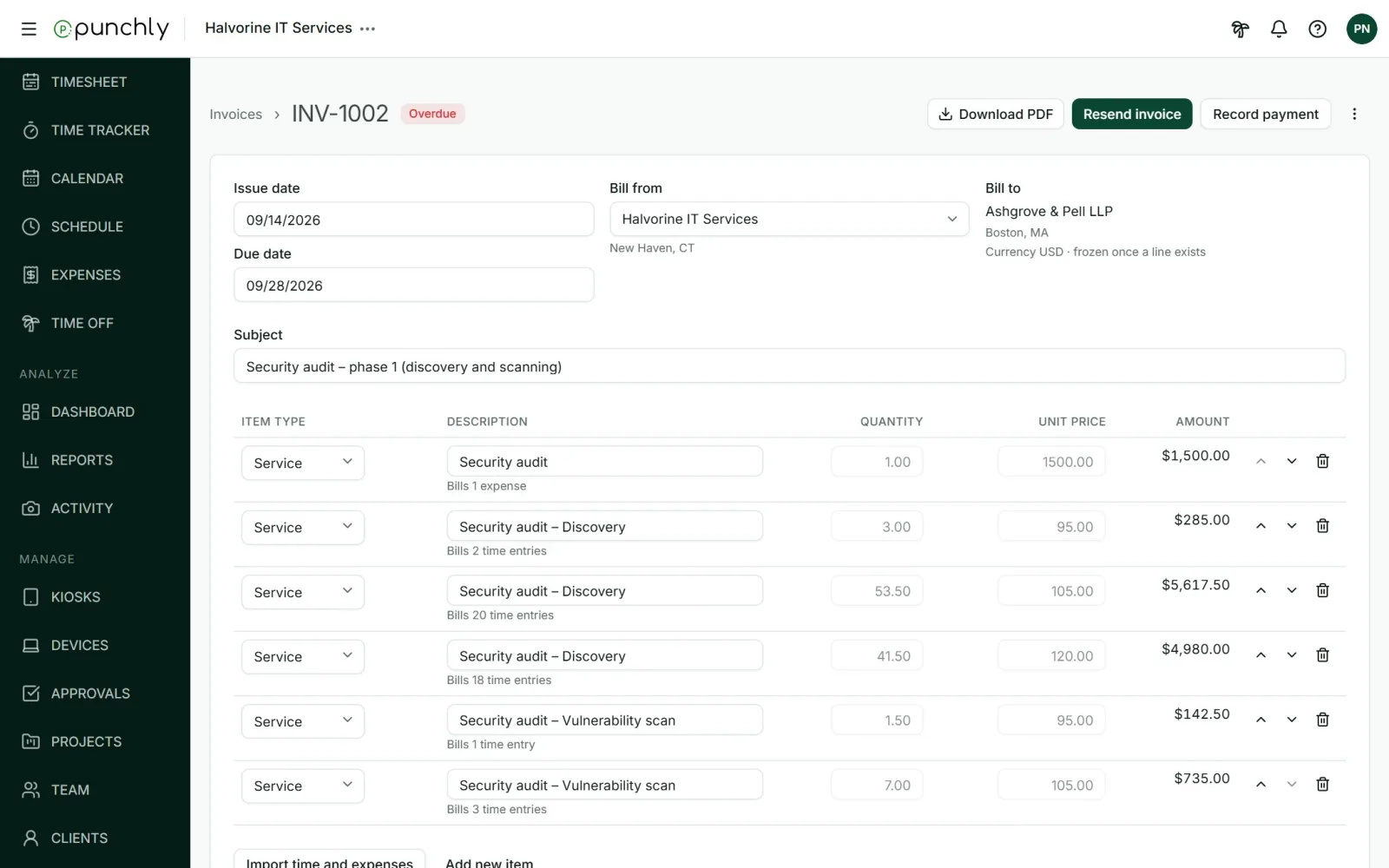
- Bill from: your company, picked from the companies in Workspace settings.
- Bill to: the client’s name and address, from the Clients screen.
- Subject and Notes.
- Lines: item type, description, quantity, unit price. Add new item adds a line by hand. Lines can be moved up and down.
- On an imported line you can change the description, but not the quantity or price, since they come from the tracked work.
- Discount: one per invoice, a percentage or a fixed amount, taken off before tax.
- Tax: up to two taxes, each with its own label, such as GST or VAT. With two taxes you choose whether the second applies to the total or to the taxed amount.
Deleting an imported line frees its time and expenses, so they can be invoiced again.