
Edit and delete entries
Anything on a time entry can be corrected afterwards: the description, the project, the times. Entries can also be split, duplicated, changed in bulk and, if deleted by mistake, brought back.
Where
Time tracker, on each row
Who
Everyone, for their own time. Admins for anyone’s
Plan
Free. Bulk edit needs Basic
Change an entry
Click the part you want to change on the row and edit it there. Each change saves by itself.
- Description, project, tags, $: click and change.
- Start, end or duration: click the time and type a new one.
- Date: click the small calendar icon to move the entry to another day.
More actions on an entry
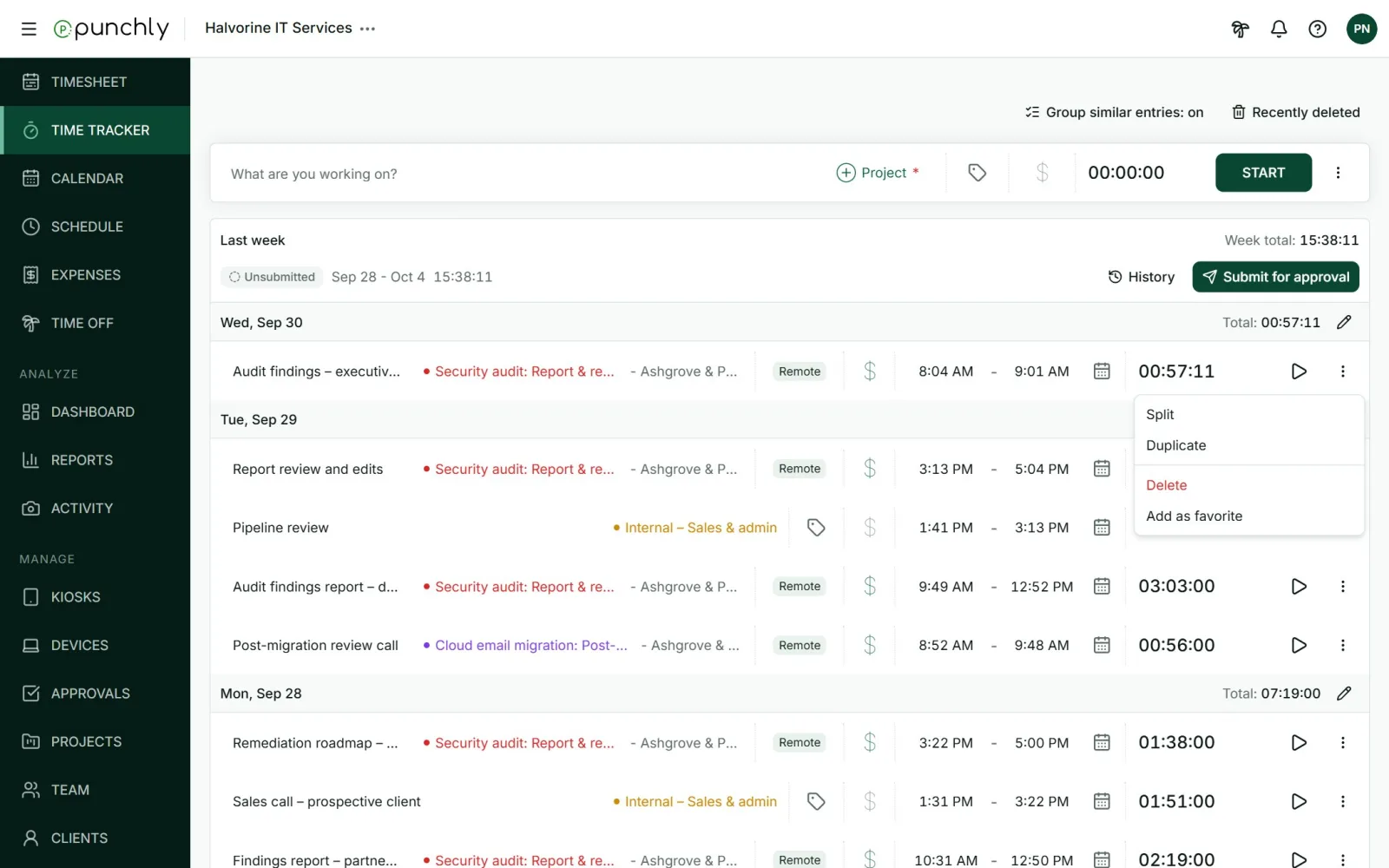
- Split cuts one entry into two at a time you choose. Useful when you forgot to switch projects. Entries shorter than 2 minutes cannot be split.
- Duplicate makes a copy with the same details and times.
- Delete removes the entry. An Undo link appears for 20 seconds.
- Add as favorite keeps it for one-click starting.
Recently deleted
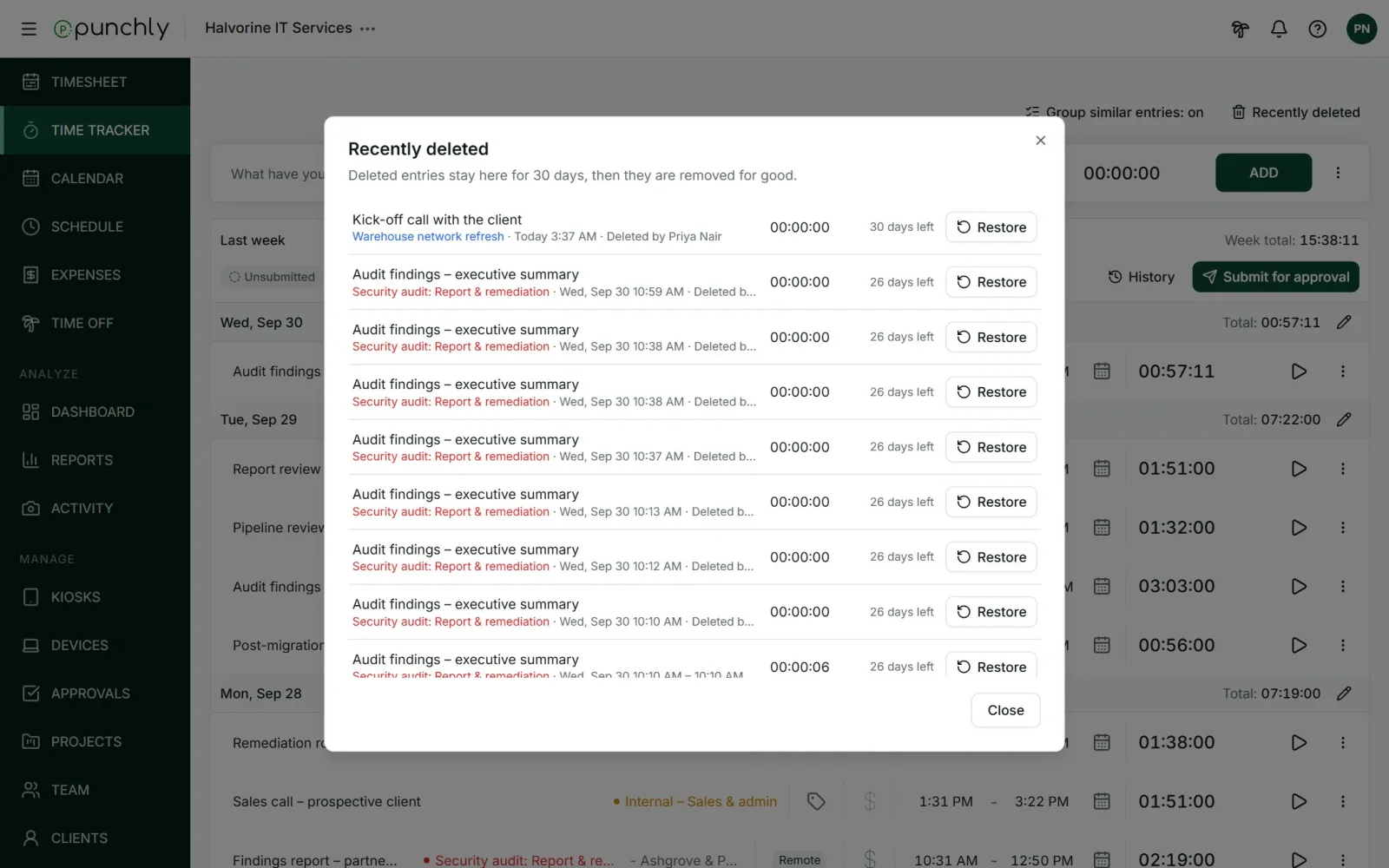
Deleted entries are kept for 30 days. Press Recently deleted at the top of the Time tracker and press Restore on the entry you want back. After 30 days they are removed for good.
Group similar entries
With Group similar entries on, entries of the same day with the same description, project, tags and billable setting are shown as one row with a count. Click the count to see each one. Changing the description or project on the group changes every entry in it. Turn grouping off with the button at the top.
Bulk edit a day
- Press the pencil on a day’s heading.
- Tick the entries to change.
- Press Bulk edit, or Delete.
- Tick the fields to change: description, project, tags, billable, time or date. The others stay as they are.
- Press Save.
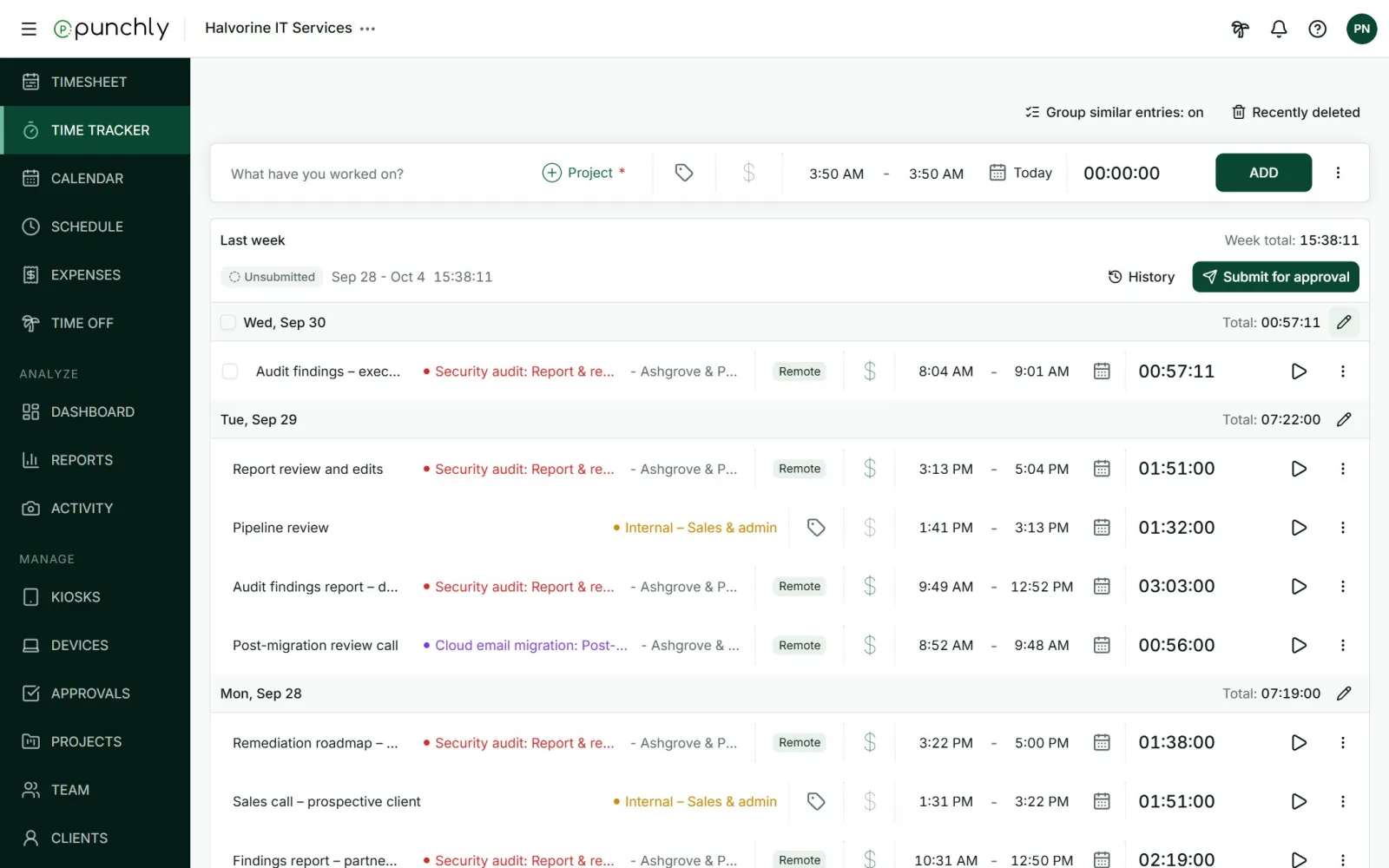
Bulk edit works on one day at a time and needs the Basic plan.
When an entry cannot be changed
- Approved time shows a green tick. It is read-only for everyone until the approver reopens it.
- Locked time shows a padlock. It is dated before the workspace’s lock date. Only the owner and admins can change it.
- Someone else’s time can be changed only by the owner and admins, and by team managers if the workspace allows it.
A button you cannot use stays visible, greyed out, with the reason shown.