
Roles: who can do what
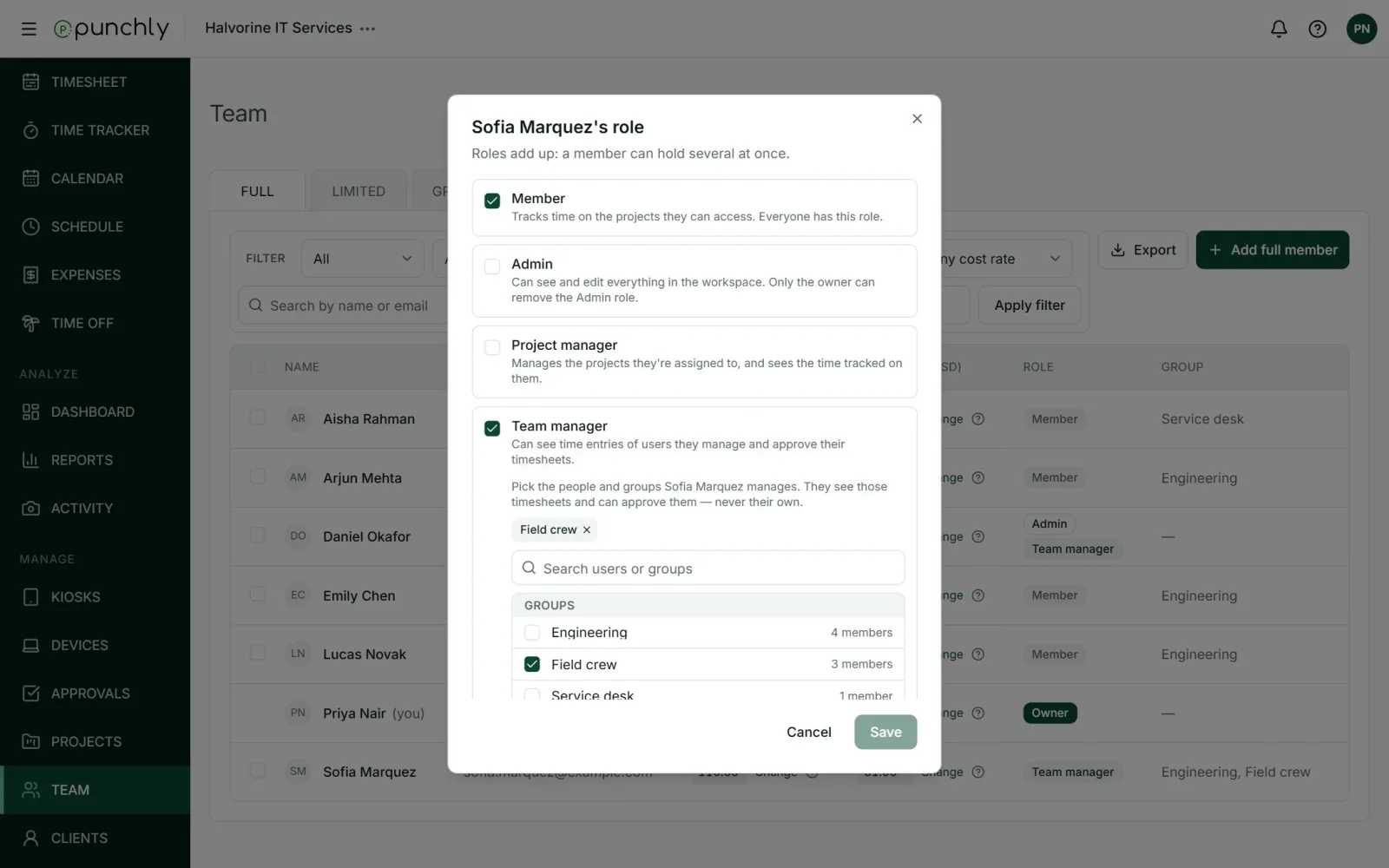
A role decides what a person can see and change. Everyone is a member. Some people are given more on top of that, and roles add up.
| Role | What it means |
|---|---|
| Owner | The person who created the workspace. Can do everything, including the subscription, passing ownership to someone else, and deleting the workspace. One per workspace. |
| Admin | Can see and edit everything in the workspace. Only the owner can remove the Admin role from someone. |
| Project manager | Manages the projects they are assigned to, and sees the time tracked on them. |
| Team manager | Sees the time of the people or groups they manage and approves their timesheets. Never their own. |
| Member | Tracks time on the projects they can access. Everyone has this role. |
Changing someone’s role
- Open Team.
- Click the role shown on the person’s row.
- Tick the roles they should have. For Project manager, pick the projects. For Team manager, pick the people or groups.
- Press Save.
Full members and limited members
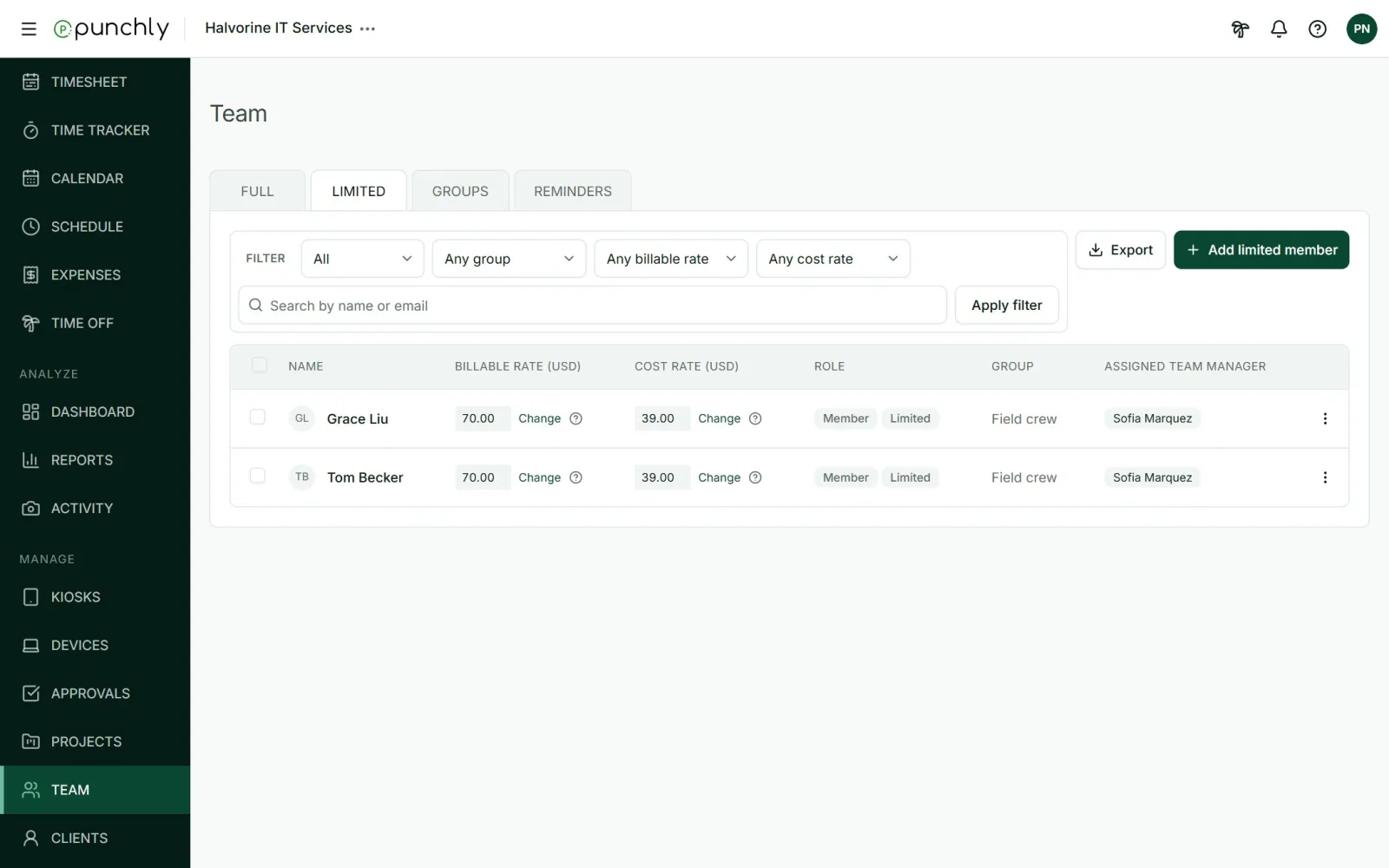
The Team screen has two lists.
- Full members have an email address and log in. They are invited by email.
- Limited members cannot log in. They are added by name only. An admin adds their time, or they clock in and out on a kiosk. This suits staff without a company email, such as a field or shop crew.
Workspace settings also shape what members see, for example whether they can see each other’s time. See Permissions.