
Desktop app settings
An admin decides how the desktop app behaves on everyone’s computer: whether it starts by itself, when it stops the timer, and what it records. A change reaches every running app at once.
Where
Workspace settings, General, Desktop app
Who
Owner and admins
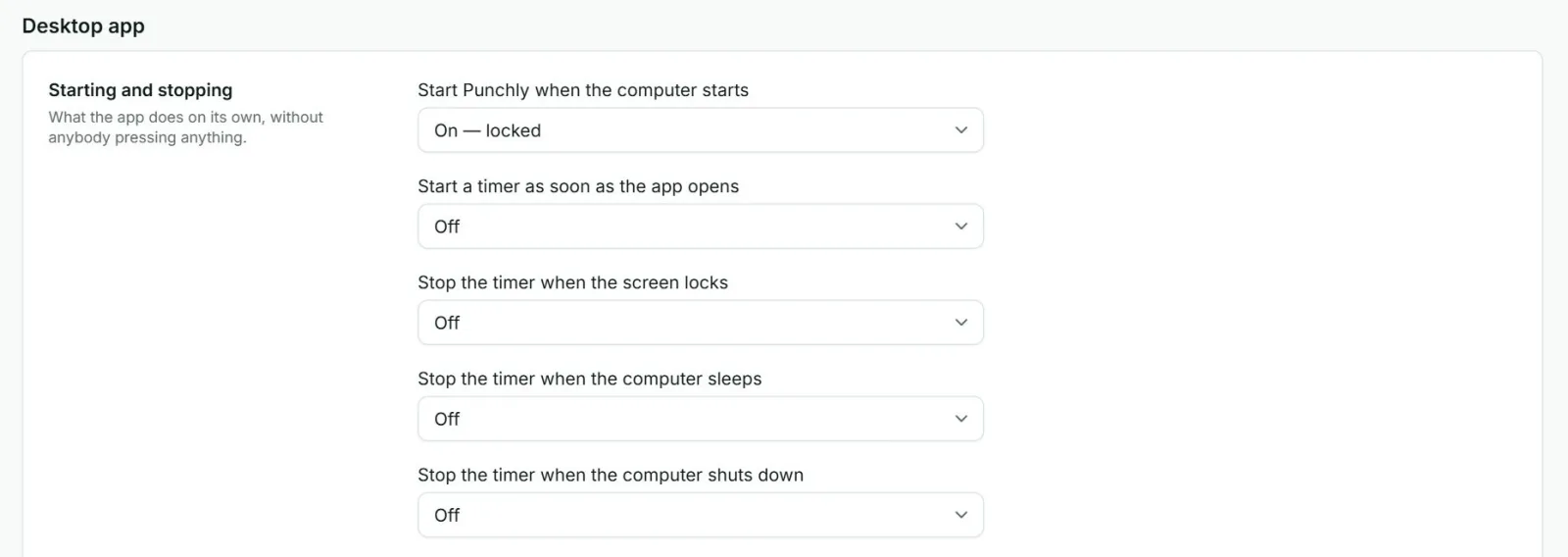
| Group | Setting | Starts as |
|---|---|---|
| Starting and stopping | Start Punchly when the computer starts | On |
| Start a timer as soon as the app opens | Off | |
| Stop the timer when the screen locks (Windows) | Off | |
| Stop the timer when the computer sleeps | Off | |
| Stop the timer when the computer shuts down | Off | |
| Idle time | Notice idle time | On |
| Ask after a number of minutes of no activity (1 to 120) | 5 minutes | |
| Screenshots (Pro) | Take screenshots | Off |
| How often (every 1 to 60 minutes) | 5 minutes | |
| Quality: Standard, or High resolution (Enterprise) | Standard | |
| Keep screenshots for a number of days | 365 days | |
| Activity | Private timeline on the member’s own computer | On |
| Upload app names for admins to see (Pro) | Off | |
| Include window titles as well as app names | Off | |
| Who can see and remove it | Who can see activity and screenshots | Admins only |
| Who can delete it | Admins only |
The Devices screen
Devices, in the Manage group, lists the computers running the desktop app. Members see their own. The owner and admins also see everyone’s.
- Each computer shows when it was last seen, its system and app version, and what it can do: idle detection, screenshots, window titles.
- Remove stops the app on that computer reporting at once. It has to be paired again to be used. Time it already sent is kept.
Use Remove when a computer is lost, sold or passed to someone else.