
The Time tracker
The Time tracker is where most people spend their day in Punchly. Start the timer when you begin a piece of work and stop it when you finish. Everything you tracked is listed underneath, newest first.
Where
Time tracker, in the menu
Who
Everyone, for their own time
Plan
Free
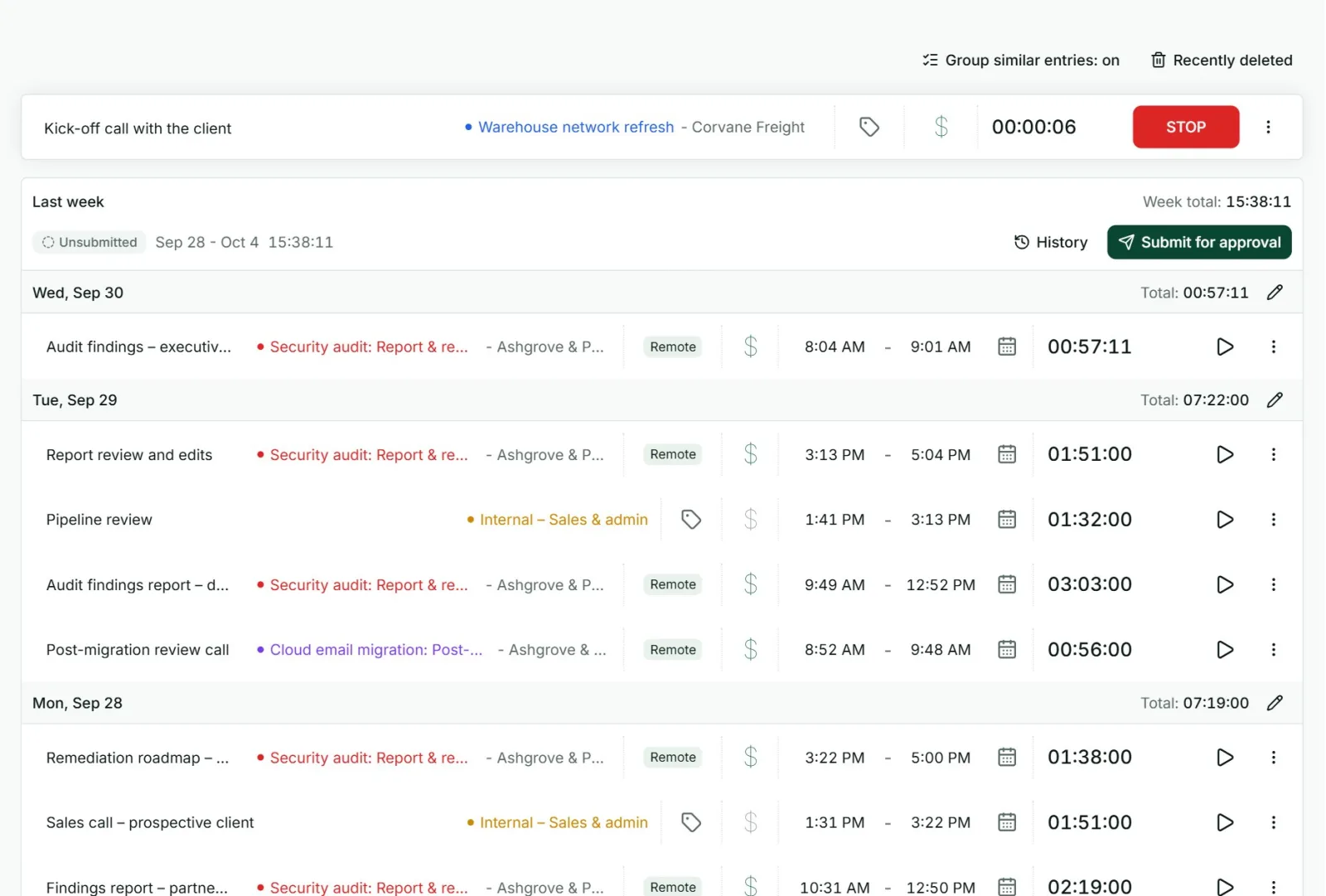
Start and stop the timer
- Type what you are working on. Punchly suggests earlier entries as you type. Picking one fills in the project, task, tags and billable setting too.
- Pick a project, and a task if the project has them.
- Add tags if you use them, and set the $ sign on for billable time.
- Press Start.
- Press Stop when you finish. The entry joins the list.
Good to know
- One timer at a time. Starting a new timer stops the one that was running.
- You can fill in details while it runs. The description, project, tags and $ can all be changed on a running timer. Each change saves by itself.
- Forgot to start on time? Click the running clock and type the time you really started.
- A red star marks a required field. The timer always starts, but it cannot be stopped until required fields are filled. Punchly asks for them on the spot.
- Started by mistake? Open the three dots beside Stop and choose Discard.
- The browser tab shows the running time, so you can see it while working in another tab.
- A running timer is not in reports yet. Its time counts in reports and on the dashboard once it is stopped.
Reading the list
- Entries are grouped by week, then by day, each with its total.
- Each row shows the description, project and client, tags, the $ sign, start and end time, and the duration.
- The play button on a row starts a new timer with the same details.
- The list first shows the last 90 days. Load more and Show earlier weeks bring older entries.
- This screen shows only your own time. To look at a teammate’s week, use the Timesheet or the Calendar.
Favourites
Work you repeat often can be kept as a favourite and started with one click.
- On an entry, open the three dots and choose Add as favorite. Give it a name.
- Favourites sit as chips under the timer. Click the play button on one to start it.
- Each person can have up to 5.
Keyboard shortcuts
| Key | What it does |
|---|---|
| n | Start a new timer |
| s | Stop the timer |
| c | Continue the most recent entry |
| m | Switch to manual mode |
| 1 to 5 | Start that favourite |
Shortcuts work when you are not typing in a field.