
The desktop app
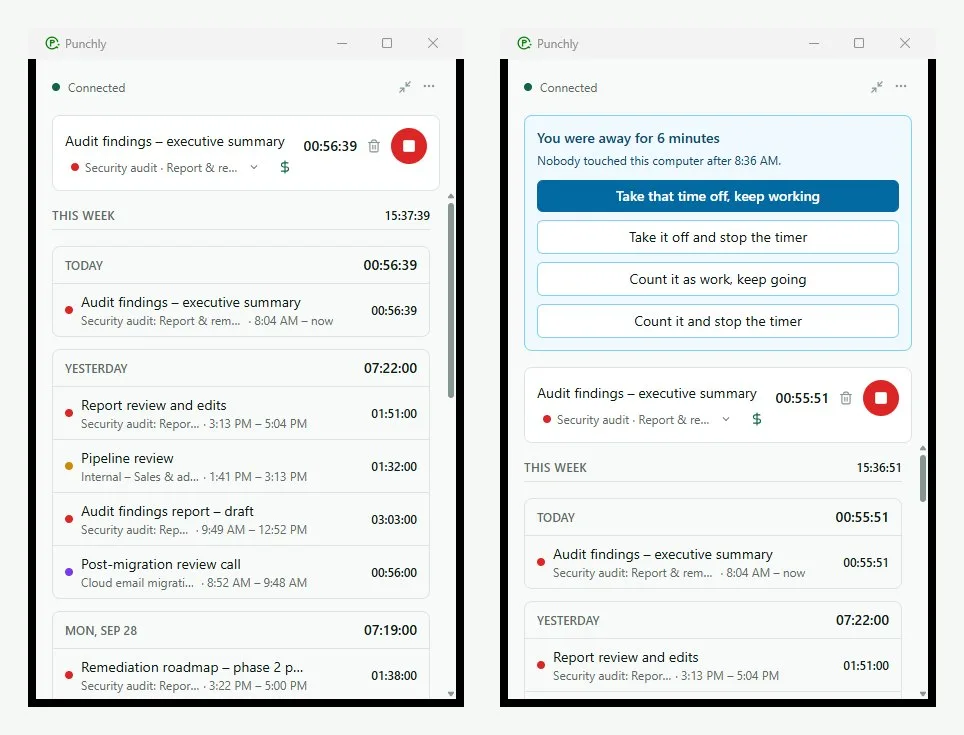
The desktop app is a small window that tracks time from your computer, without a browser tab. It keeps working when the internet drops, and it notices when you step away.
For
Windows, and Mac with Apple silicon (macOS 12 or later)
Who
Any full member
Plan
Free. Screenshots and activity: Pro
Sign in
- Install and open Punchly.
- Press Sign in. Your browser opens.
- In the browser, log in if needed, check the computer’s name, and press Pair this computer.
- Go back to the app. It is ready.
You never type a password or code into the app itself. If you belong to more than one workspace, you choose which one in the browser. More workspaces can be added later from the app’s menu with Add a workspace.
Track time
- Timer: type what you are working on, pick a project, press Start. Press the red button to stop.
- Add time manually: type a length such as 1:30 or 90m.
- Take a break: starts a break timer.
Under the timer is the last seven days of your time. Hover over an entry to continue it, or open its menu to edit, split, duplicate, add as a favourite or delete it. What you can do follows the same workspace rules as on the web.
When you step away
If nobody touches the keyboard or mouse for a few minutes while a timer runs, the app asks what to do with that time when you come back:
- Take that time off, keep working.
- Take it off and stop the timer.
- Count it as work, keep going.
- Count it and stop the timer.
The wait is 5 minutes to start with. An admin can change it or switch idle detection off.
Handy parts
- Mini timer: a one-line bar that stays on top of other windows.
- Tray icon: right-click it to stop the timer, continue the last entry, or open the app.
- Your day: a private list of the apps you used and when. It stays on your computer and is never sent to Punchly. Tick a stretch of it to turn it into a time entry you forgot to track.
- Shortcuts: in Preferences you can set a key combination to show the app, and one to stop or continue the timer.
- Theme: light, dark or the same as your system.
Without internet
The app keeps tracking. Everything is saved on the computer and sent when the connection is back. The top of the window shows “Offline” and how many things are waiting.
Good to know
- Closing the window does not stop the timer. Quitting Punchly does.
- If the workspace records screenshots or app names, the app tells you exactly what before anything is recorded, and keeps a line on screen saying so. See Screenshots and apps used.
- To sign out, open the menu and choose Sign out. Time not yet sent stays on the computer and is sent when you sign back in.