
Kiosks
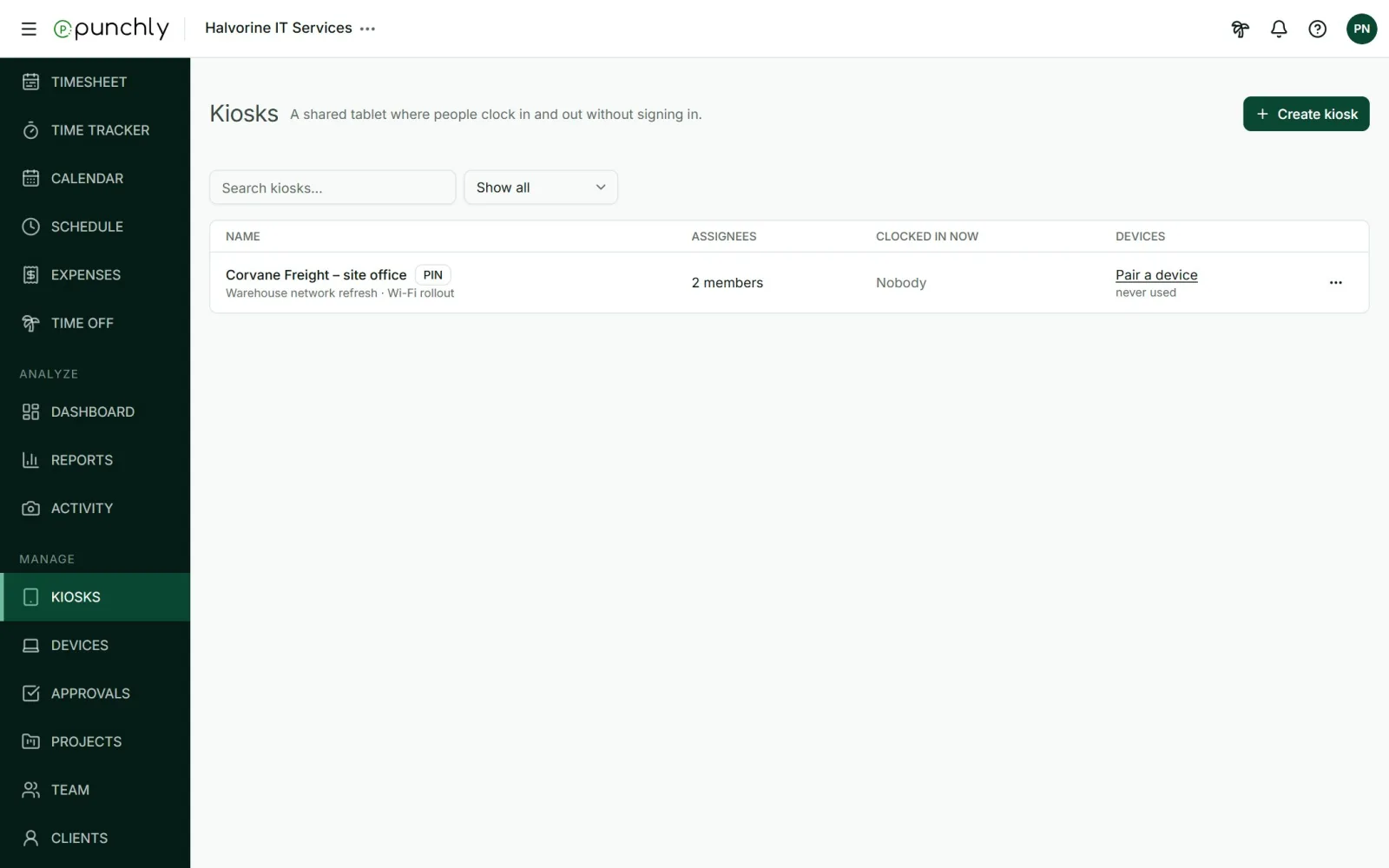
A kiosk is a shared tablet or screen at a workplace where people clock in and out. It suits teams who do not sit at a computer, such as a shop, a site or a warehouse crew.
Where
Kiosks, in the Manage group
Who sets them up
Owner and admins
Plan
Standard. Photo capture: Pro
How it works
- An admin creates a kiosk and says which project its hours are booked to.
- The admin pairs a tablet with it.
- People tap their name on the tablet and clock in, take breaks, and clock out.
- Their hours become ordinary time entries. They show in the Time tracker, Timesheet, approvals and reports like any other time.
Create a kiosk
Press Create kiosk and fill in:
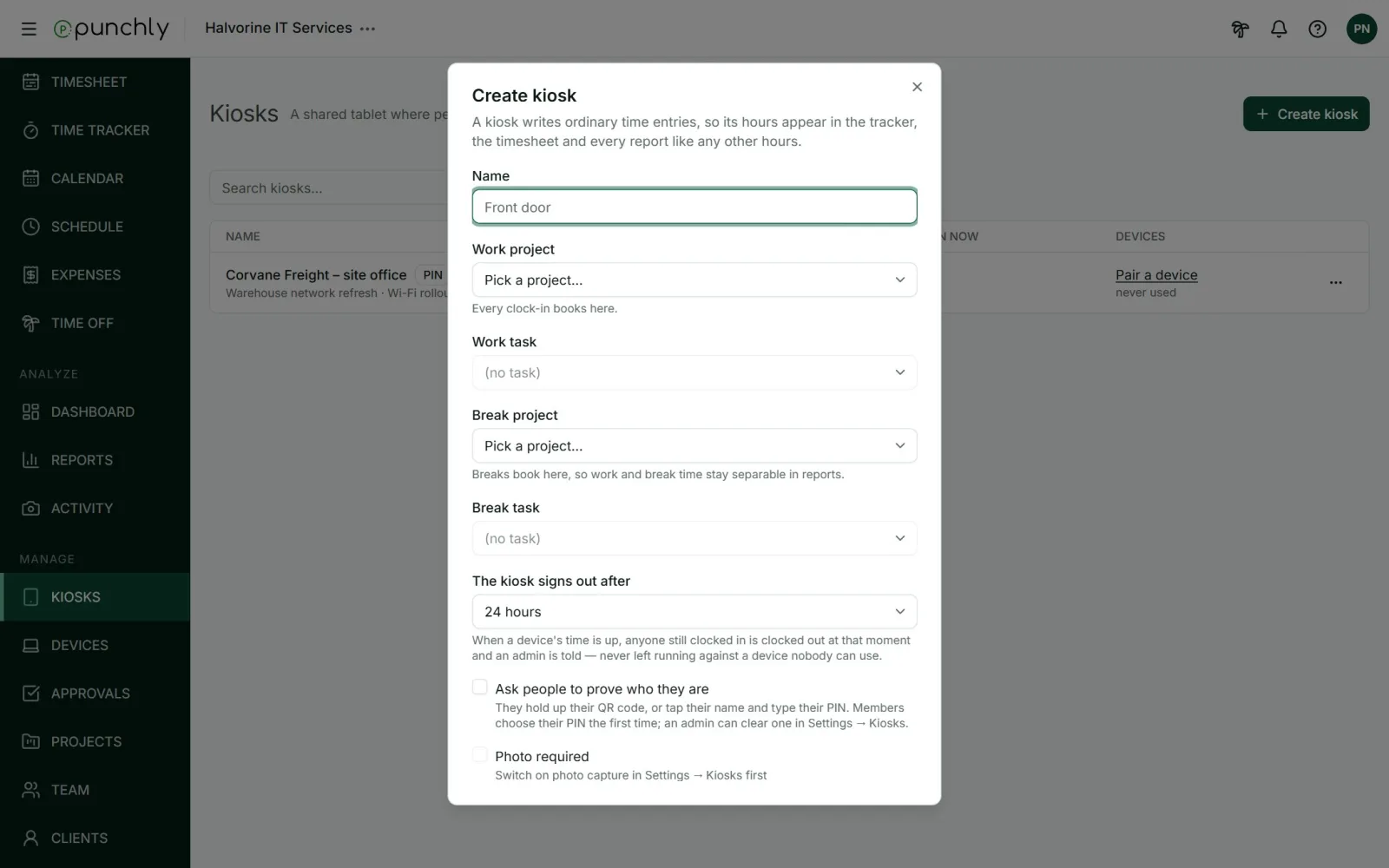
- Name, such as “Front door”.
- Work project, and a task if wanted. Every clock-in is booked here.
- Break project, if breaks are used.
- The kiosk signs out after: from 4 hours to 7 days. When the time is up, anyone still clocked in is clocked out and an admin is told.
- Ask for a PIN: each person chooses a PIN the first time and types it at each action.
- Manager PIN: a 6-digit PIN that clocks anyone in or out, for someone who forgot theirs. Every use is logged.
- Photo required: takes a photo at each clock action. Needs the Pro plan.
- Who can use this kiosk: everyone, or chosen people and groups.
Pair a tablet
- On the kiosk’s row, press Pair a device and name the device.
- Punchly shows a one-time link and a QR code of it.
- Open the link once on the tablet, or scan the QR code with its camera.
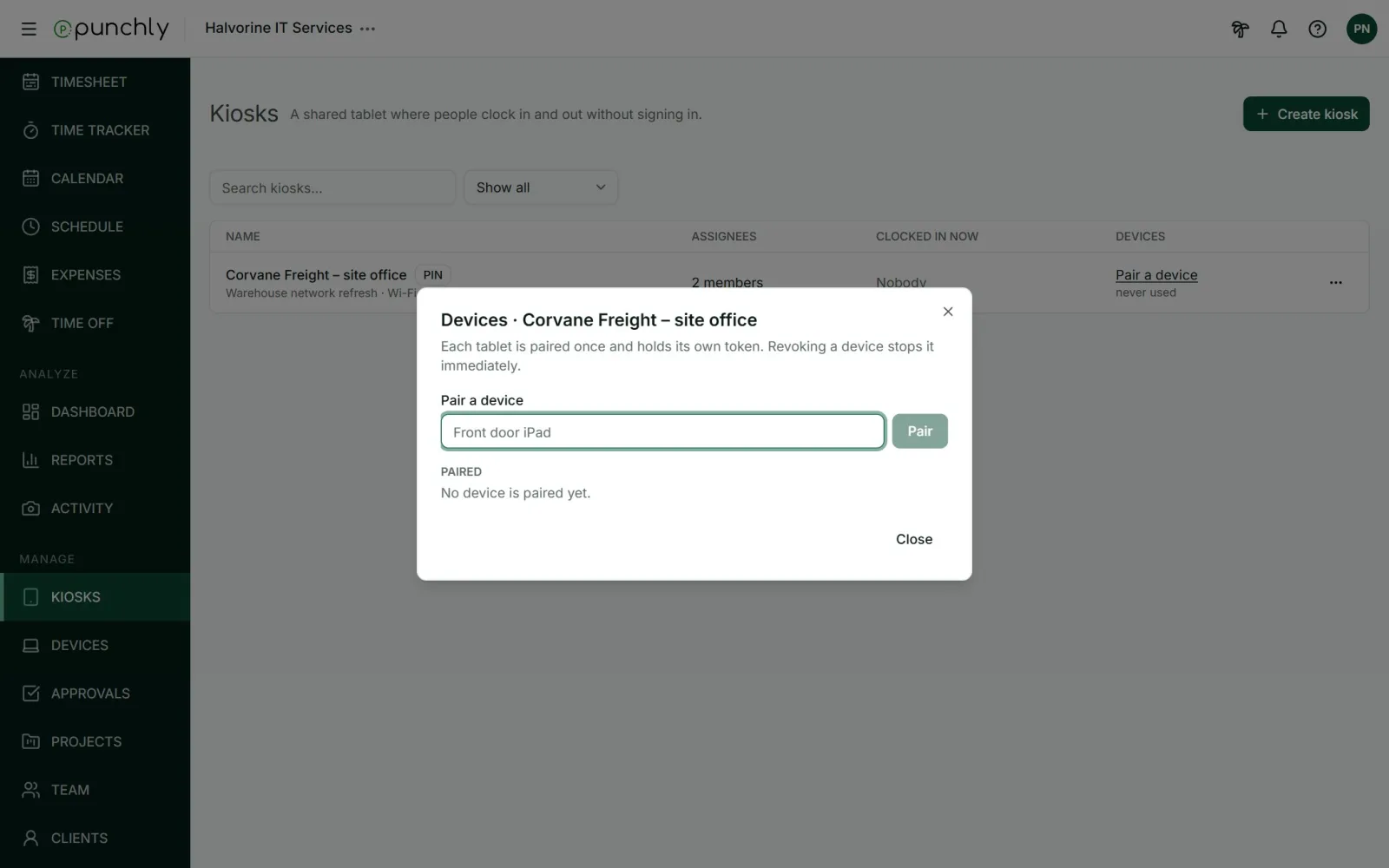
The tablet needs no login. The link is shown only once, so if it is lost, pair the device again. A device can be revoked at any time, which stops it at once and clocks out anyone it left clocked in.
Workspace kiosk settings
In Workspace settings, General, under Kiosk:
- Activate kiosks: switch the feature on or off.
- Who can pair a device: admins only, or also project and team managers.
- How people prove who they are: name and PIN, or a personal QR code with the PIN as a backup.
- PIN length: 4 or 6 digits.
- Member PINs: an admin can set, change or clear anyone’s PIN. A PIN can never be read back.
People without an email
Staff who do not have an email address are added on the Team screen as limited members. They cannot log in, but they can clock in at any kiosk they are assigned to. Paid plans that include kiosks come with 5 limited seats at no extra cost.
Deactivate or delete
Deactivating a kiosk stops clock-ins there and clocks out anyone still in. The hours it recorded are kept, and it can be activated again. A kiosk must be deactivated before it is deleted.