
Clocking in at a kiosk
At the kiosk, a person finds their name, proves who they are if the kiosk asks, and presses one button. It takes a few seconds.
With name and PIN
- Tap your name on the kiosk screen.
- Press Clock in.
- If the kiosk asks for a PIN, type it. The first time, you choose your own PIN and type it twice.
- The kiosk confirms and returns to the name list by itself.
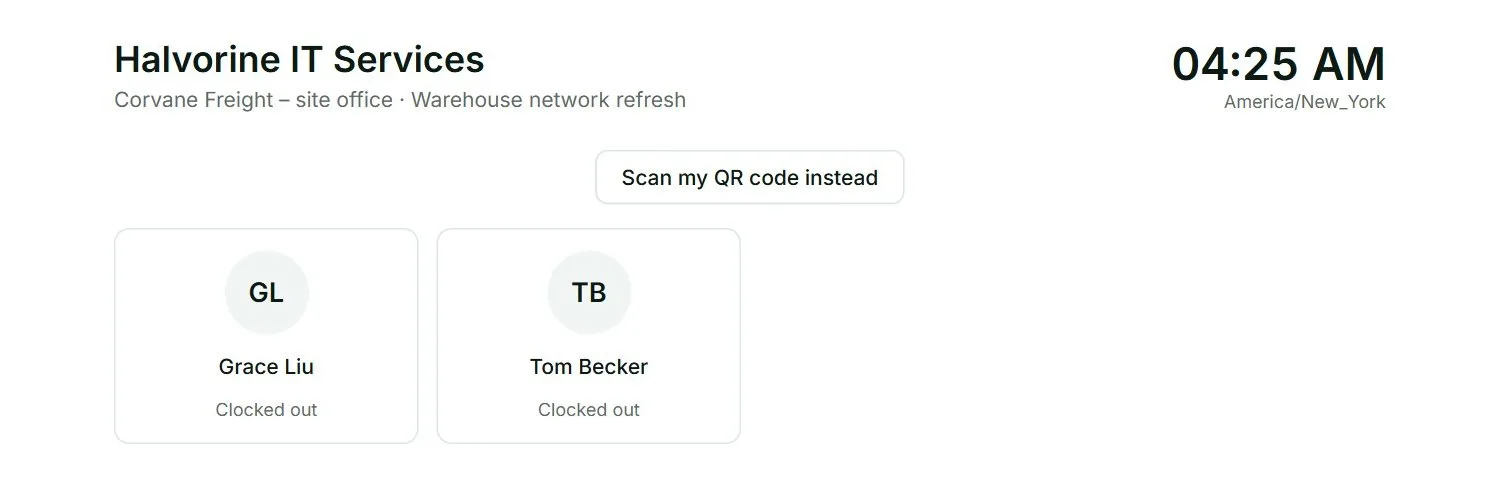
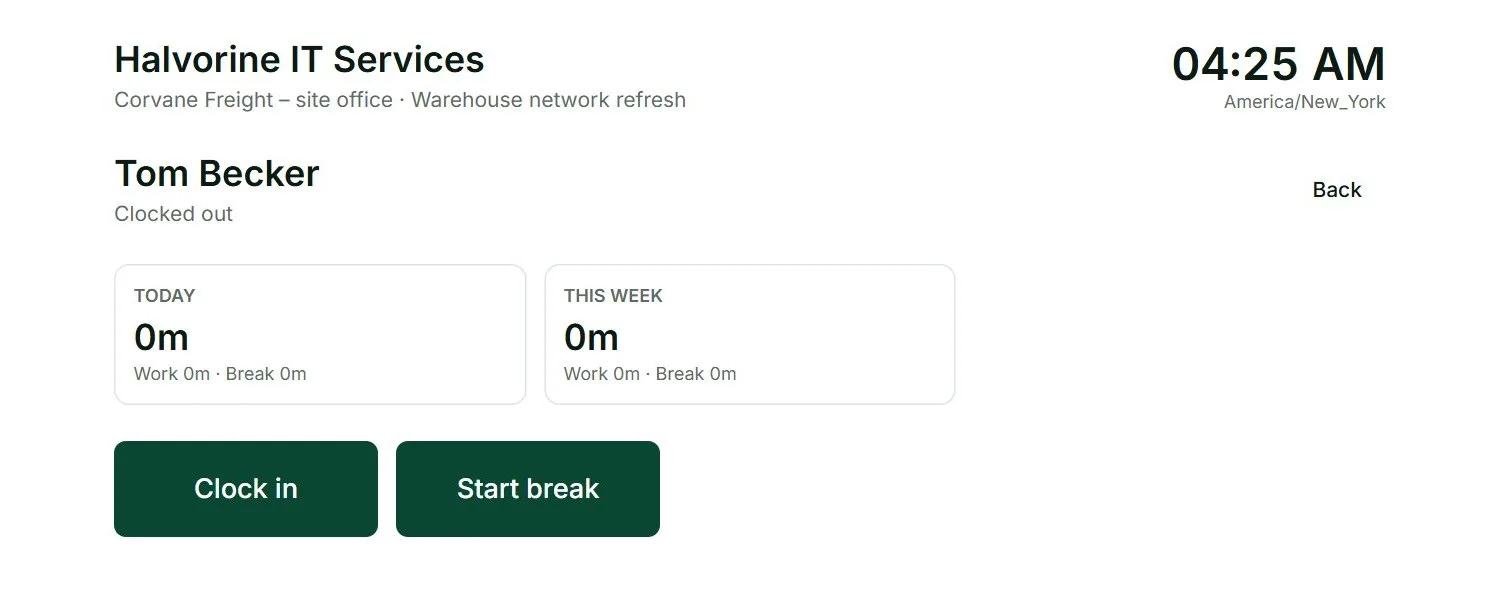
Later in the day, tap your name again and press Start break, Finish break or Clock out.
- Your screen also shows your totals for today and this week.
- On the name list, a green dot means working and an amber dot means on a break.
- You cannot clock out in the middle of a break. Finish the break first.
Forgot your PIN?
- After 5 wrong tries, the kiosk locks you out for 5 minutes, and longer each time, up to 30 minutes. Your hours are not affected.
- A manager can clock you in or out with the manager PIN. This is logged, and the entry is marked in reports.
- An admin can clear your PIN in Workspace settings, so you can choose a new one.
With a QR code
If the workspace uses QR codes, each person has a personal code. They hold it up to the kiosk camera and the kiosk opens their screen with no PIN needed. This stops people clocking in for each other.
- Where to get the code: in your profile, under Your kiosk code. An admin can also email it, or print it as a card.
- No code with you? Tap Use your PIN instead.
- Lost card? An admin makes a new code for that person. The old one stops working at once.
- Anyone holding a code can clock its owner in, so it should be kept private.
Admins print cards from the Kiosks screen: tick the people, press Make the sheet, then Print.
With a photo
On a kiosk marked Photo required, the kiosk takes a photo at each clock in, clock out and break.
- The first time, the person reads a short notice and presses I agree.
- The kiosk counts down from 3 and takes the picture.
- If the camera is blocked or missing, the time is still recorded and marked “no photo” for the manager.
- Photos are kept for 30, 90, 180 or 365 days, as the admin chooses, and then deleted.
- Nobody’s face is checked automatically. The photo is there for a manager to look at.
Managers see the photos under Activity, Kiosk photos. Owners and admins see everyone, team managers see their team, and each person sees their own.