
Projects
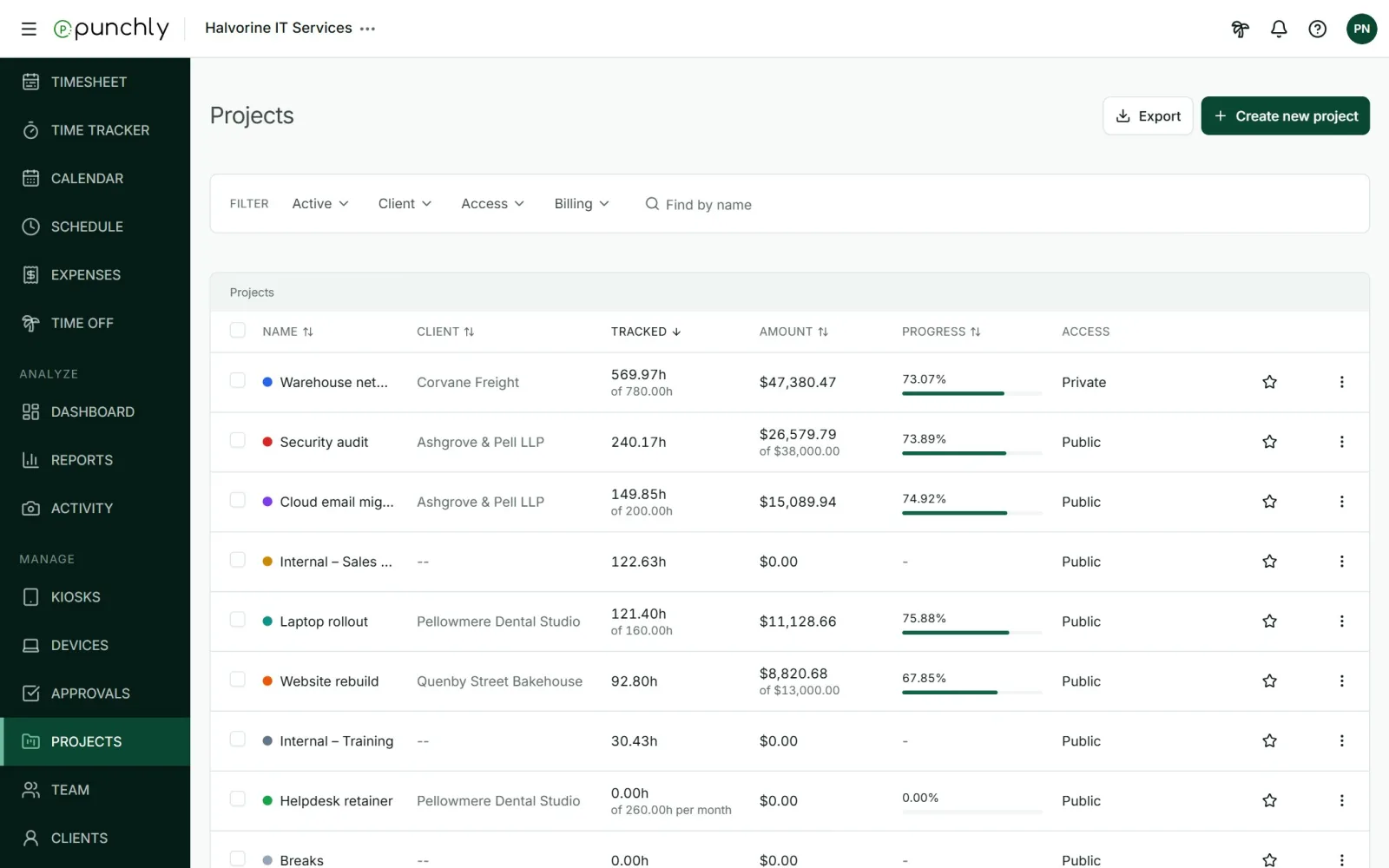
A project is a piece of work that time is tracked against, usually for one client. The Projects screen lists them with the hours tracked, the amount earned and how far along each one is.
Where
Projects, in the Manage group
Who can create
Owner and admins. Others if the workspace allows it
Plan
Free. Some options need a paid plan
What the columns mean
| Name | The project and its colour. Click it to open the project. |
| Client | Who the work is for. Two dashes mean no client. |
| Tracked | Hours tracked so far. If the project has a time estimate, it shows “of 780.00h” underneath. |
| Amount | The billable money earned. If the project has a budget, it shows “of $38,000.00” underneath. Only people allowed to see rates and amounts see this column. |
| Progress | How much of the estimate or budget is used. The bar turns red past 100%. A dash means no estimate is set. |
| Access | Public or Private. See Who can work on a project. |
| Star | Marks a favourite. Favourites are personal to each person. |
Create a project
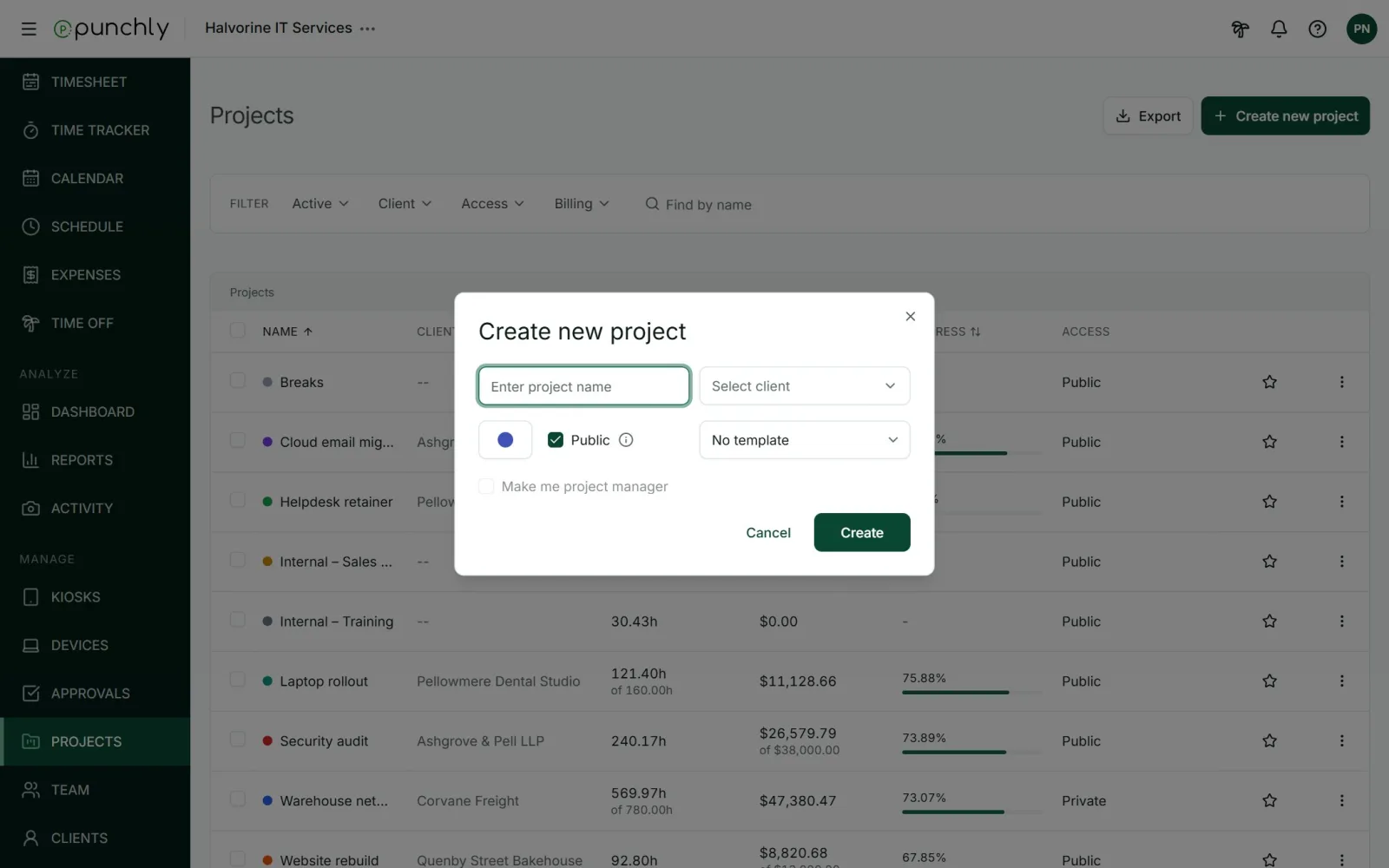
- Press Create new project.
- Type a name, from 2 to 250 characters.
- Pick a client, or leave it as no client. A new client can be typed in right there.
- Pick a colour.
- Leave Public ticked so everyone can track on it, or untick it to limit it to the people you add.
- Optionally pick a template, and tick Make me project manager.
- Press Create.
- Two projects can share a name only if they belong to different clients.
- A new project is billable or not according to the workspace setting New projects are billable. It can be changed on the project afterwards.
- A project can also be created from the project picker while tracking time.
Find a project
- Filter by status (Active, Archived, All), client, access and billing. Filters apply as soon as they are chosen.
- Find by name searches project names and client names.
- Sort by clicking a column heading: Name, Client, Tracked, Amount or Progress. Click again to reverse.
Who sees which projects
The owner and admins see every project. Everyone else sees public projects and the private ones they have been added to. The hours and amounts shown count only the time that person is allowed to see.
Export the list
Press Export and choose CSV or Excel. The file holds every project that matches the current filters. Customize lets you choose which columns go in. Exporting needs the Basic plan.
Plans
| Option | Plan needed |
|---|---|
| Create projects, track time on them | Free |
| Private projects, templates, export, bulk edit, time estimates | Basic |
| Project managers | Standard |
| Budgets, forecast, project alerts | Pro |