
Estimates, budgets and progress
Give a project a limit, in hours or in money, and Punchly shows how much of it is used. This is how a manager sees early that a project is running over.
Where to set
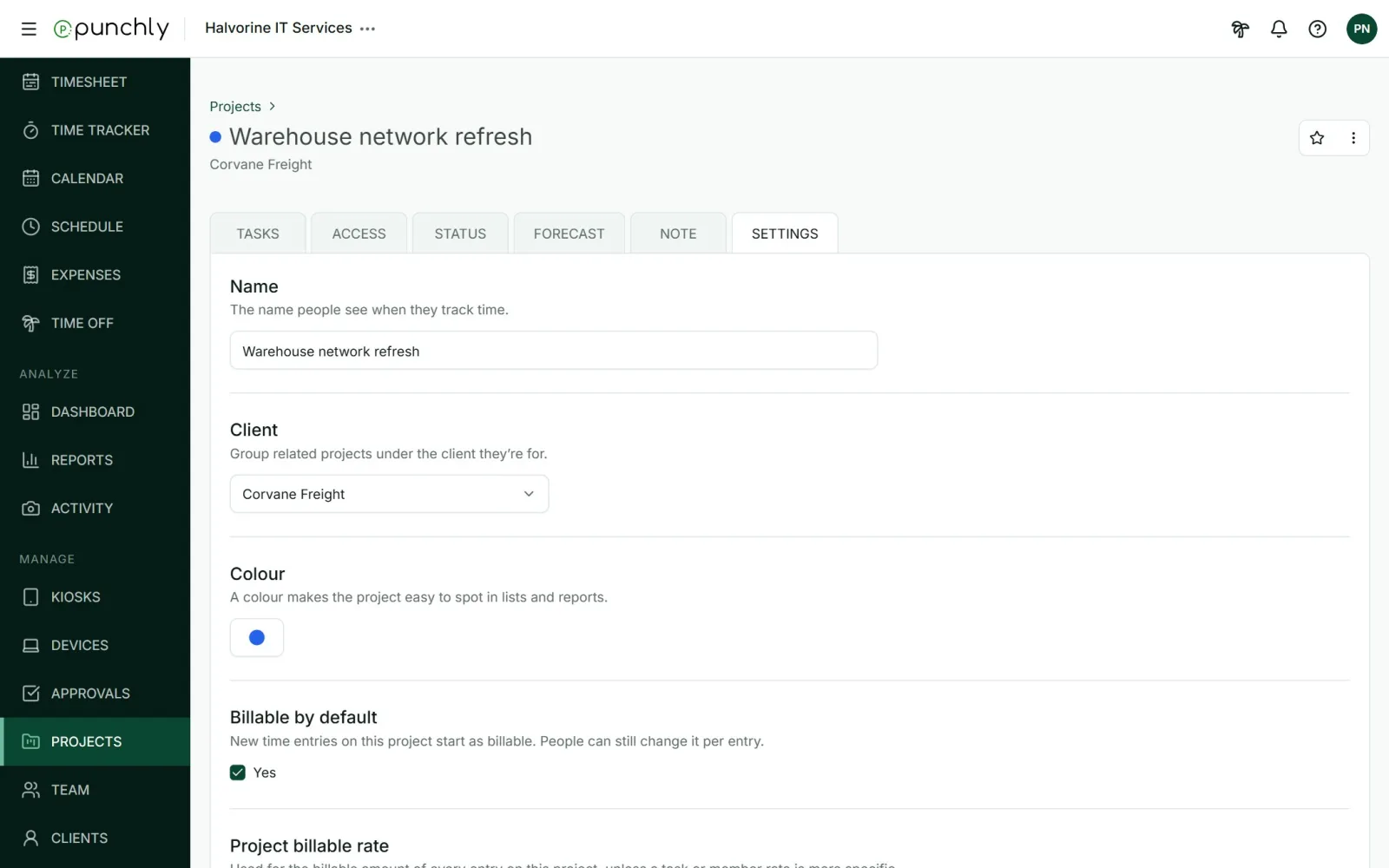
Project, Settings tab, Project estimate
Where to follow
Project, Status tab, and the Projects list
Plan
Time estimate: Basic. Budget: Pro
Set an estimate
On the Settings tab, under Project estimate, choose one of:
- No estimate.
- Time estimate: a number of hours, such as 40 or 12.5. By default only billable time counts towards it. Tick Estimate includes non-billable time to count all tracked time.
- Project budget: an amount of money in the workspace currency. Billable expenses count towards it unless you untick Budget includes billable expenses.
A project has a time estimate or a budget, not both.
Estimates that start again
For ongoing work such as a monthly retainer, tick Reset estimate every and choose week, month or year. Progress then counts the current period only, for example “of 260.00h per month”.
The Status tab
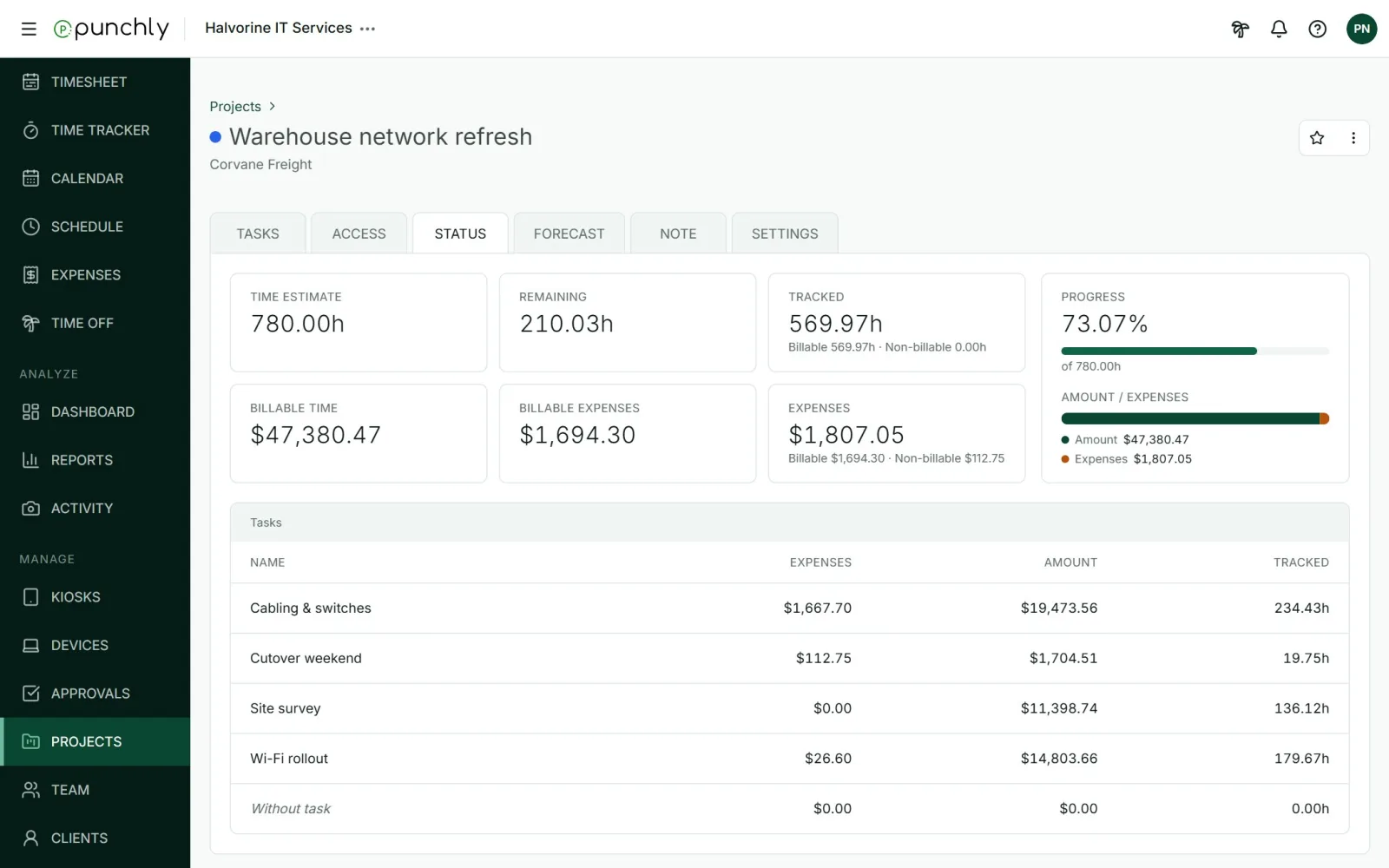
- Time estimate or Project budget: the limit that was set.
- Remaining: what is left. Once the project goes over, this becomes Overage in red.
- Tracked: hours so far, split into billable and non-billable.
- Billable time: what those billable hours are worth.
- Expenses: expenses recorded on the project, billable and non-billable.
- Tasks: the same figures for each task.
Who can see it
- The workspace setting Who can see project status is either Anyone or Admins. With Admins, only admins and each project’s managers see estimates, progress and the Status tab.
- Money figures are hidden from people who are not allowed to see rates and amounts.
- People who are not managers see totals for only the time and expenses they are allowed to see.
Other settings on this tab
- Name, Client, Colour.
- Billable by default: new time on this project starts as billable. People can still change it on each entry.
- Project billable rate and Project cost rate. See Billable rates and cost rates.
The Note tab holds one free-text note for the project, such as billing terms or useful links. Everyone who can see the project can read it.