
Forecast
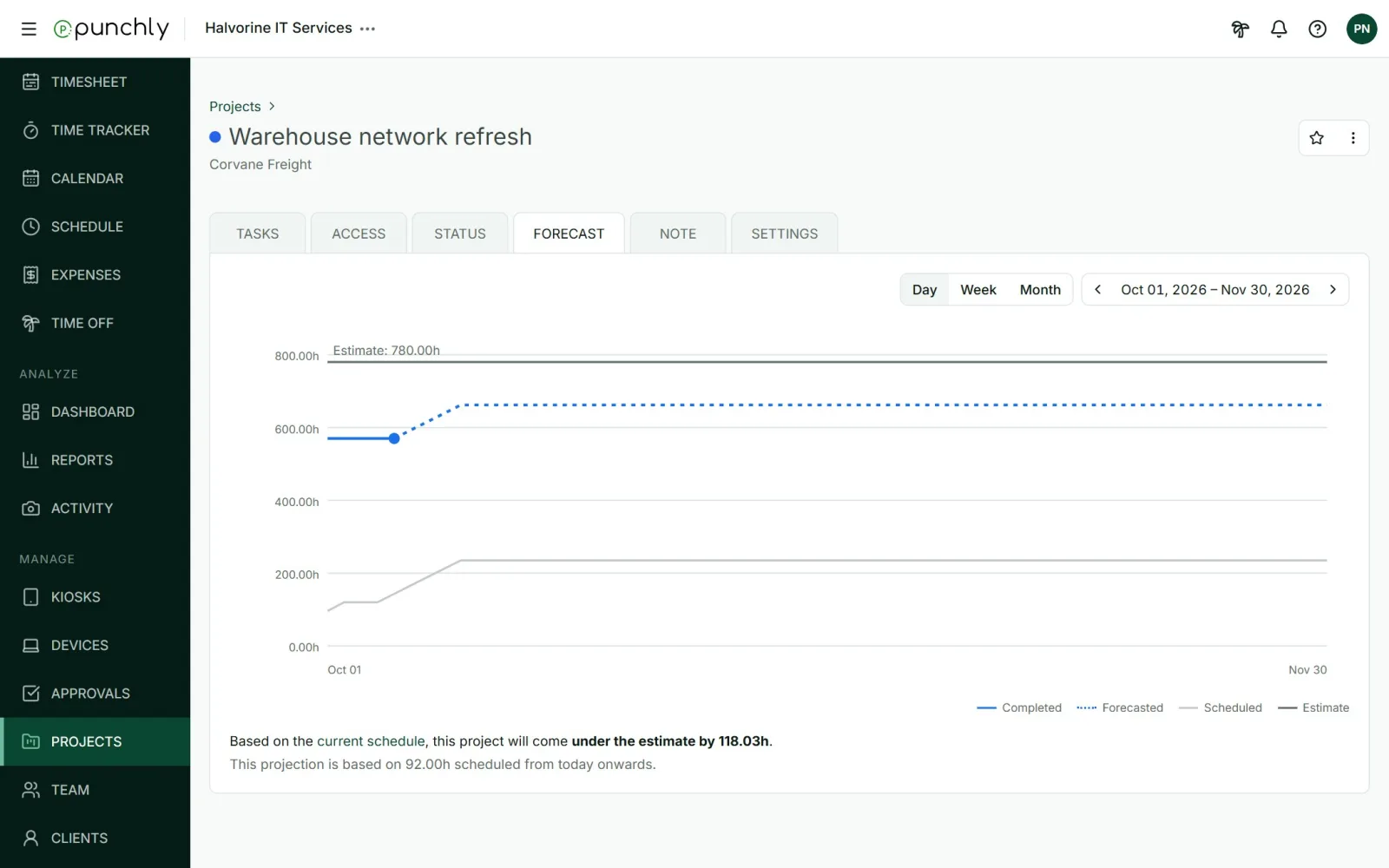
The forecast answers one question: with the work that is scheduled, where will this project end up against its estimate or budget?
Where
Open a project, then the Forecast tab
Who can see it
Owner, admins and the project’s managers
Plan
Pro
How to read it
- Completed (solid line): what has been tracked so far.
- Forecasted (dotted line): completed work plus what is on the schedule from today onwards.
- Scheduled (grey line): the hours planned on the Schedule screen.
- Estimate or Budget (top line): the limit.
Under the chart, one sentence gives the verdict: the project will go over, come under, or land exactly on its limit, and by how much. If the limit will be reached, it also gives the date.
What it needs
- The project must have a time estimate or a budget.
- Work must be planned for it on the Schedule screen. The forecast counts scheduled work even if it has not been published to the team yet.
Switch between Day, Week and Month, and use the arrows to move through time.