
How reports work
Every report is built the same way: choose a date range, narrow it with filters, and decide whether to show money. This article covers what all reports share.
Where
Reports, in the Analyze group
Who
Everyone, for the time they are allowed to see
Plan
Free, with a 31-day range. Paid plans have no limit
The reports
| Report | Answers | Plan |
|---|---|---|
| Summary | How much time, grouped the way you choose | Free |
| Detailed | Every single time entry | Free |
| Weekly | Hours per day across a week | Free |
| Attendance | When people started and finished, overtime and breaks | Standard |
| Assignments | Scheduled work against tracked work | Pro |
| Expenses | Expenses recorded | Pro |
| Shared | Reports saved and shared with the team | Basic |
Date range
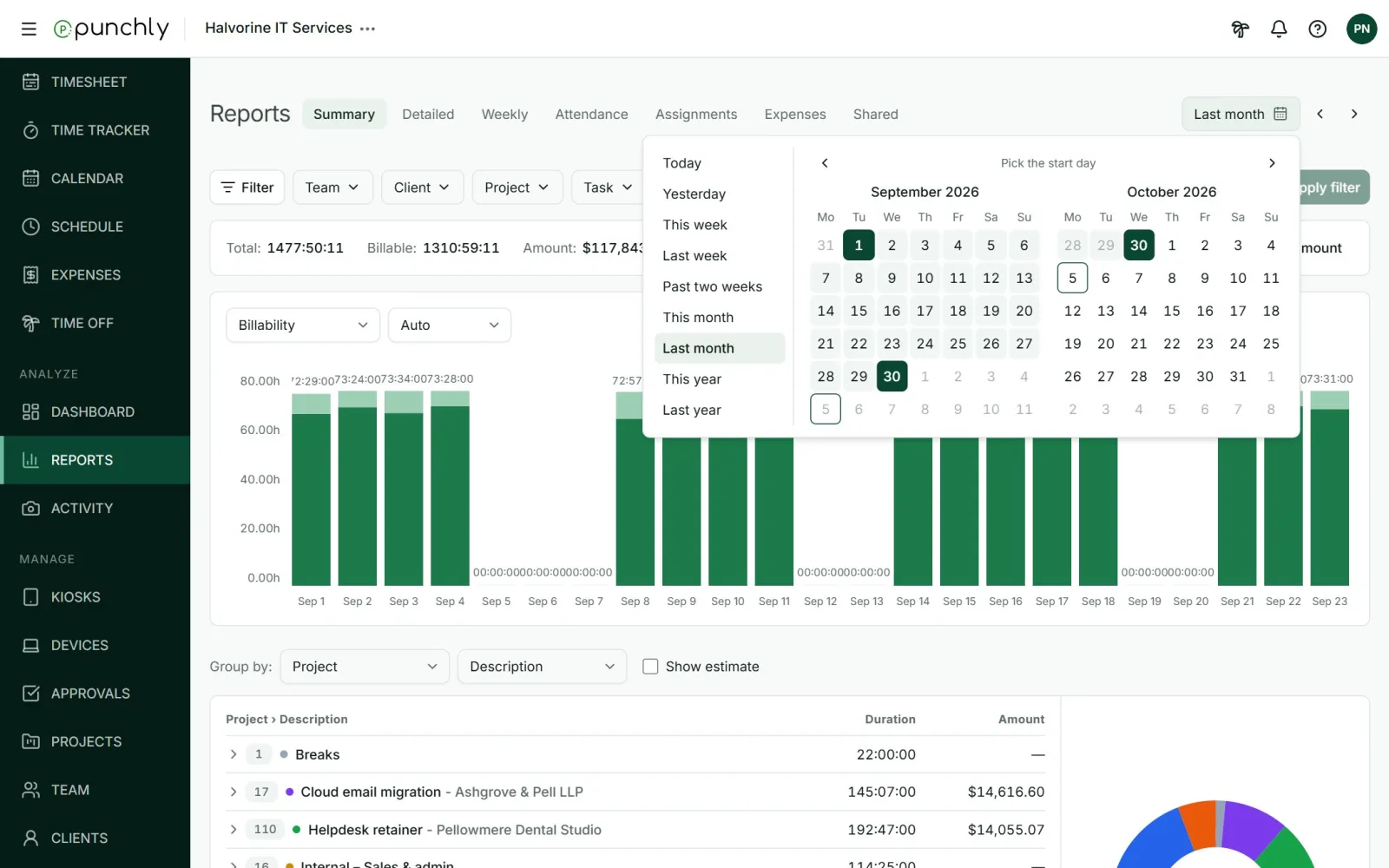
- Presets: Today, Yesterday, This week, Last week, Past two weeks, This month, Last month, This year, Last year.
- Custom: click a start day, then an end day.
- The arrows step back or forward by the same length of time.
- Punchly remembers the last range you used on a report.
Filters
Press Filter to choose which filters to show. Set them, then press Apply filter.
- Team, Group, Client, Project, Task, Tag, Kiosk: tick the ones to include, or switch to “none of” to leave them out. Each also offers “Without”, for example time without a project.
- Status: billable or not, entry type (regular, break, time off, holiday), approved or not, invoiced or not.
- Description: entries whose description contains some text.
Different filters narrow each other down. Within one filter, any ticked value matches.
Show money
The Show amount menu adds money to a report.
- Amount: billable hours times the billable rate.
- Cost: all hours times the cost rate.
- Profit: amount minus cost.
Cost and profit need the Pro plan and cost rates switched on. People who are not allowed to see rates and amounts do not get this menu.
Rounding
Tick Rounding to show rounded time, for example to the nearest 15 minutes. The owner or an admin sets the rule with the cog beside it: round up, round down or to nearest, in steps from 1 minute to 4 hours.
Rounding changes only what reports and exports show. The tracked time itself is never changed. Rounding needs the Standard plan.
Who sees whose time
| Role | Sees in reports |
|---|---|
| Owner and admins | Everything |
| Team manager | Their own time and their team’s |
| Project manager | Their own time and time on the projects they manage |
| Member | Their own time, plus what the workspace allows: nothing more, time on public projects, or all tracked time |
An admin can also hide the Reports screen from regular members altogether.
Rules worth remembering
- Running timers are not in reports. Time counts once its timer is stopped. This is true for every report, export and shared report.
- An entry belongs to the day it started, even if it runs past midnight.
- The Free plan covers 31 days per report. A longer range, such as This year, needs a paid plan.
- A dash means nothing to show. A real zero is written as 0:00:00.