
Attendance report
The Attendance report shows each person’s working day: when they started, when they finished, their breaks, and whether they worked more or less than expected.
Where
Reports, Attendance tab
Plan
Standard
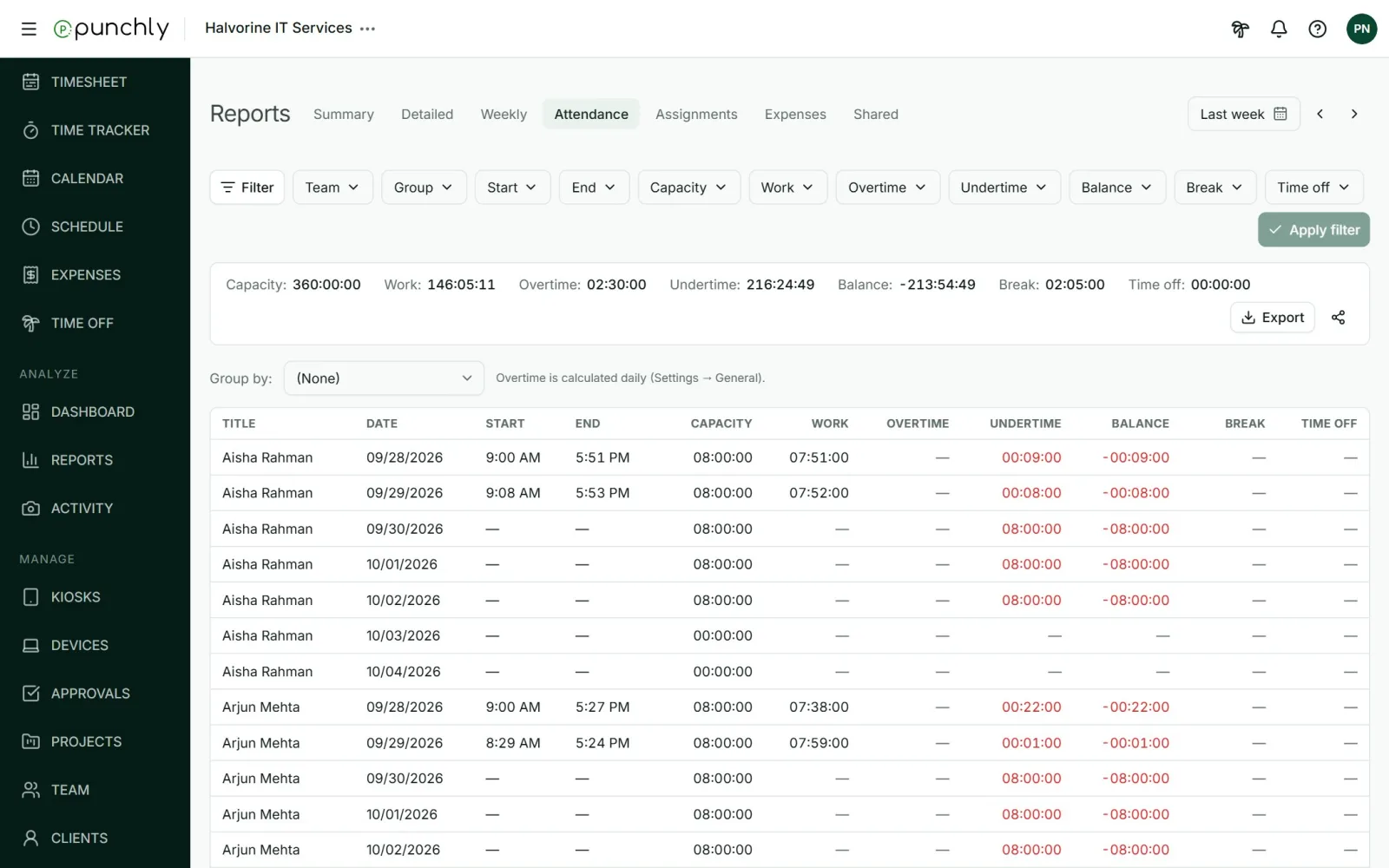
What the columns mean
| Start | The first clock-in of the day. |
| End | The last clock-out. “Still clocked in” means a timer is running. |
| Capacity | The hours the person is expected to work that day. Zero on days off and holidays. |
| Work | Time tracked as regular work. |
| Break | Time tracked as breaks. |
| Time off | Approved leave. A full day counts as the day’s capacity. |
| Balance | Work plus time off, minus capacity. |
| Overtime | The balance when it is above zero. |
| Undertime | The shortfall when it is below zero. Shown in red. |
Daily, weekly or monthly overtime
Overtime can be judged per day, per week or per month. The owner or an admin chooses this in Workspace settings, General, Overtime calculation period. With a weekly or monthly rule, overtime is shown on the week or month row and not on each day.
Filter by the numbers
Besides Team and Group, every column has its own filter. Examples: Start after 09:15 to find late starts. Work smaller than 8 to find short days. Overtime larger than 0.5.
Good to know
- Time counts whether it was tracked on the web, a phone or a kiosk.
- A running timer is flagged but not counted until it is stopped.
- This report exports to CSV and Excel.