
Share and schedule reports
A report you set up once can be shared with colleagues, so they open the same view without rebuilding it. It can also be emailed to them automatically every day, week or month.
Where
The Share icon on a report, and Reports, Shared tab
Who
Anyone who can open Reports
Plan
Sharing: Basic. Scheduled emails: Pro
Share a report
- Set up the report: range, filters, grouping.
- Press the Share icon.
- Give it a name and choose who can view: everyone in the workspace, or selected members and groups.
- Press Create link.
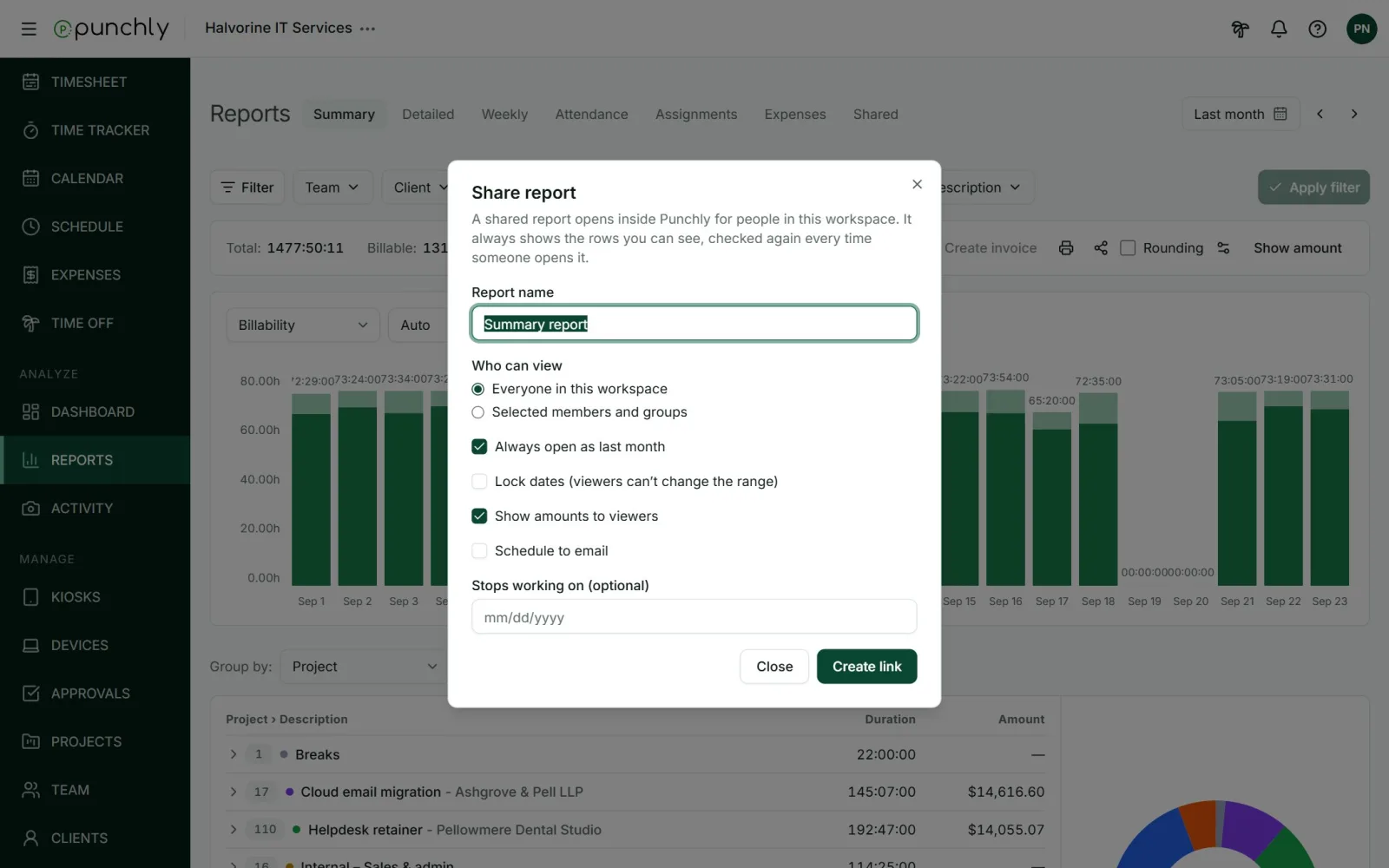
The options
- Always open as this week (or whichever preset you used): the report moves with time, so it always shows the current period. Without it, the dates are fixed.
- Lock dates: viewers cannot change the range.
- Show amounts to viewers.
- Stops working on: an optional end date.
What viewers see
- Shared reports are not public. They open only inside Punchly, for signed-in members of the same workspace.
- The filters and grouping are fixed. The data is always current.
- The report shows what the person who shared it is allowed to see.
- Viewers can change the dates if they are not locked, and export or print.
Everyone finds the reports shared with them under Reports, Shared. From there the person who shared a report, or an admin, can change its settings or delete it.
Email a report on a schedule
The owner and admins can have a shared report emailed automatically.
- In the Share dialog, tick the “Always open as” option, then switch on Schedule to email.
- Choose how often: daily for yesterday, weekly for last week, or monthly for last month.
- Choose the recipients. They must be members or groups of the workspace.
- Choose what to attach: PDF, CSV or Excel.
- Press Save schedule. Send test emails it to you alone first.
Emails go out at 07:00 in the time zone of the person who shared the report. Each one covers the full period that just ended.