
The Team screen
The Team screen lists everyone in the workspace. It is where people are added, given roles and rates, and removed when they leave.
Where
Team, in the Manage group
Who manages it
Owner and admins
Plan
Free, up to 5 active full members
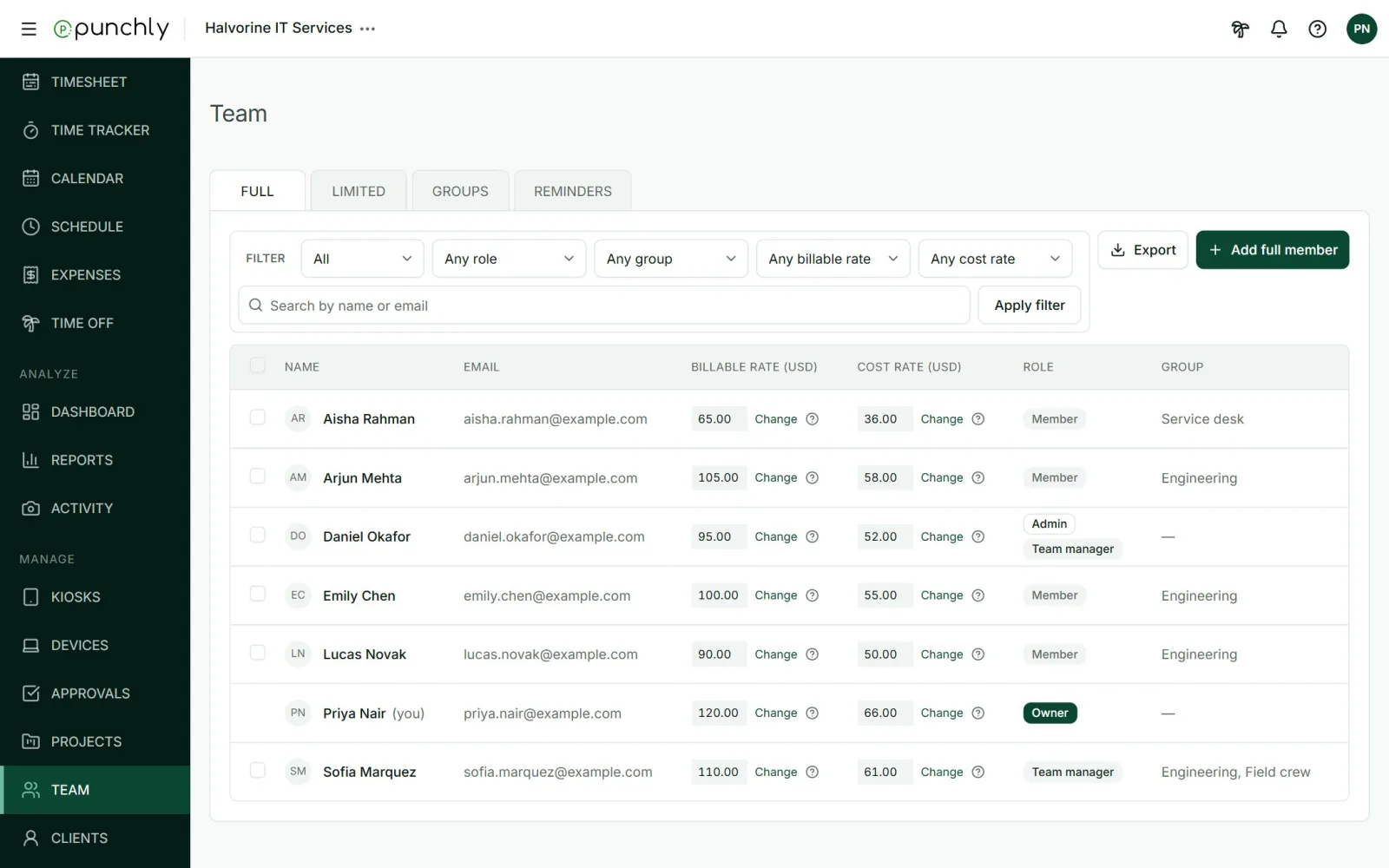
The four tabs
- Full: people who log in. See Invite your team.
- Limited: people who do not log in and clock in at a kiosk.
- Groups: see Groups.
- Reminders: see Reminders.
What each row shows
- Name and email. An envelope and “Invited, not joined yet” mark someone who has not accepted. “Inactive” marks someone who was deactivated.
- Billable rate and cost rate, with Change. See Billable rates and cost rates.
- Role. Click it to change it. See Roles.
- Group and, on the Limited tab, the assigned team manager.
Actions on a person
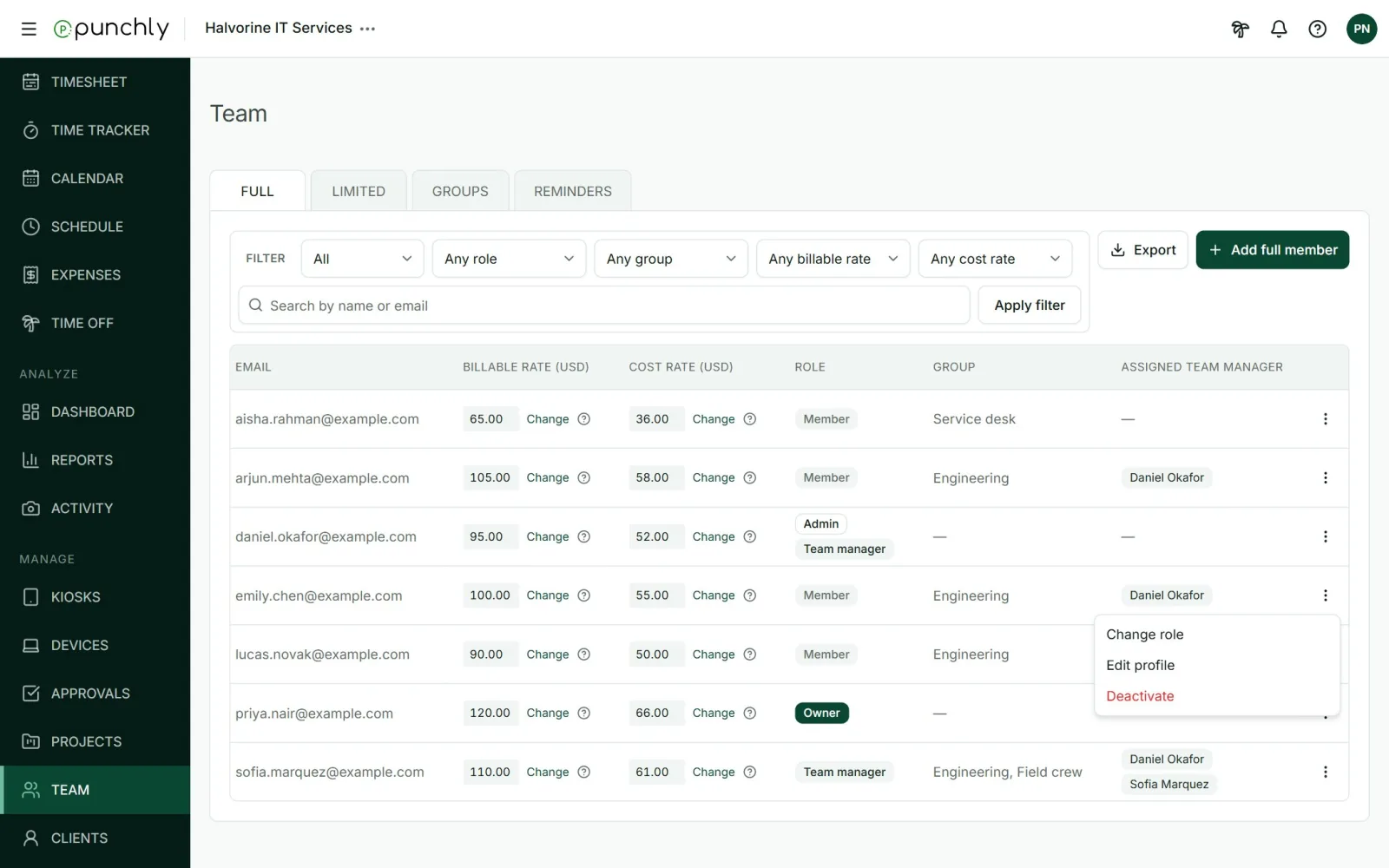
| Action | What it does | Who |
|---|---|---|
| Change role | Opens the role dialog. | Owner and admins |
| Edit profile | Sets this person’s week start, daily capacity and working days in this workspace. | Owner and admins |
| Deactivate | The person loses access. Their time stays, and they can be activated again later. This frees their seat. | Owner and admins. Only the owner can deactivate an admin |
| Activate | Gives an inactive person access again. Needs a free seat. | Owner and admins |
| Remove from workspace | Takes an inactive person out for good. Their time stays in reports under their name. | Owner only |
| Resend invite email | Sends a fresh 14-day link. | Owner and admins |
| Revoke invitation | The link stops working at once. | Owner and admins |
A person must be deactivated before they can be removed. The owner cannot be deactivated or removed.
Capacity and working days
Each person has a daily capacity (the hours they are expected to work, 8 to start with) and working days (Monday to Friday to start with). These feed the Attendance report, time off, reminders and the schedule. New members take the workspace defaults. Edit profile changes them for one person.
Find people
Filter by status (Active, Inactive, Invited), role, group and rate, or search by name or email. Press Apply filter.
Change several people at once
Tick people, then use the bar that appears to Deactivate or Activate them, or Bulk edit their week start, working days and daily capacity. Bulk edit needs the Basic plan.
Seats
- The Free plan allows 5 active full members, the owner included. Paid plans are bought by the seat.
- A pending invitation holds a seat. Deactivating someone frees one.
- If all seats are taken, Punchly says so when you invite or activate someone.
Who can see the Team screen
The workspace setting Who can see team members decides: Admins, Admins and managers, or Everyone. It starts as Admins and managers. Export saves the list as CSV or Excel on the Basic plan.