
Workspace settings
Workspace settings hold everything that applies to the whole company: its name and logo, its time zone and currency, and the switches for each feature.
Where
Click the workspace name, then Workspace settings
Who
Owner and admins
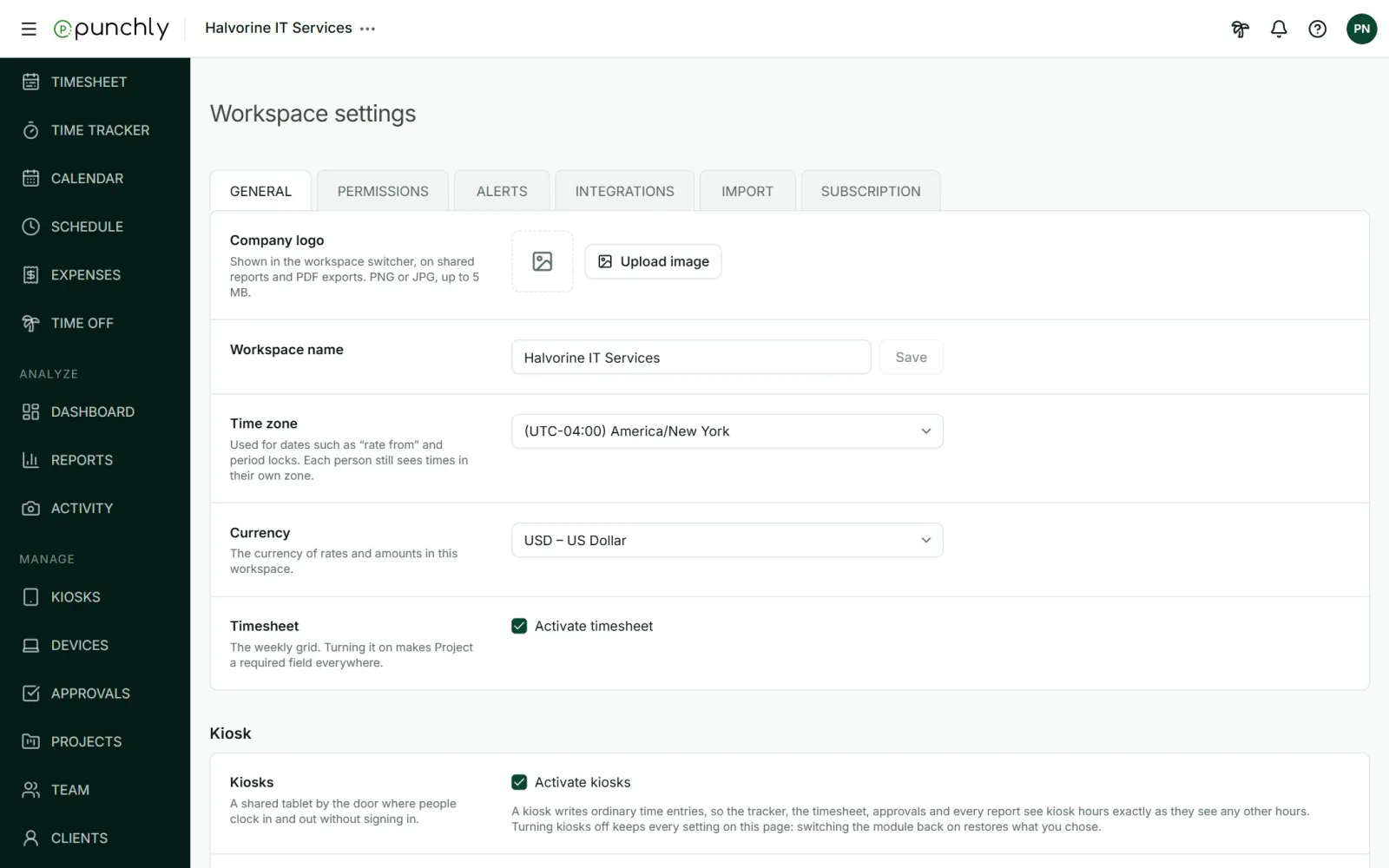
The six tabs
| General | The company’s details, defaults, and a section for each feature. |
| Permissions | Who can see and do what. See Permissions. |
| Alerts | See Project alerts. |
| Integrations | Connections to other tools, and API keys. |
| Import | See Import data. |
| Subscription | The plan, seats, billing details and Punchly’s invoices to you. |
General: the company’s basics
- Company logo: shown in the workspace menu, on shared reports and on PDF exports. PNG or JPG, up to 5 MB.
- Workspace name.
- Time zone: used for dates such as lock dates and “rate from”. Each person still sees times in their own time zone.
- Currency: the currency of rates and amounts.
- Timesheet: switch the weekly grid on or off.
General: defaults
- New projects are by default: public, billable, and whether the creator is offered as project manager.
- Project picker: show starred projects first, and group projects by client.
- Duration format: Full (hh:mm:ss), Compact (h:mm) or Decimal (h.hh).
- Week start and Working days: the defaults for new members.
- Daily work capacity: 8 hours to start with.
- Overtime calculation period: daily, weekly or monthly. Used by the Attendance report.
- Workspace billable rate: the rate used when nothing more specific is set.
- Time rounding: the rule reports use when rounding is on.
- Number format and Currency format.
General: a section for each feature
Further down, each feature has its own section where it is switched on or off and set up:
- Rules: required fields and overlapping entries. See Rules that shape tracking.
- Kiosk. See Kiosks.
- Breaks. See Breaks.
- Approvals and the lock date. See Approval settings.
- Time off, Invoicing, Expenses, Cost rates, Scheduling.
- Desktop app: what the desktop app does on people’s computers.
- Track location: record where people are while their timer runs, from the phone app.
Transfer ownership
Only the owner can do this. In General, under Ownership, press Transfer ownership and pick an active member who has joined. They become the owner and you become an admin.
Delete the workspace
Only the owner can do this. Everyone else must be deactivated first, and a paid subscription cancelled. To confirm, you type the workspace name. Everything in the workspace is deleted for good: time, projects, clients, expenses, invoices, reports and files. If someone should keep the data, transfer ownership instead.