
Submit your time for approval
When approvals are switched on, each person sends their time to a manager at the end of the period. The manager checks it and approves it, and the time is then locked.
Where
Time tracker, Timesheet or Calendar
Who
Everyone, for their own time
Plan
Standard
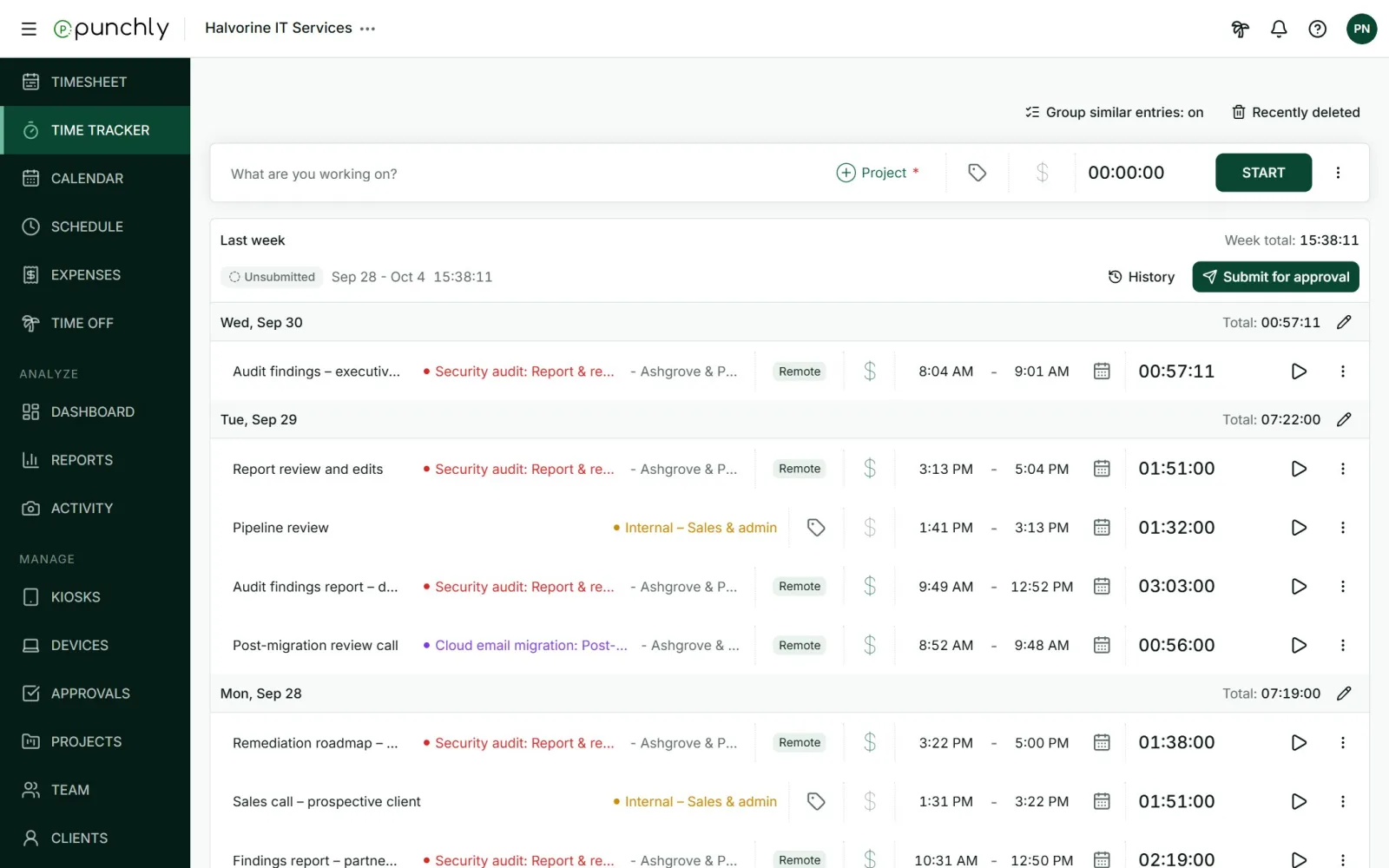
Submit
- Check that the period’s time is complete and correct.
- Press Submit for approval on the period’s bar.
- Confirm with Submit.
Your approvers are told by email and under the bell. Only finished time is submitted. A running timer is not included.
The statuses
| Unsubmitted | Not sent yet. |
| Pending | Sent, waiting for a decision. You can still edit it. |
| Partly approved | A project manager approved the time on their projects. The rest is still waiting. |
| Approved | Accepted and locked. |
| Rejected | Sent back with a note. |
After submitting
- You change something: the bar shows “Unsubmitted changes”. Submit again so the approver sees the latest.
- You sent it too early: press Withdraw pending. Fix it and submit again.
- It was rejected: the bar shows who rejected it and their note. Correct the time and press Fix and resubmit.
- It was approved: the time is read-only. If something is wrong, ask your approver to withdraw the approval.
View request opens the request as your approver sees it.
Good to know
- The period is a week, half a month or a month, as the workspace chooses.
- Expenses are submitted the same way, from the Expenses screen.
- If there is nothing tracked in a period, there is nothing to submit.