
Approve timesheets
The Approvals screen is the manager’s inbox. It lists the timesheets waiting for a decision, who has not submitted yet, and everything decided before.
Where
Approvals, in the Manage group
Who
Owner, admins, and the managers the workspace allows
Plan
Standard
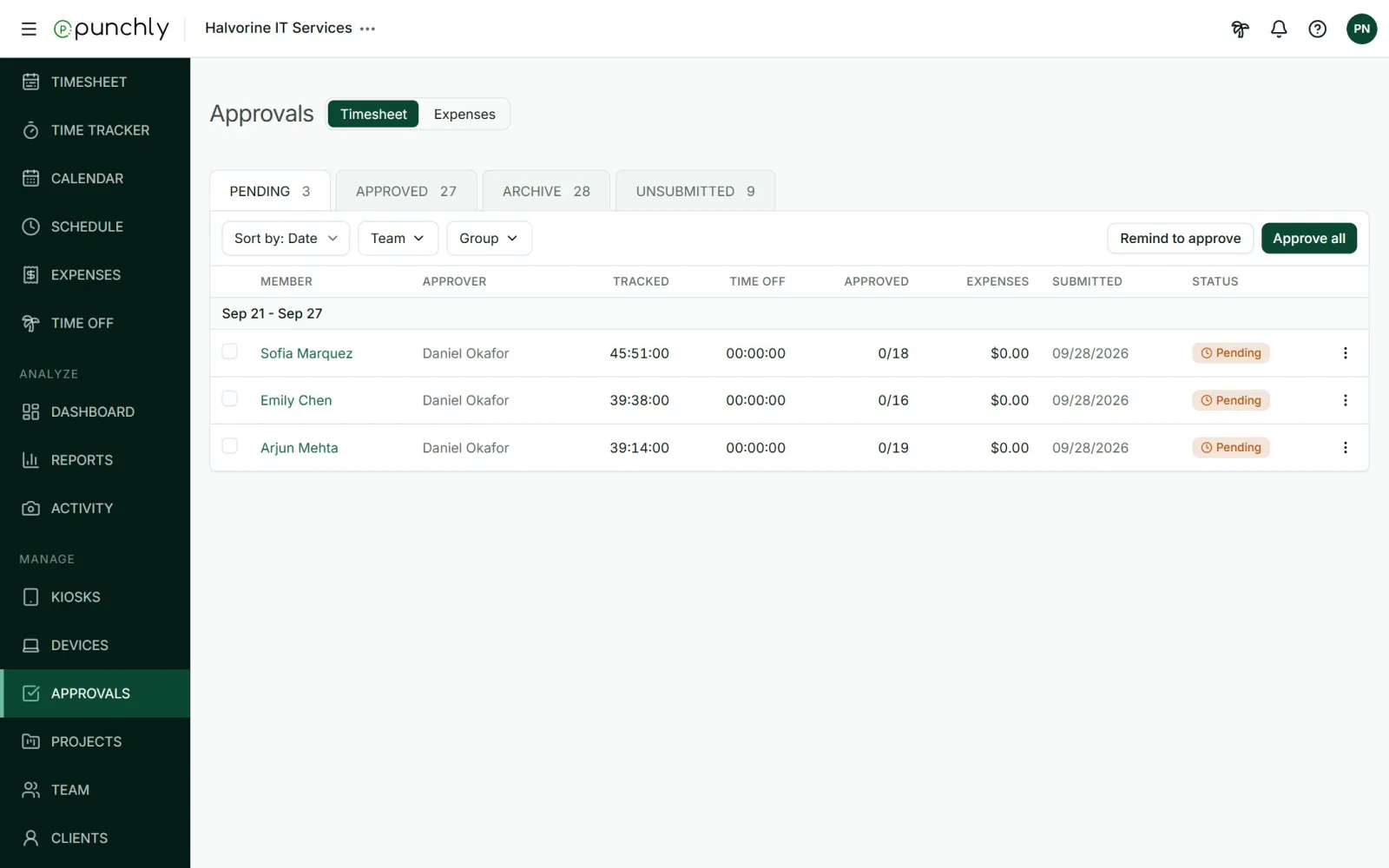
The four tabs
- Pending: waiting for a decision.
- Approved: accepted.
- Archive: everything decided, approved and rejected.
- Unsubmitted: people who have not sent their time for a period.
Look at a request
Click a person’s name to open their request.
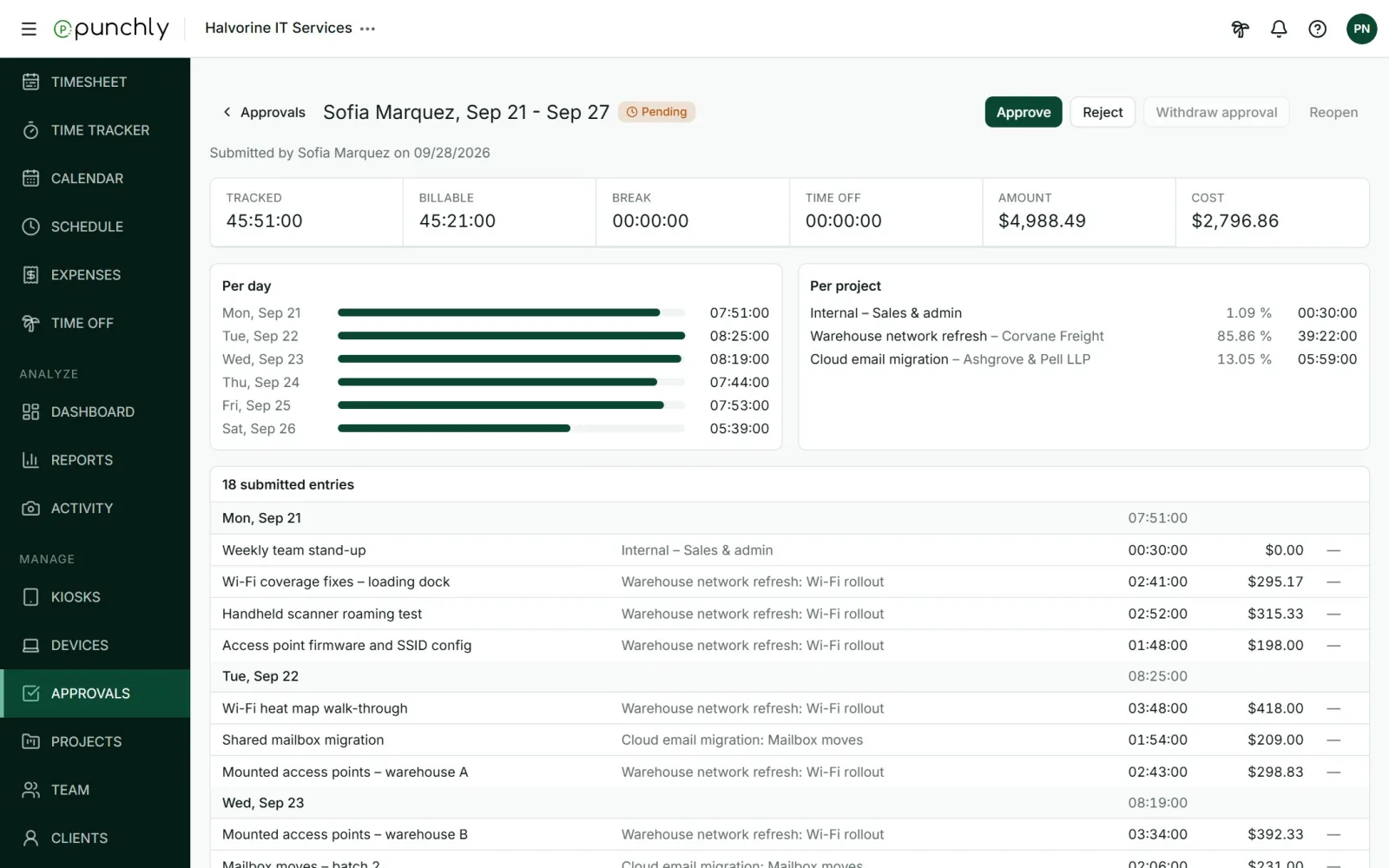
- Totals: tracked, billable, break, time off and amount.
- Time per day and per project.
- Every submitted entry. Entries changed after submitting are marked as edited.
- The history of the request.
Decide
| Action | What happens | Note |
|---|---|---|
| Approve | The time is locked and the period takes no new entries. Nobody can change it, the approver included, until the approval is withdrawn. | Optional |
| Reject | The person sees your note on their week, with a Fix and resubmit button. | Required |
| Withdraw approval | Unlocks an approved period. It goes back to Unsubmitted and the person submits again. | Required |
| Reopen | Puts a rejected period back to Pending, so you can decide again without the person resubmitting. | Required |
To decide several at once, tick the rows and use Approve or Reject in the bar, or press Approve all.
Chase people who have not submitted
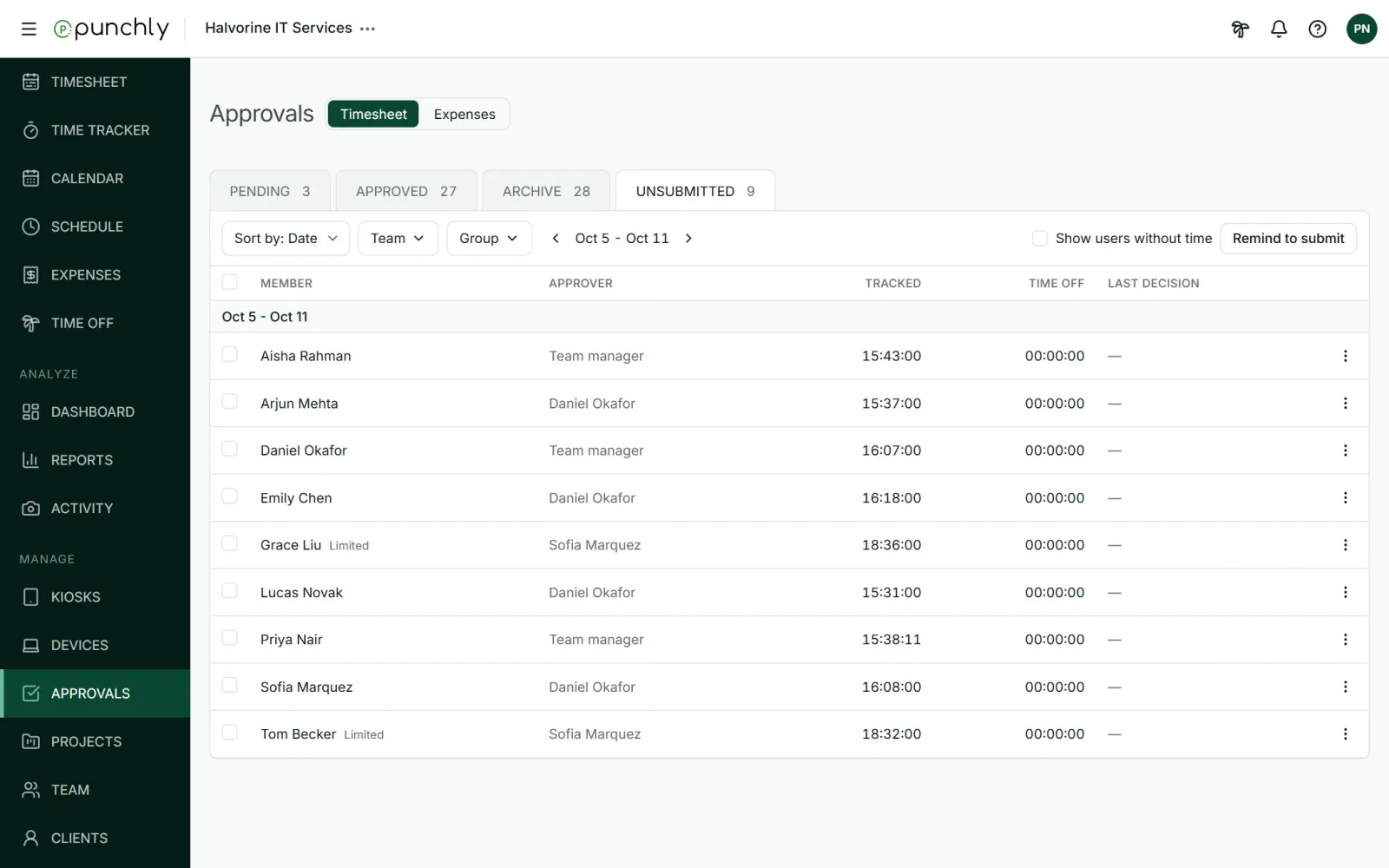
- Remind to submit emails the people listed.
- Show users without time adds people who tracked nothing at all.
- Submit on their behalf, in a row’s menu, submits for that person. They are told. The owner, admins and team managers can do this.
On the Pending tab, Remind to approve emails the approvers who still have requests to decide.
Who can approve what
- Owner and admins: anyone’s time.
- Team managers: their own team’s, for the whole period.
- Project managers: only the entries on projects they manage. The period shows as Partly approved until the rest is covered.
- A manager can never approve their own time.
Which managers may approve is a workspace setting. See Approval settings.
Expenses
Switch to Expenses at the top of the screen. Submitted expenses are approved and rejected in the same way, and approved expenses are locked.