
Create and publish assignments
Planning has two steps. First you create assignments as drafts, as many as you need. Then you publish, and everyone sees their plan at the same moment.
Create an assignment
- Hover over an empty day on a person’s row and press the plus.
- Pick the project, and a task if wanted.
- Set From and To, and the hours per day.
- Optionally set a start time, whether it is billable, and a note.
- Press Create.
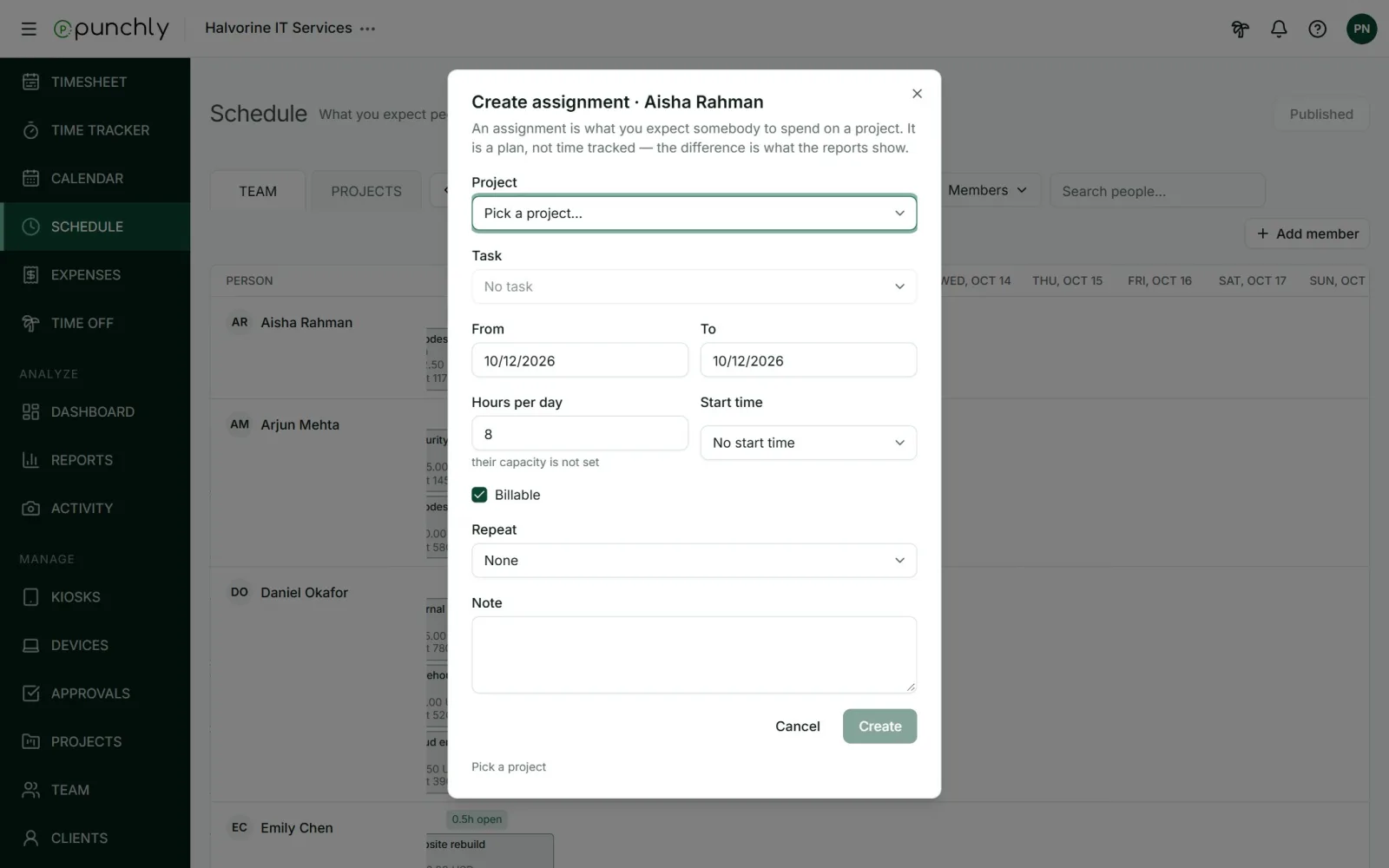
The hours are planned on each working day in the range. If a person or project is not on the board yet, an admin adds the row with Add member or Add project.
Repeat
When creating, an assignment can repeat: weekly, every two weeks, or monthly. It ends on a date or after a number of times. Each repeat becomes its own assignment, which can then be changed or deleted on its own.
Warnings
Before saving, Punchly warns if the person would be over their capacity, is on leave, or is planned on a day they do not work. It is only a warning. Press Schedule it anyway to go ahead.
Change or delete
- Click a block to open it and change it.
- Deleting a draft removes it at once.
- Deleting a published assignment marks it as waiting to be removed. It stays on the person’s schedule until you publish.
- Changing a published assignment makes it a draft again. People keep seeing the last published version until you publish.
Publish
- Press Publish at the top right. It shows how many changes are waiting.
- Read the summary: how many assignments, how many removals, how many people are affected.
- Leave Notify the people whose schedule changed ticked to tell them.
- Confirm.
Publishing sends out every waiting change in the workspace at once. People are told under the bell that their schedule was published.
Who can do what
- Owner and admins plan for anyone and publish.
- Other people the workspace allows to plan can create drafts for themselves only. They then press Ask an admin to publish.
- Only the owner and admins publish.
Milestones
On the Projects view, hover over a day on a project’s row and press the flag to add a milestone, such as “Beta release”. It shows as a label on that day. A milestone is visible at once and is not part of publishing.