
Expenses
Expenses are the costs of a project that are not hours: travel, materials, software, mileage. People record them against a project with a receipt, a manager approves them, and the billable ones can be put on the client’s invoice.
Where
Expenses, in the menu
Who
Everyone, for their own expenses
Plan
Pro
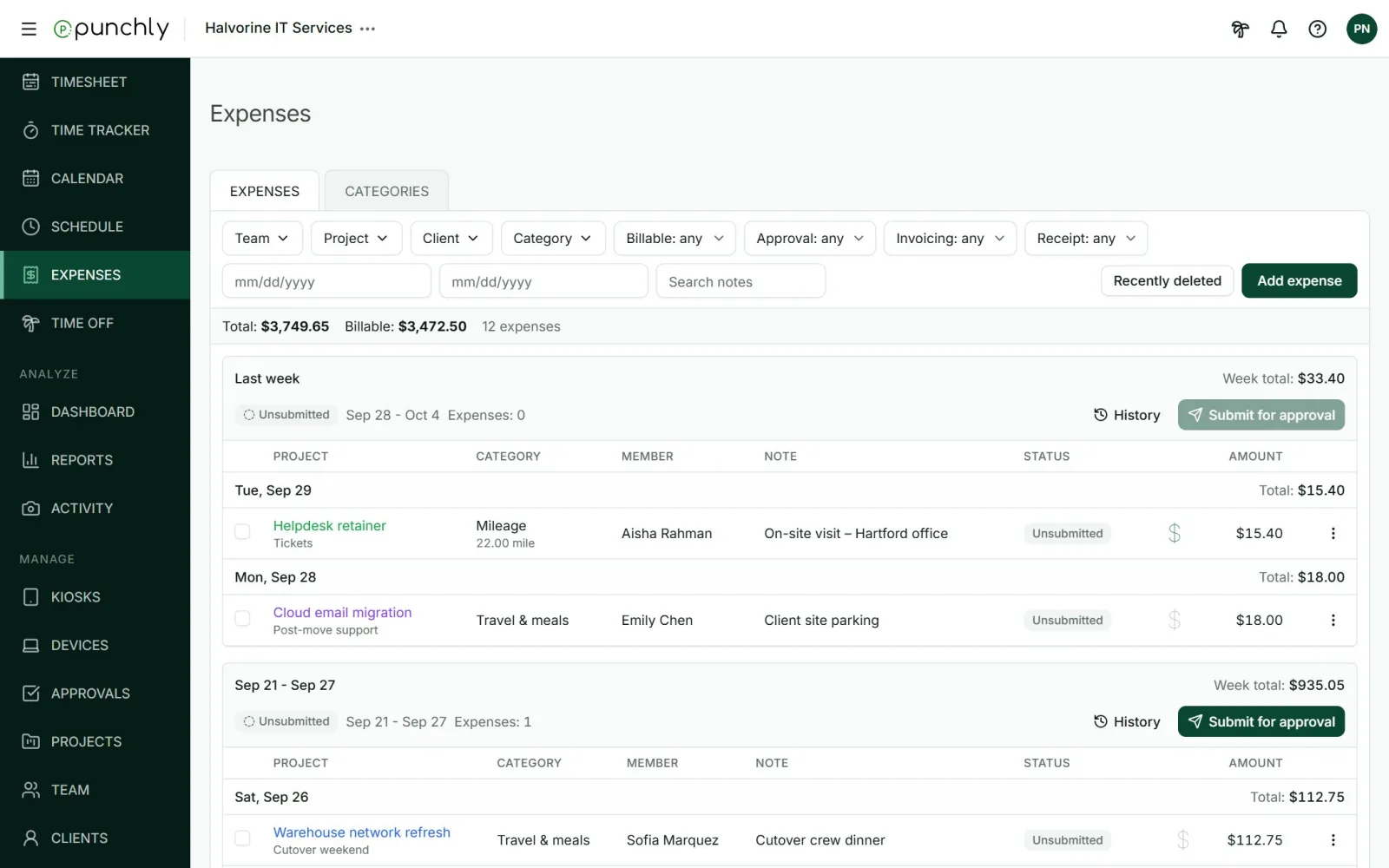
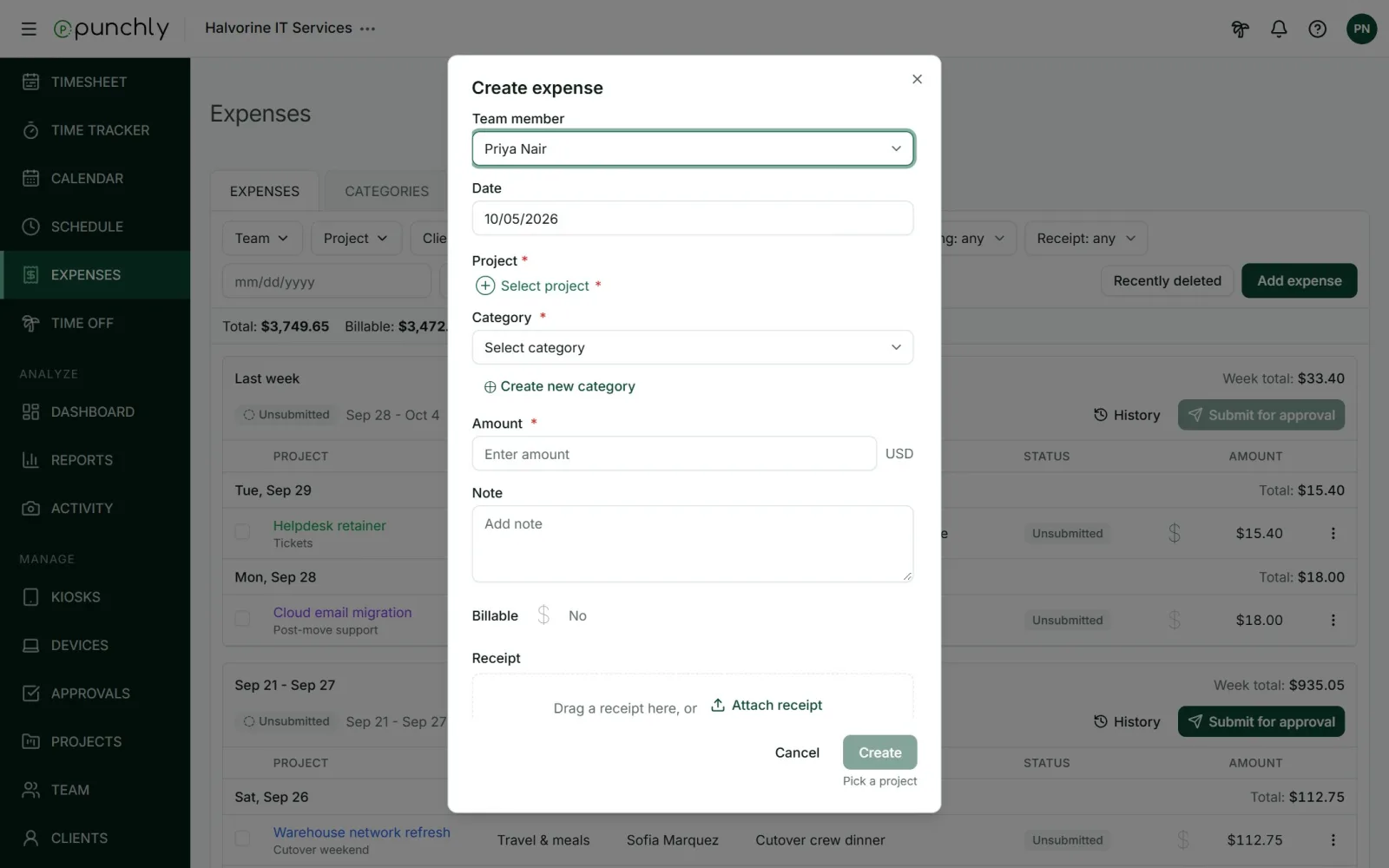
Add an expense
- Press Add expense.
- Set the date and pick the project. A project is required. A task is optional.
- Pick a category, such as Meals or Mileage.
- Type the amount. For a category with a unit price, such as mileage, type the quantity and Punchly works out the amount.
- Add a note, and set whether it is billable.
- Attach the receipt.
- Press Create.
Receipts
- Drag a file in, or press Attach receipt.
- Photos (PNG, JPEG, WebP, HEIC) and PDF files, up to 10 MB each.
- Up to 5 receipts per expense.
- On the phone app, a receipt can be photographed on the spot.
- An expense without one is marked “Receipt missing” in the list.
Change, copy or delete
Open the three dots on an expense.
- Edit.
- Duplicate makes a copy, receipts included, on a date you pick. Handy for a repeating cost.
- Delete. A deleted expense can be restored from Recently deleted for 30 days.
Tick several expenses to delete them, or mark them as invoiced, in one go.
Find expenses
Filter by team member, project, client, category, billable or not, approval status, invoiced or not, with or without a receipt, and by date. A box searches the notes.
Who can see and add what
- Everyone adds and sees their own expenses.
- The owner and admins see everyone’s, and can record an expense for someone else by picking the team member in the form.
- Team managers see their team’s. Project managers see expenses on their projects.
- Other people’s amounts and receipts are shown only to those allowed to see rates and amounts.
Switching expenses on or off
In Workspace settings, General, Expenses: Activate expense tracking. Amounts are always in the workspace currency.