
Expense categories and approval
Categories sort expenses into kinds, so reports can show how much went on travel or on software. Expenses are approved in the same way as timesheets.
Where
Expenses, Categories tab
Who manages them
Owner and admins
Plan
Pro
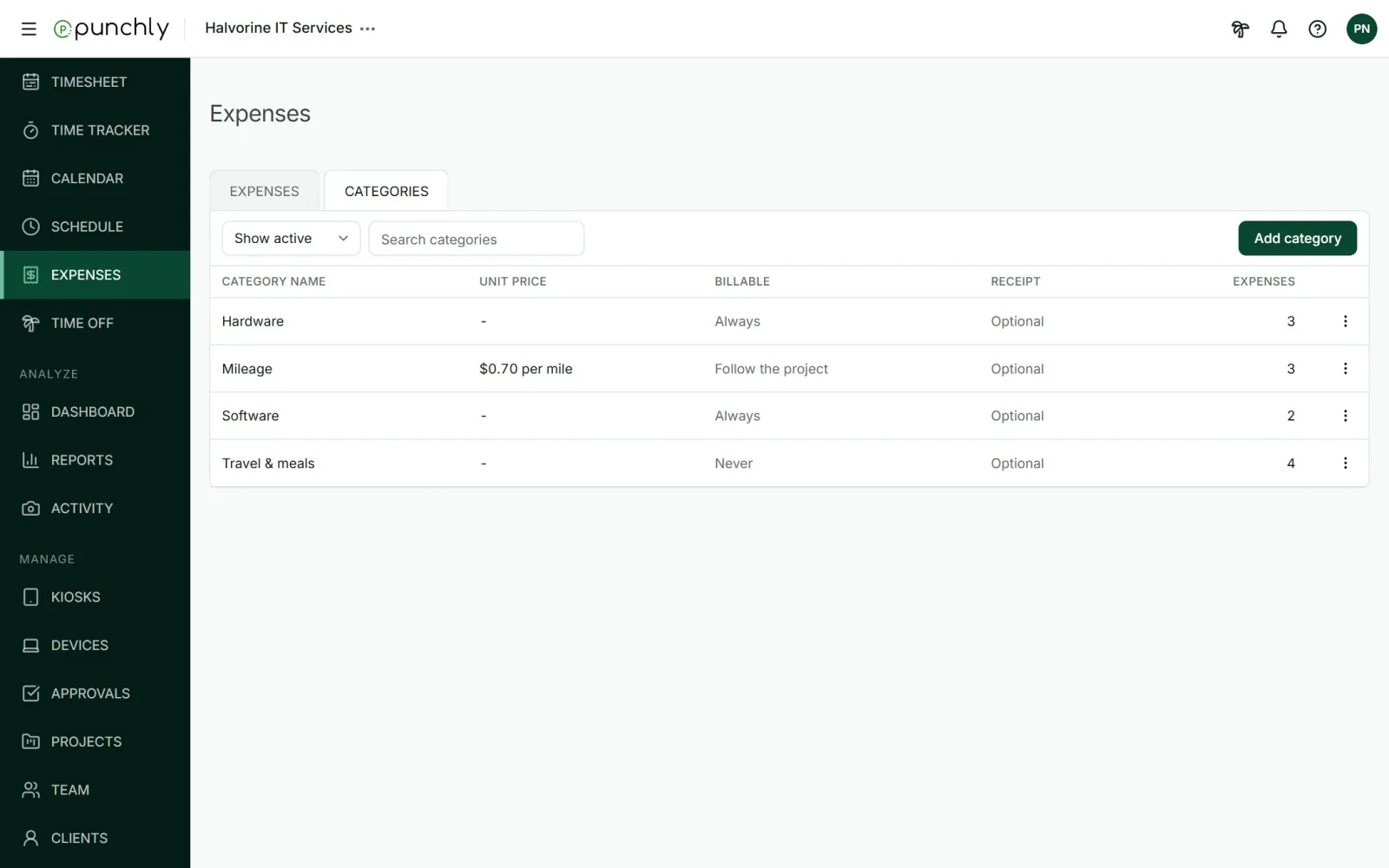
Two kinds of category
- Plain amount: the person types what they spent. Examples: Meals, Lodging.
- Unit price: the person types a quantity, and the amount is quantity times the price. Examples: Mileage at 0.57 per mile, or a day rate at 100 per day.
A new workspace starts with seven categories: Day rate, Entertainment, Lodging, Meals, Mileage, Other and Transportation. Change them to suit.
Create or change a category
- Press Add category.
- Give it a name.
- For a unit price, tick This expense has a unit price and enter the amount and the unit, such as “km”.
- Choose Billable by default: follow the project, always billable, or never billable.
- If a unit price changes later, expenses already recorded keep the price they were saved with.
- Archive a category that is no longer used. It can no longer be picked. Expenses that have it keep it.
- Only an archived category can be deleted.
Approving expenses
- When expense approval is on, the Expenses screen shows a bar with Submit for approval, just as the Time tracker does for time.
- Approvers decide them on the Approvals screen, under Expenses. See Approve timesheets.
- An approved expense is locked: it cannot be edited or deleted, and its receipts cannot be changed. It can still be duplicated and marked as invoiced.
- Expense approval has its own period and its own approvers. See Approval settings.
Where expenses show up
- A project’s Status tab: expenses and billable expenses, in total and per task.
- A project budget: billable expenses count towards it, unless switched off on the project.
- Reports, Expenses tab. See Assignments and Expenses reports.
- Invoices: billable expenses can be imported onto an invoice.