
The phone app
The phone app covers what people need away from a desk: tracking time, checking their calendar, sending expenses with a photo of the receipt, and asking for time off.
For
Android and iPhone
Who
Any full member
Plan
Free. Each feature needs the same plan as on the web
Sign in
The same as on the web: Google, Microsoft, or a 6-character code sent to your email. Someone new can create their account, join a waiting invitation or name a new workspace right in the app.
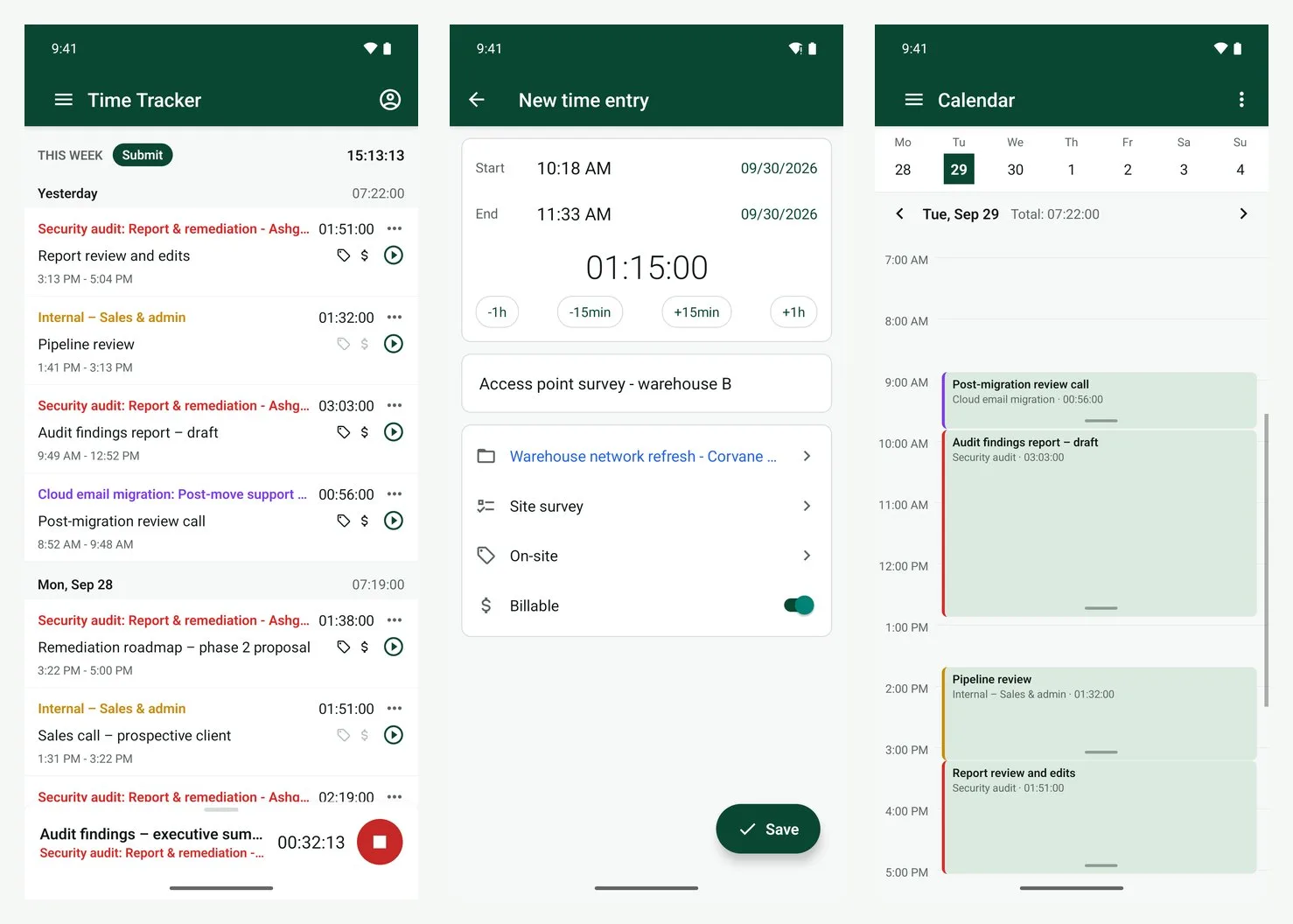
Track time
- Press + and choose Timer, Manual or Break.
- A running timer sits at the bottom of the screen with a red Stop button.
- Swipe an entry right to continue or duplicate it, and left to delete it.
- Tap an entry to change its times, description, project, task, tags and billable setting, or to split it.
- Submit sends the week for approval.
On Android, a running timer also shows as a notification with a Stop button.
The rest of the menu
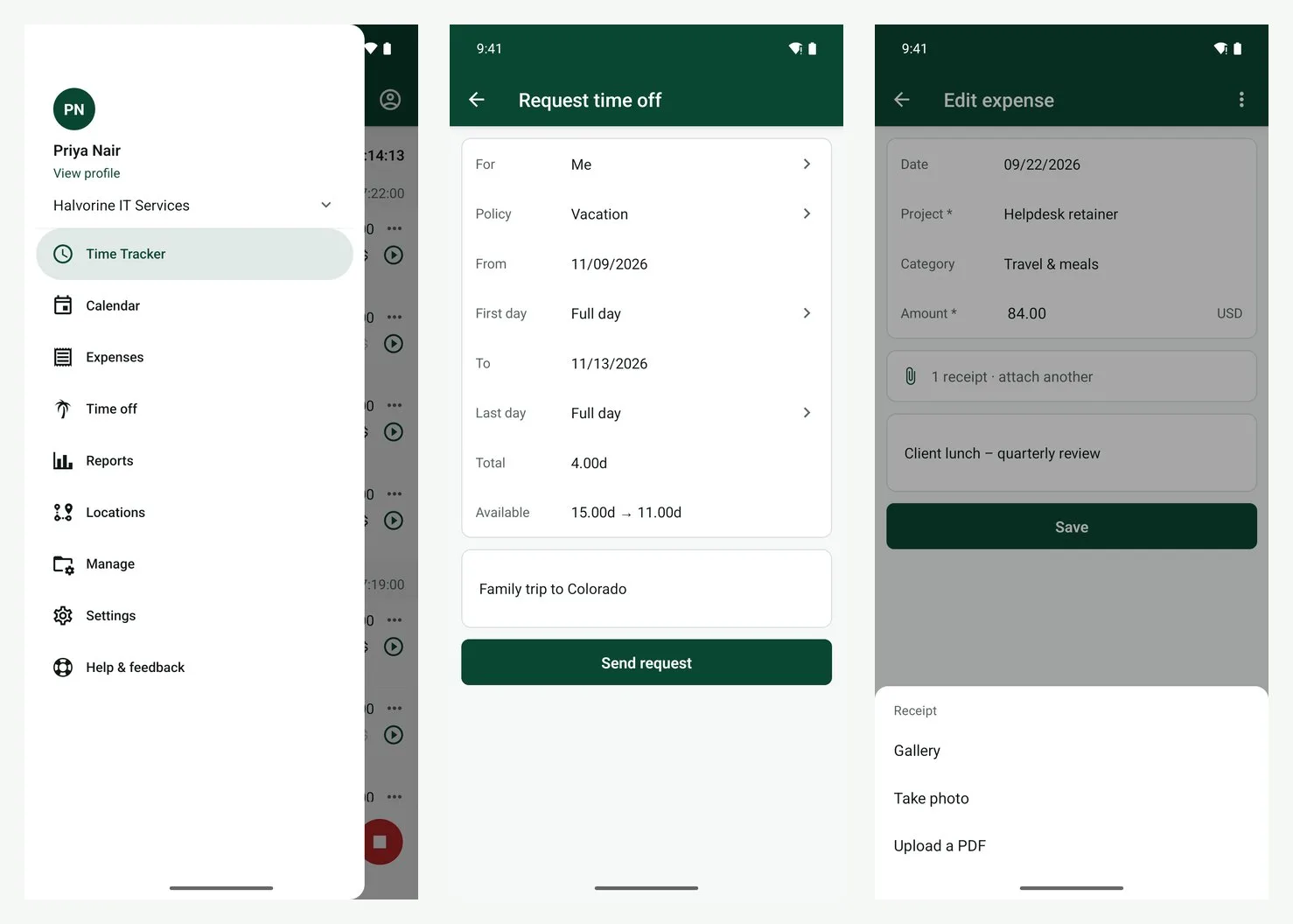
| Calendar | Your day as blocks. Hold and drag to move or stretch an entry. Events from a connected Google or Outlook calendar can be turned into a timer or an entry. |
| Expenses | Add an expense and attach the receipt from the camera, the gallery or a PDF. Submit the week. |
| Time off | Request leave, see your balance, and see who is off. Approvers can approve and reject here. |
| Reports | The Summary report, with grouping, filters and export. |
| Locations | Shown when the workspace records location. See Location tracking. |
| Manage | Look up projects, clients, tags and the team, and add new ones where you are allowed. |
| Settings | Offline mode, connected calendars, and reminders to start and stop tracking at set times. |
| Help and feedback | Contact support, share feedback, or email us. |
Your profile, reached from the top of the menu, holds the date and time format, your kiosk code if the workspace uses them, the devices you are signed in on, and Log out.
Without signal
Time tracking keeps working. Changes are saved on the phone and sent when you are back online. Unsent entries are listed under Unsynced. A timer started online can be stopped offline.
What needs the web
- The weekly Timesheet grid.
- Approving other people’s timesheets.
- The Schedule board, invoices and kiosks.
- The Dashboard, and the Detailed, Weekly and Attendance reports.
- Editing or deleting projects, clients, tags and team members.
- Workspace settings and the subscription.