
What Punchly is
Punchly is a time tracking tool for teams. People record the hours they work against a project and a client. Managers see where the time went, approve it, and bill it.
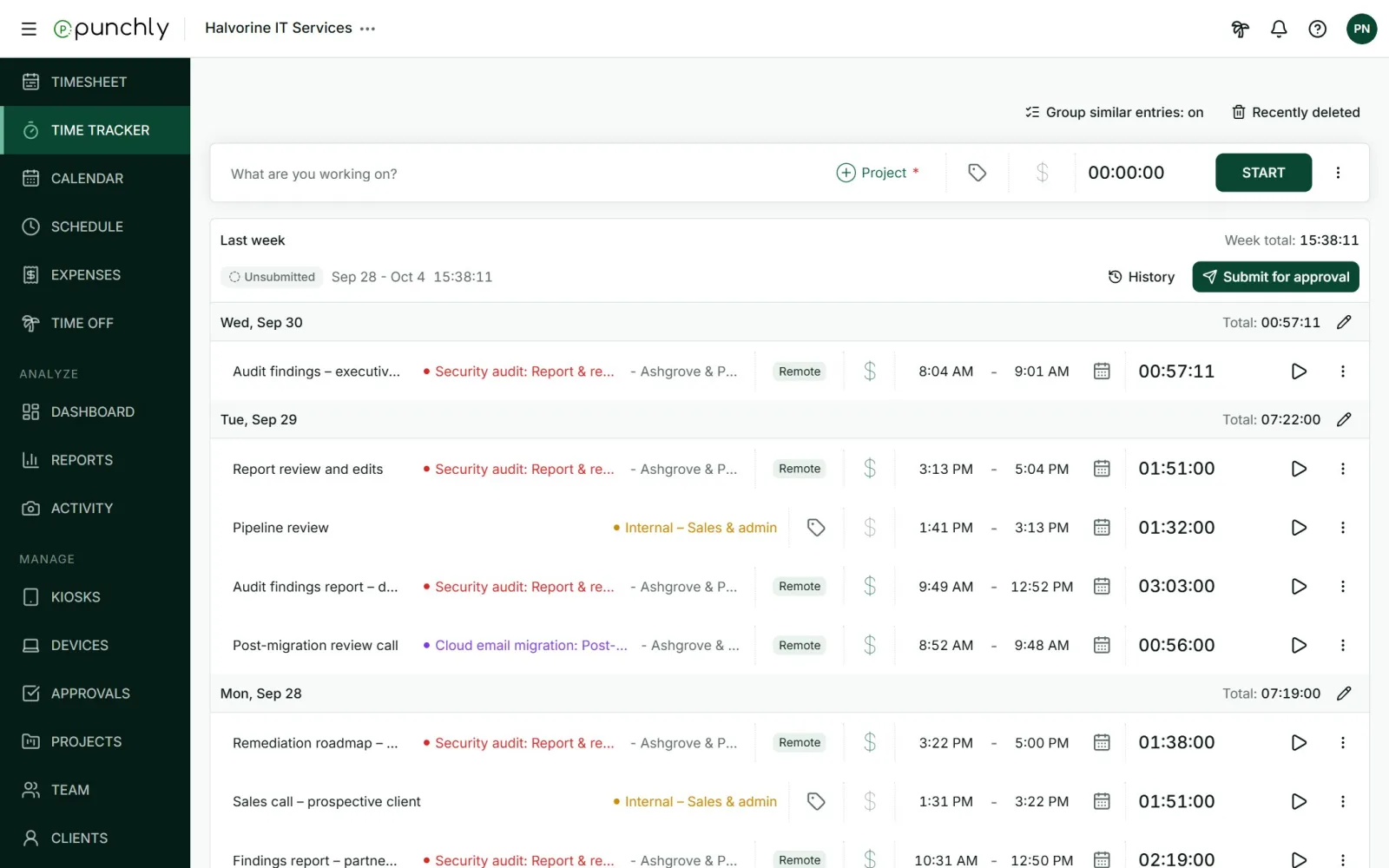
What a company does with it
- Sets up the work. Clients, projects, tasks and tags, with hourly rates where time is billed.
- Brings in the team. People are invited by email and join in a minute.
- Tracks time. With a start and stop timer, by typing hours into a weekly timesheet, or on a calendar.
- Checks and approves. People submit their week and a manager approves it.
- Reports and bills. Dashboards and reports show hours and money by project, client or person. Billable hours and expenses can go onto an invoice.
What is in the menu
| Group | Screens | What they are for |
|---|---|---|
| Daily work | Timesheet, Time tracker, Calendar, Schedule, Expenses, Time off | What every team member uses: record time, see their plan, claim expenses, ask for leave. |
| Analyze | Dashboard, Reports, Activity | See where time and money went. |
| Manage | Kiosks, Devices, Approvals, Projects, Team, Clients, Tags, Invoices, Audit log | Set up and run the workspace. Mostly for owners, admins and managers. |
A member sees fewer of these than an owner does. What each role sees is covered in Roles: who can do what.
Where people use it
- In a web browser, at app.punchly.work. Everything is available here.
- The desktop app, for Windows and Mac. For tracking time without keeping a browser tab open.
- The phone app, for Android and iPhone. For tracking on the move.
- A kiosk. A shared tablet or screen at a workplace, where staff clock in and out with a PIN or a QR code. They do not need an email address.
Words used throughout this guide
| Workspace | One company’s space in Punchly. Its people, projects, time and settings all live inside it. One person can belong to several workspaces. |
| Member | A person in a workspace. |
| Client | The customer the work is for. |
| Project | A piece of work, usually for one client. Time is tracked against projects. |
| Task | A smaller part of a project. |
| Tag | A label for sorting time, such as “Remote”. |
| Time entry | One block of recorded time: what, which project, from when to when. |
| Billable | Time that the client pays for. Shown with a $ sign. |