
Sign up and create a workspace
The first person from a company signs up, names the workspace, and becomes its owner. It takes about a minute and needs no password.
Who does this
The person setting Punchly up for the company
What they need
A work email they can open
What they get
A workspace on a 7-day trial
Steps
- Open app.punchly.work and choose Sign up.
- Choose Continue with Google or Continue with Microsoft, or type an email address and press Continue with email.
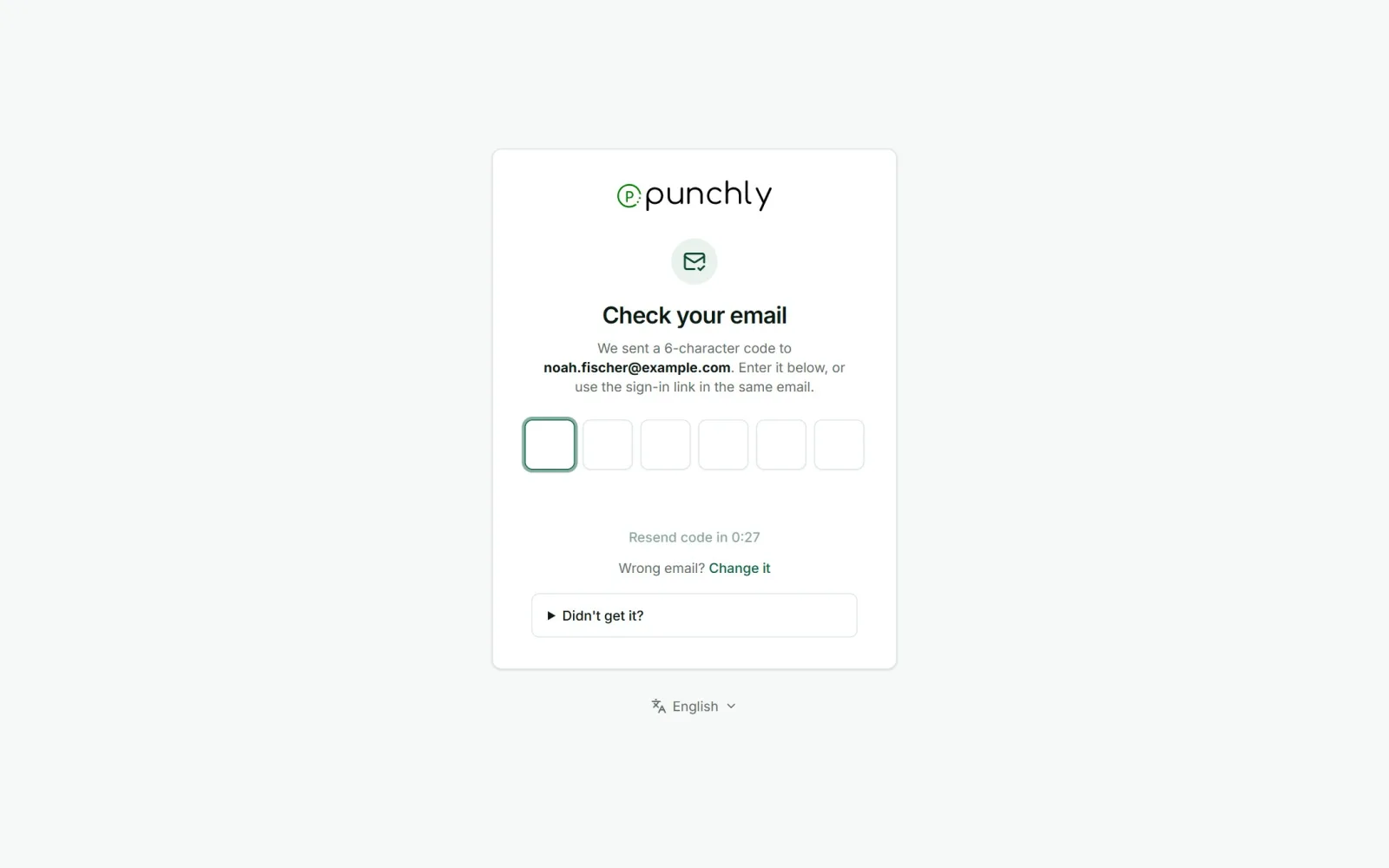
- With email, Punchly sends a 6-character code. Type it in, or click the sign-in link in the same email.
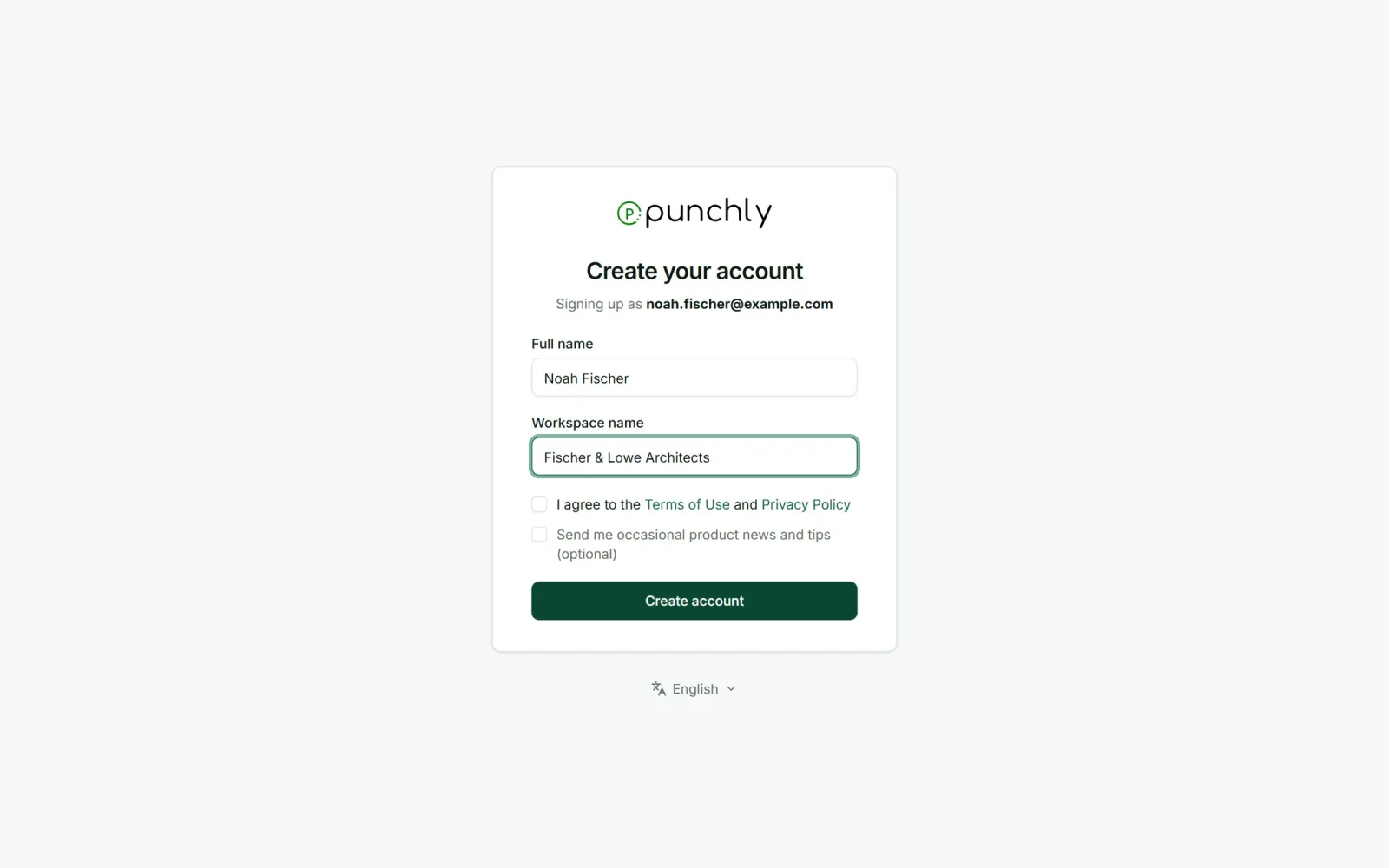
- Enter your full name and a workspace name (usually the company name), agree to the terms, and press Create account.
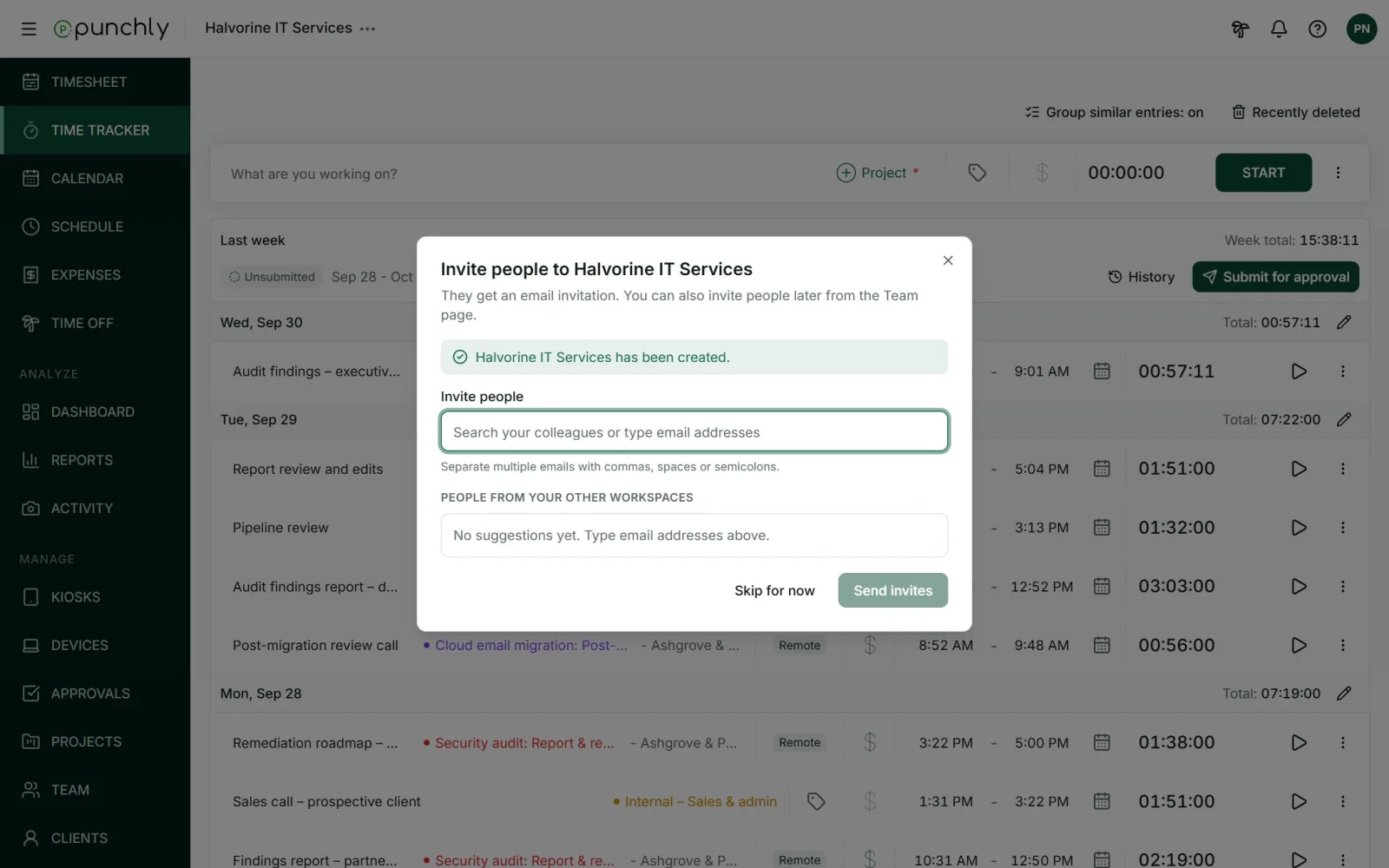
- Punchly opens the new workspace and offers to invite people straight away. You can skip this and do it later.
Good to know
- There are no passwords. People sign in with Google, Microsoft, or a code sent to their email.
- The code lasts 30 minutes. A new one can be requested after 30 seconds. If it does not arrive, the screen suggests checking the spam folder.
- The person who signs up is the owner. There is one owner per workspace. Ownership can be passed to someone else later, in Workspace settings.
- Someone who was already invited should not sign up this way. They should use the link in their invitation email, so they join the company’s workspace and do not create a second one. If they do sign up with the invited email, Punchly shows the waiting invitation and lets them join it.