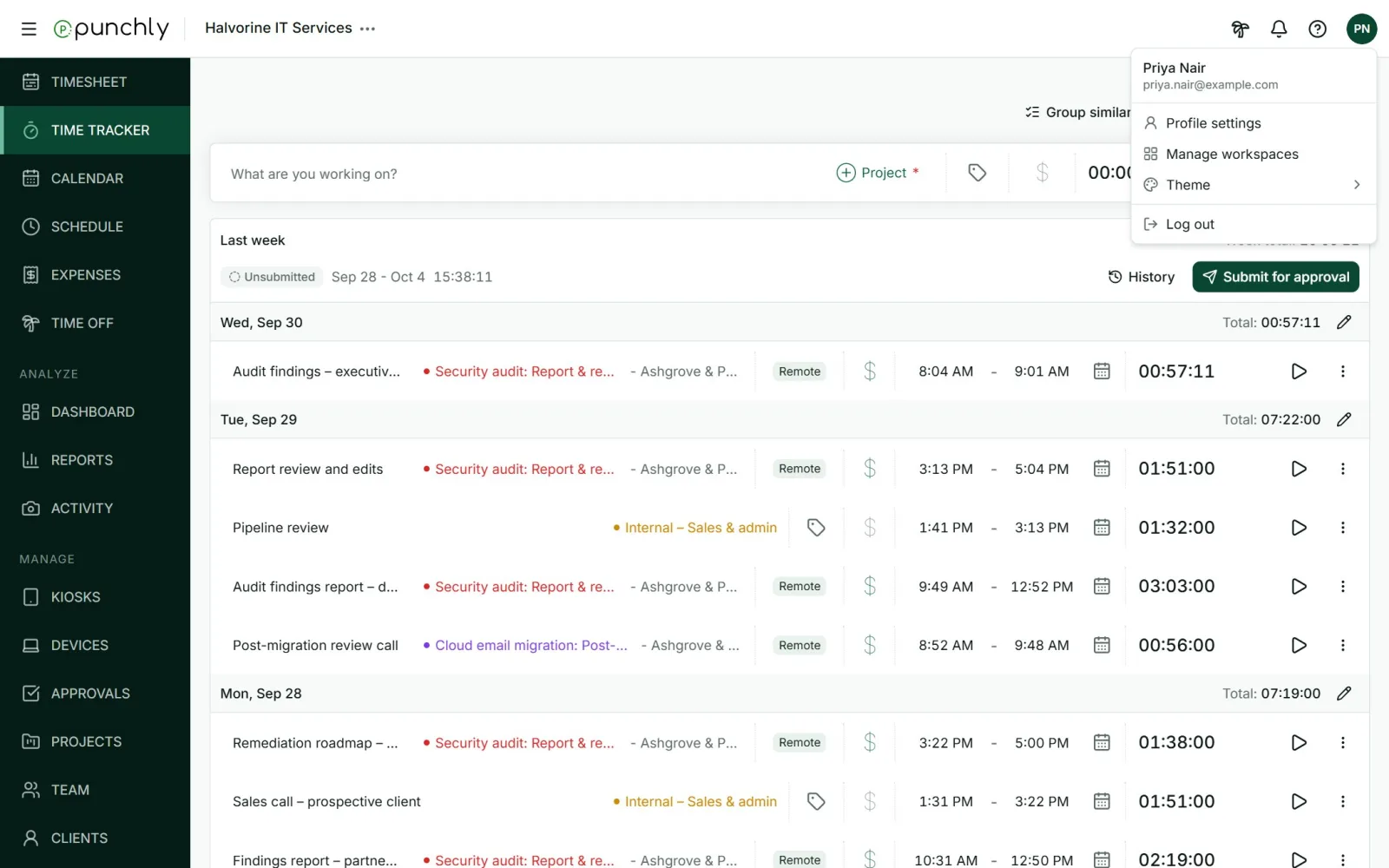
A tour of the screen
Every screen has the same frame: the menu on the left, and a bar across the top with the workspace name, notifications, help and your account.
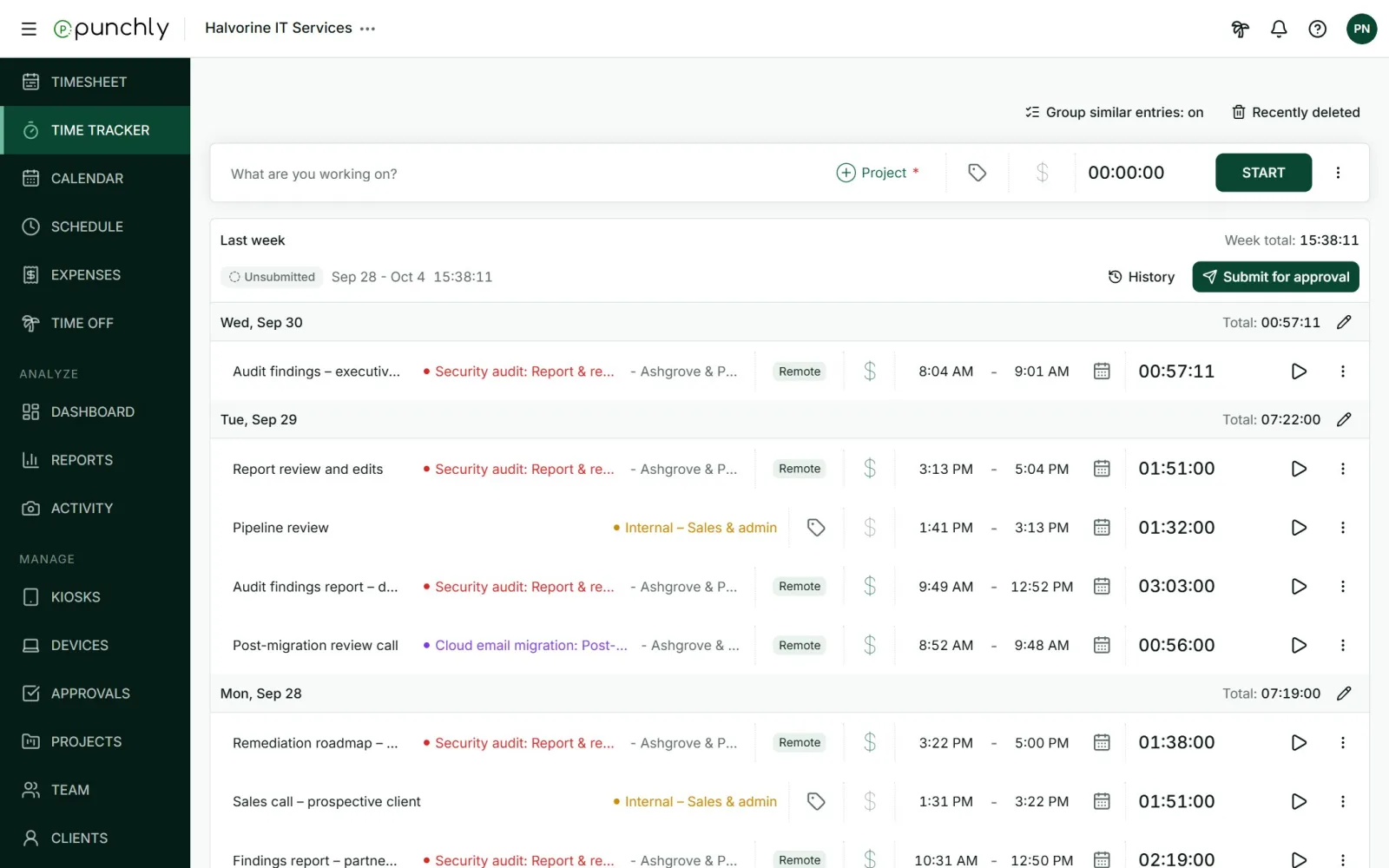
The menu on the left
It lists every screen the person is allowed to open. The three-line button at the top left folds it away to give more room.
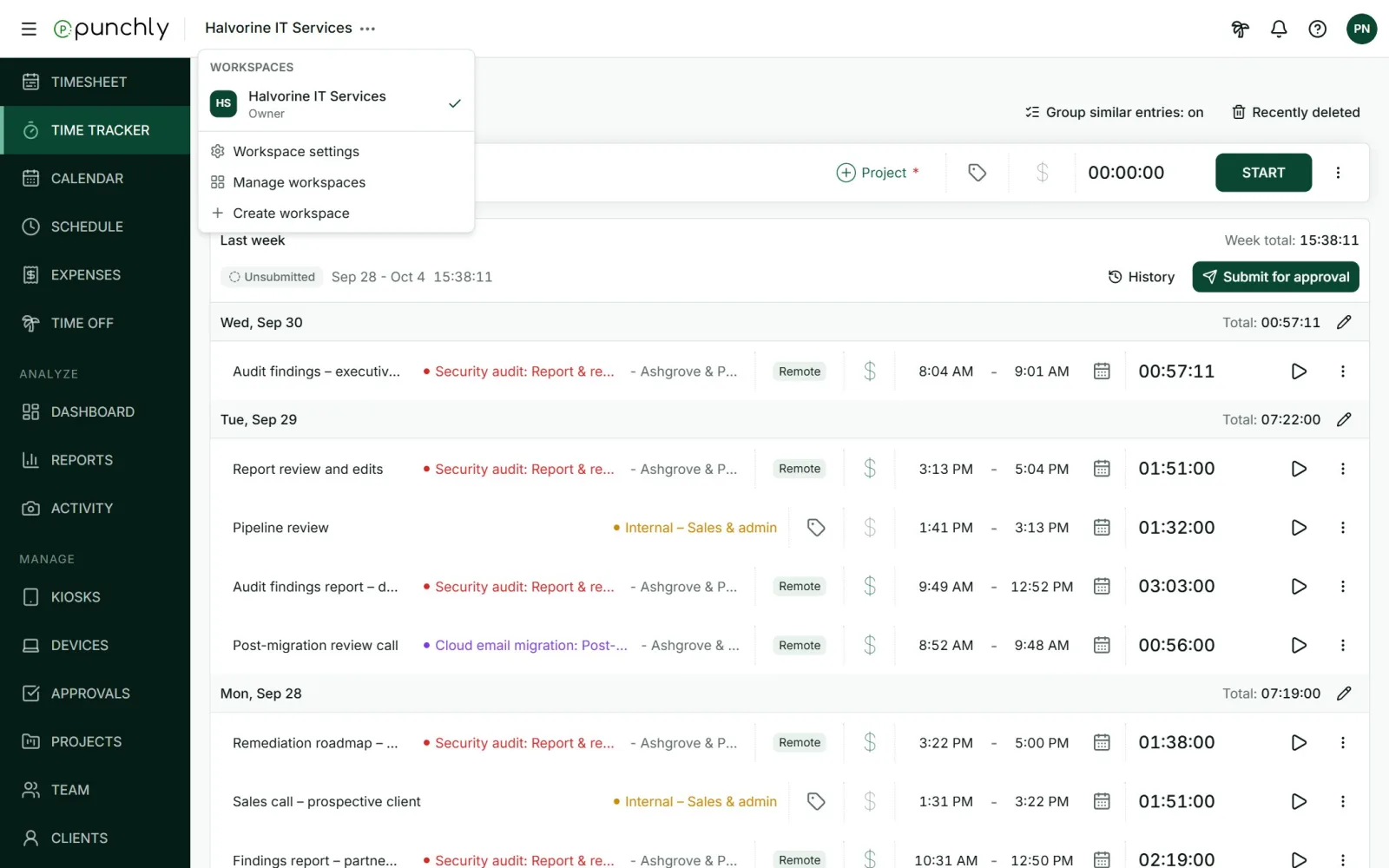
The workspace name
Click the workspace name at the top to switch to another workspace, open Workspace settings, or create a new workspace.
The buttons at the top right
| Button | What it does |
|---|---|
| Palm tree | Ask for time off without leaving the screen you are on. |
| Bell | Notifications, such as an invitation to another workspace or a timesheet waiting for approval. |
| Question mark | Contact support, share feedback, and What I can do here. |
| Your initials | Profile settings, Manage workspaces, light or dark theme, and Log out. |
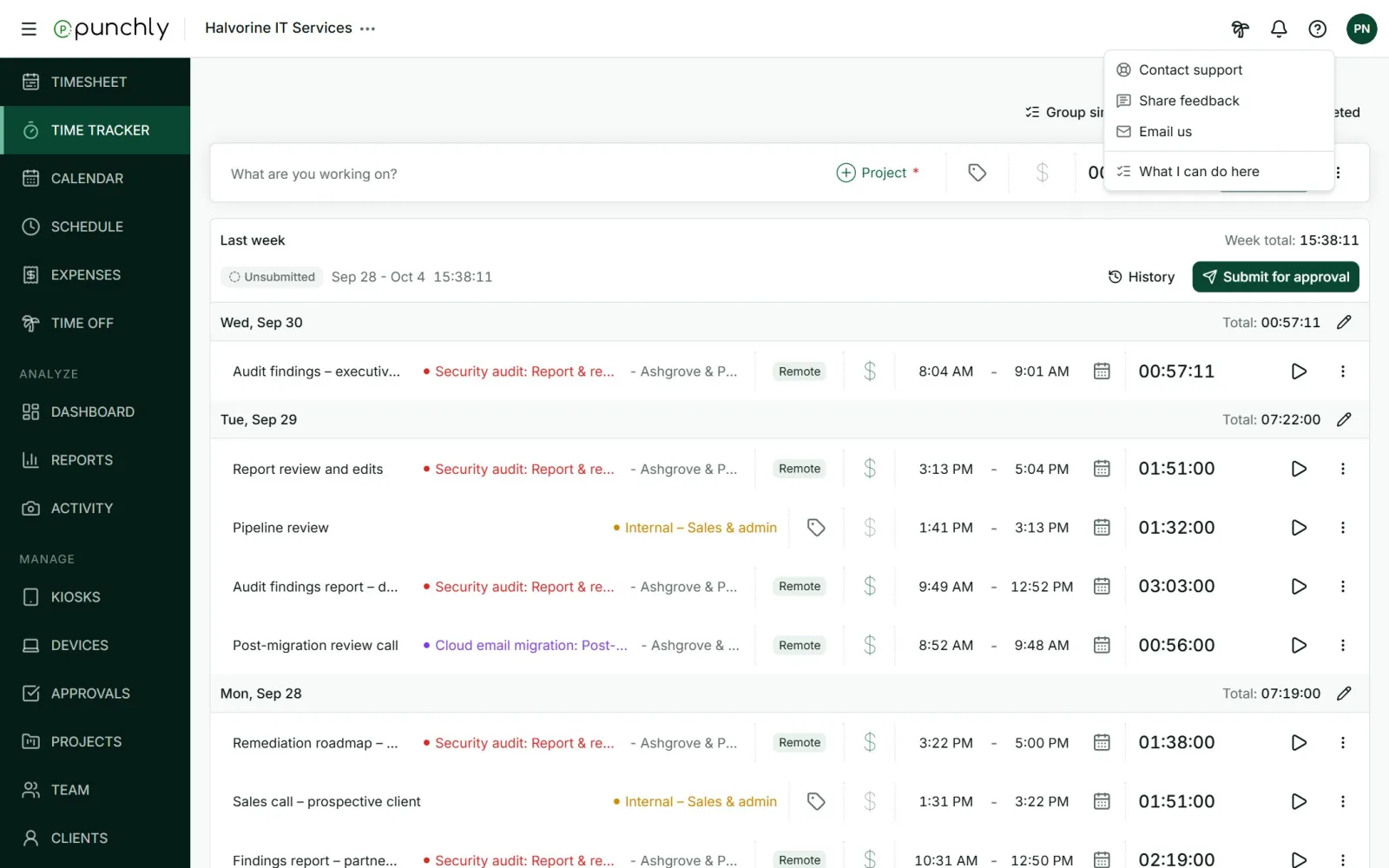
Can’t find a button? Open What I can do here. It lists exactly what your role allows in this workspace.