
Track your first hours
There are two everyday ways to record time. Run a timer while you work, or type your hours into the weekly timesheet afterwards.
With the timer
- Open Time tracker.
- Type what you are working on.
- Pick a project. A red star beside Project means the workspace requires one.
- Press Start. The clock counts up.
- Press Stop when you finish. The time appears in the list below.
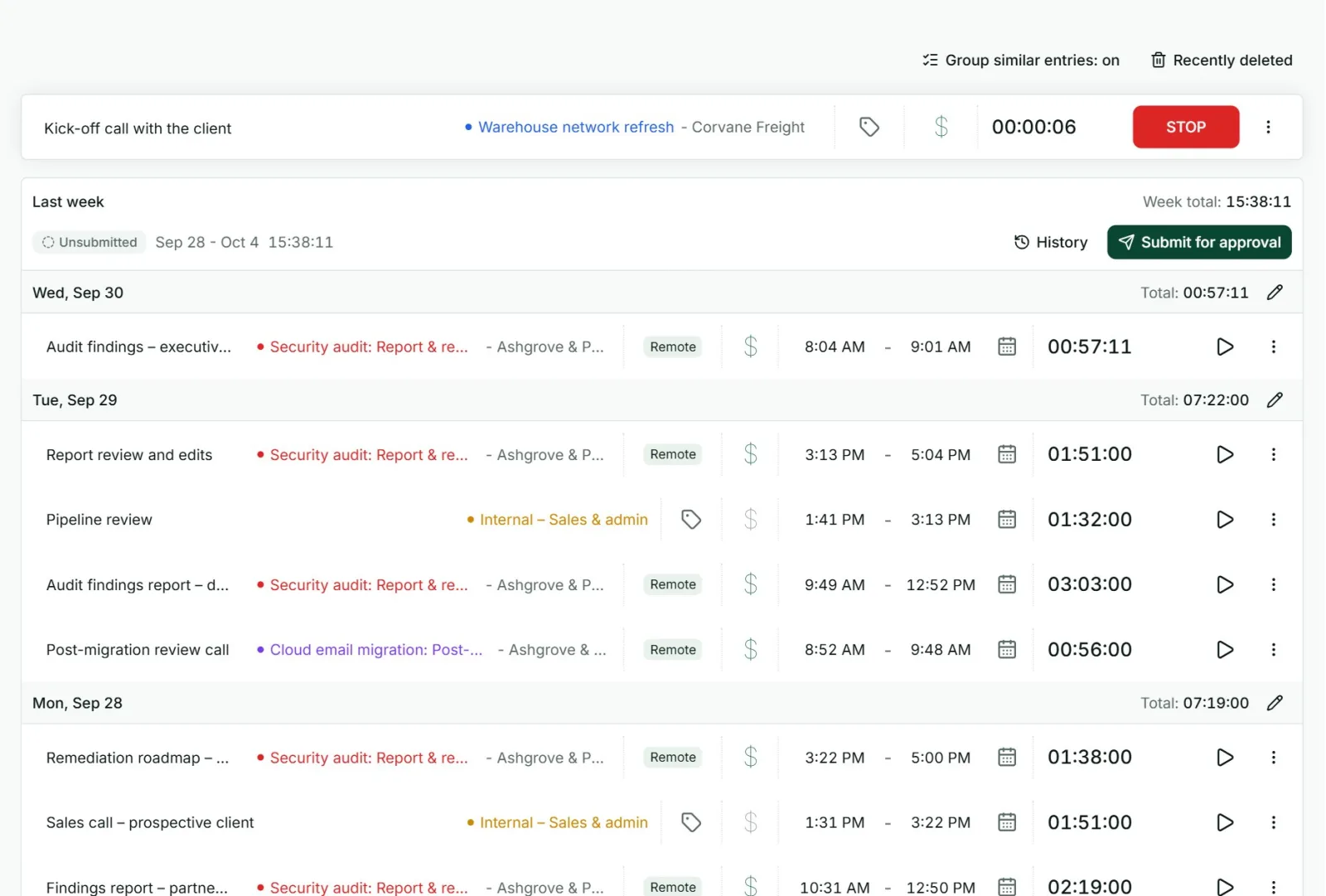
- The play button on an earlier entry starts a new timer with the same details.
- The three dots beside Start open more options, including Manual mode for typing a start and end time by hand.
- Only one timer runs at a time. Starting a new one stops the one that was running.
With the timesheet
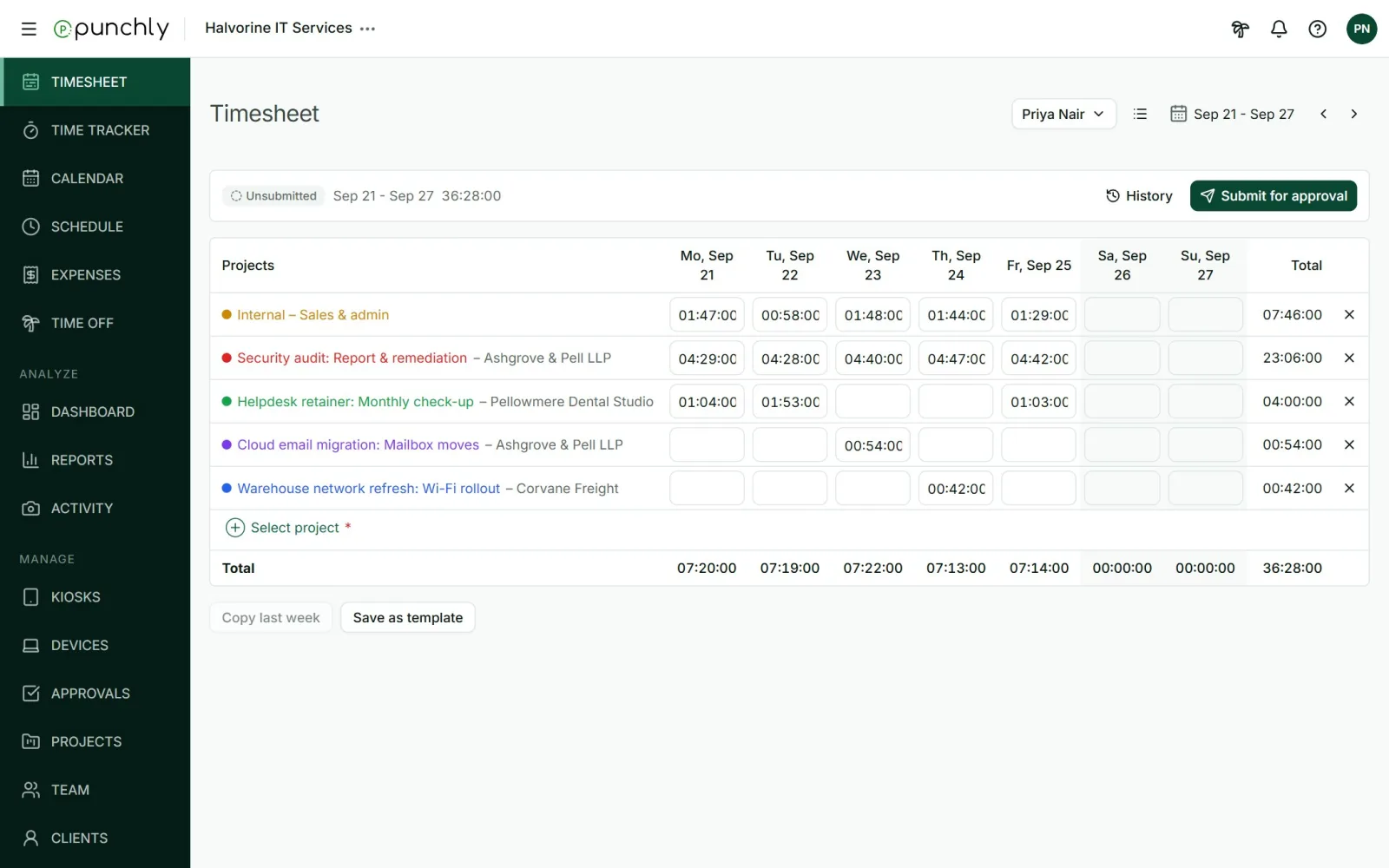
- Open Timesheet.
- Add a row for each project.
- Type the hours under each day.
Rules worth knowing early
- A running timer is not in reports yet. Reports and the dashboard count time only after the timer is stopped.
- While a timer runs, time cannot be added by hand. Stop the timer first.
- The workspace can make fields required, such as project or description. An admin sets this.
- The workspace can switch off typing time by hand, so that people can only use the timer. An admin sets this too.
The Track time section covers each of these in detail.